Configuration
Each service in the Maivin and Raivin platforms has its own configuration. This section describes the various settings pages and what they do. The root Settings Page can be reached by clicking the rightmost gear icon on the top ribbon of any page of the Maivin or Raivin web-interface.
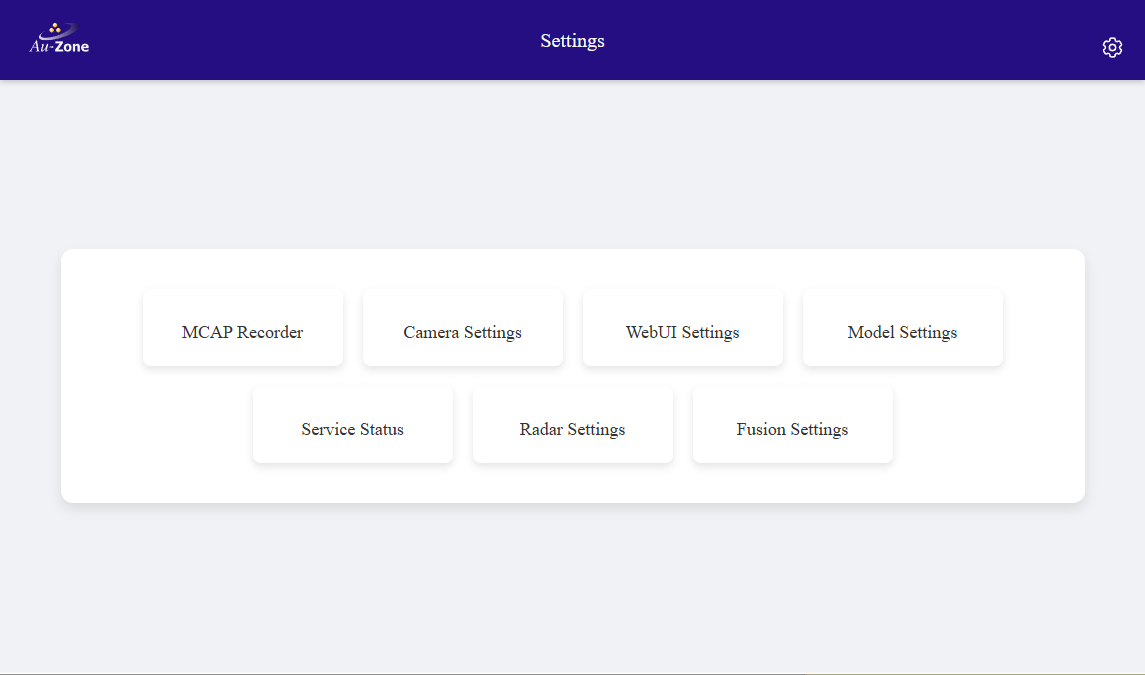
The Settings page links to the following pages.
| Settings Page | Service | Configuration File |
|---|---|---|
| Camera Settings | camera |
/etc/default/camera |
| Model Settings | model |
/etc/default/model |
| MCAP Recorder | recorder |
/etc/default/recorder |
| Radar Settings | radarpub |
/etc/default/radarpub |
| LiDAR Settings | lidarpub |
/etc/default/lidarpub |
| Fusion Settings | fusion |
/etc/default/fusion |
| Service Status | all | |
| EdgeFirst Studio | websrv |
Login to EdgeFirst Studio for uploading recordings |
Every settings page has a "Save Configuration" button at the bottom of the page. If you make changes, click this button to save them. Saving rewrites the configuration file and restarts the service, the page reports whether the service restarted successfully and lists any key that was rejected or could not be matched to the configuration file.

Configuration Files
Each service reads its configuration from a file under /etc/default/ named after the service, for example /etc/default/camera for the camera service. The files are loaded by systemd as an EnvironmentFile, every variable maps to a command-line option of the service with the same name in lower-case and dashes in place of underscores. Running a service manually from the command line does not read the file, the equivalent command-line options or environment variables must be provided instead.
The files follow the systemd EnvironmentFile syntax:
- Lines beginning with
#or;are comments. - One
KEY="value"pair per line with no spaces around the=sign. - Quotes are optional and are stripped by systemd.
- A key set to an empty value,
KEY="", is treated as unset and the built-in default applies.
The files can be edited over SSH with the vi text editor, for example sudo vi /etc/default/camera edits the camera configuration. Restart the service afterwards with sudo systemctl restart camera. The shipped defaults for every service are kept under /usr/etc/default/ for reference.
Warning
Prefer the Web UI settings pages over manual edits. Configuration files persist across OSTree updates, so a file you have edited keeps your version and does not pick up keys added by a newer release. Compare against /usr/etc/default/<service> after an update.
Restore Default Settings
You can restore the factory default settings of the Maivin/Raivin with the command sudo cp -a /usr/etc/default/. /etc/default/ followed by a reboot.
Services
On Maivin and Raivin devices, system services are managed by systemd. This means all core components, such as camera capture, model inference, sensor publishing, and recording, run as systemd services in the background. The services are grouped under the maivin.target systemd target which starts them together after boot. The previous raivin.target name remains available as an alias of maivin.target.
Each service is provided by the open source EdgeFirst Perception Middleware as an edgefirst-<service> binary. Torizon for Maivin installs each unit under its short name and provides a matching /usr/bin/<service> alias for the binary.
| Service | Auto-Start | Description |
|---|---|---|
camera.service |
enabled | Camera capture through the i.MX 8M Plus ISP, H.264 and JPEG encoding |
model.service |
enabled | Vision model inference on the NPU |
imu.service |
enabled | IMU orientation, angular velocity, and linear acceleration |
navsat.service |
enabled | GPS position from gpsd |
websrv.service |
enabled | Web server hosting the Web UI and the configuration API |
fusion.service |
disabled | Radar and LiDAR sensor fusion with the vision model (Raivin) |
radarpub.service |
disabled | Radar point cloud and radar cube publisher (Raivin) |
lidarpub.service |
disabled | LiDAR point cloud publisher (Raivin) |
recorder.service |
disabled | MCAP recorder, started from the Web UI recording button |
replay.service |
disabled | MCAP replay, started from the Web UI MCAP dialog |
zenohd.service |
disabled | Zenoh router allowing remote clients to reach the device topics |
Services enabled by default form the base Maivin perception stack. The radar, LiDAR, and fusion services are enabled during provisioning of Raivin configurations. The recorder and replay services are controlled by the Web UI and do not need to be enabled unless recording on boot is desired.
Using systemctl, you can control how these services run, whether they start automatically on boot, and inspect their current state.
Controllable in the Web UI
These services can also be controlled through the Service Status page of the Web UI.
-
Stop a service:
sudo systemctl stop <service> -
Start a service:
sudo systemctl start <service> -
Enable a service at boot:
sudo systemctl enable <service> -
Disable a service at boot:
sudo systemctl disable <service> -
Restart a service:
sudo systemctl restart <service> -
See the status of all middleware services:
systemctl list-dependencies maivin.target -
Disable Maivin-specific services (unloaded system):
sudo systemctl set-default multi-user.target
To view logs and timing information for a service use journalctl -u <service>, adding -f to follow the log live.
Zenoh Networking
Every service shares the same Zenoh networking options at the end of its configuration file. By default services run in peer mode and discover each other on the device using multicast scouting. Remote applications reach the device topics through the zenohd router, refer to the Developer Guide for enabling the router.
| Key | Default | Description |
|---|---|---|
MODE |
peer |
Zenoh participant mode, peer, client, or router |
CONNECT |
Zenoh endpoints to connect to, required when MODE is client, for example tcp/192.168.1.1:7447 |
|
LISTEN |
Zenoh endpoints to listen on | |
NO_MULTICAST_SCOUTING |
false |
Disable multicast discovery, use CONNECT and LISTEN instead |
RUST_LOG |
info |
Log level filter, refer to the RUST_LOG documentation |
TRACY |
false |
Enable the Tracy profiler broadcast |
The services publish their topics inside a Zenoh namespace equal to the device hostname, refer to Middleware Topics. Topic settings in the configuration files are written without the hostname, for example camera/h264.