Uploading Models
This walkthrough describes how to upload new 2D vision models and radar-vision fusion models to the Raivin.
Maivin Instructions
The examples below are based on a Raivin platform, however, the same instructions can be applied to a Maivin platform for uploading 2D vision models only.
Getting New Models
You can train models using EdgeFirst Studio, both Vision models and Fusion Radar models. Once the models are trained, they can be downloaded from their respective, completed training sessions. The Model service accepts quantized TFLite models with the EdgeFirst configuration embedded, which is how EdgeFirst Studio exports ModelPack and Ultralytics models for the i.MX 8M Plus.
The models shipped with the device are installed under /usr/share/edgefirst/modelzoo/ for the vision model and /usr/share/edgefirst/fusion/ for the EdgeFirst Fusion Models. These directories are part of the read-only operating system image, uploaded models are stored under the torizon user home directory instead.
Uploading Models to the Raivin
In the SCP section in the SSH Tutorial, files can be uploaded to the Raivin using the command:
scp input_file torizon@verdin-imx8mp-XXXXXXX:.
Note
The above command assumes you have an SSH client, such as OpenSSH, installed. Please review the SSH documentation to confirm.
For the following examples, we will have the Fusion model of fusion.tflite and the ModelPack model modelpack.tflite that we want to upload to target device verdin-imx8mp-07130049.
First, we need to upload the files to the Raivin target using SCP:
scp fusion.tflite torizon@verdin-imx8mp-07130049:.
scp modelpack.tflite torizon@verdin-imx8mp-07130049:.
We should be able to confirm the files are there by using commands via SSH.
$ ssh torizon@verdin-imx8mp-07130049 ls fusion.tflite modelpack.tflite
fusion.tflite  modelpack.tflite
These files will be the /home/torizon directory, so their absolute filenames will be /home/torizon/fusion.tflite and /home/torizon/modelpack.tflite. Once the files have been uploaded, we can then configure the device with the files.
Deploying a New Model to the Model Service
There are two ways to deploy a new, 2D model to the Raivin's Model Service: the Web UI Interface or via the command-line.
From the Raivin Web UI
From the Model Service Configuration page, enter the absolute filename /home/torizon/modelpack.tflite in the "MODEL" text-box. Hit the "Save Configuration" button, the page reports when the model service has restarted with the new configuration.
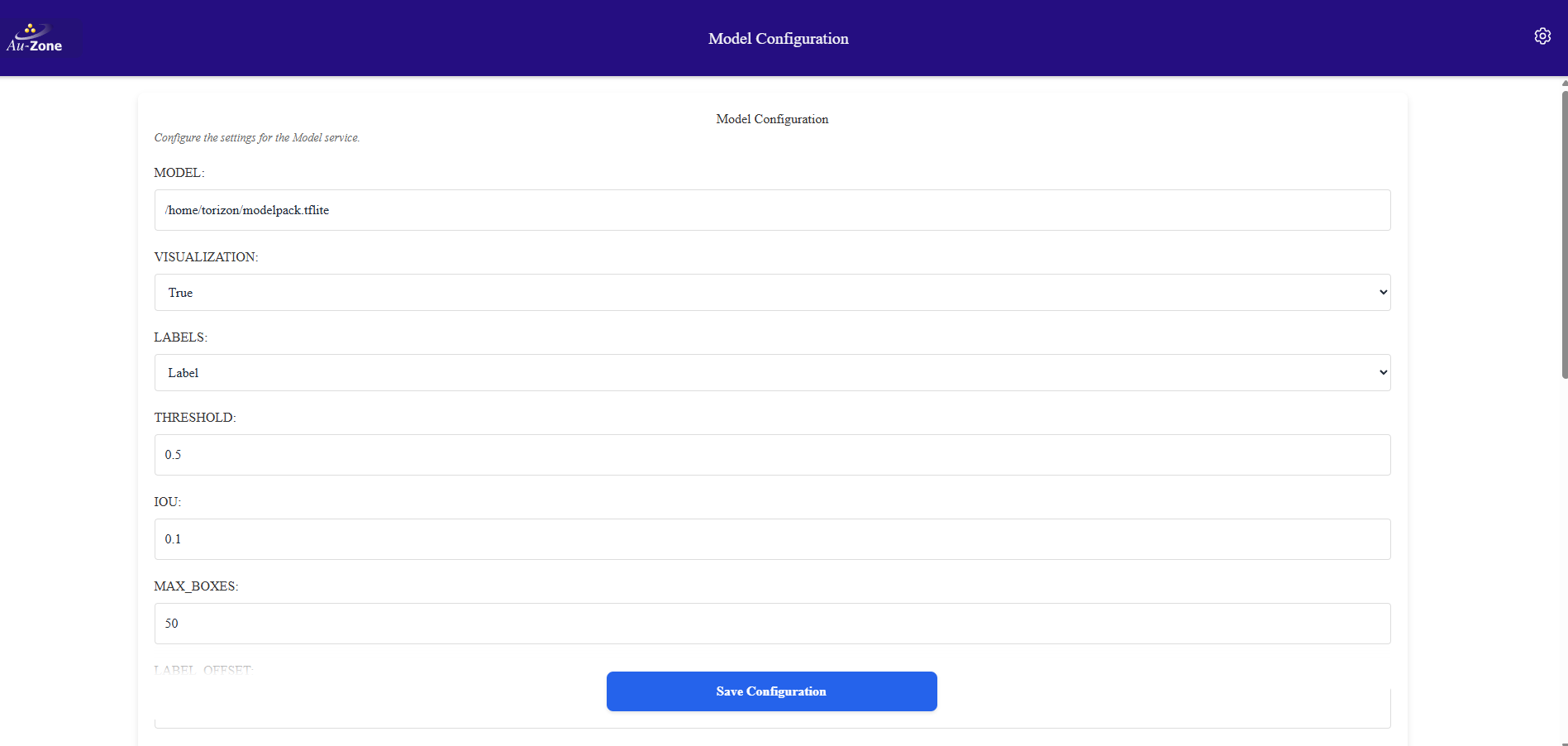
Remember to save the configurations at the end of the process. The Model Configuration page can be accessed via the following url:
https://verdin-imx8mp-xxxxx/config/model
Manual Model Deployment
In case the manual deployment is needed, you need to connect to the device via SSH:
ssh torizon@verdin-imx8mp-15141030
and edit the model parameters in /etc/default/model
sudo vi /etc/default/model
then restart the model service using the systemctl command
sudo systemctl restart model
Note
Remember to use sudo to edit the configuration and to restart the model service.
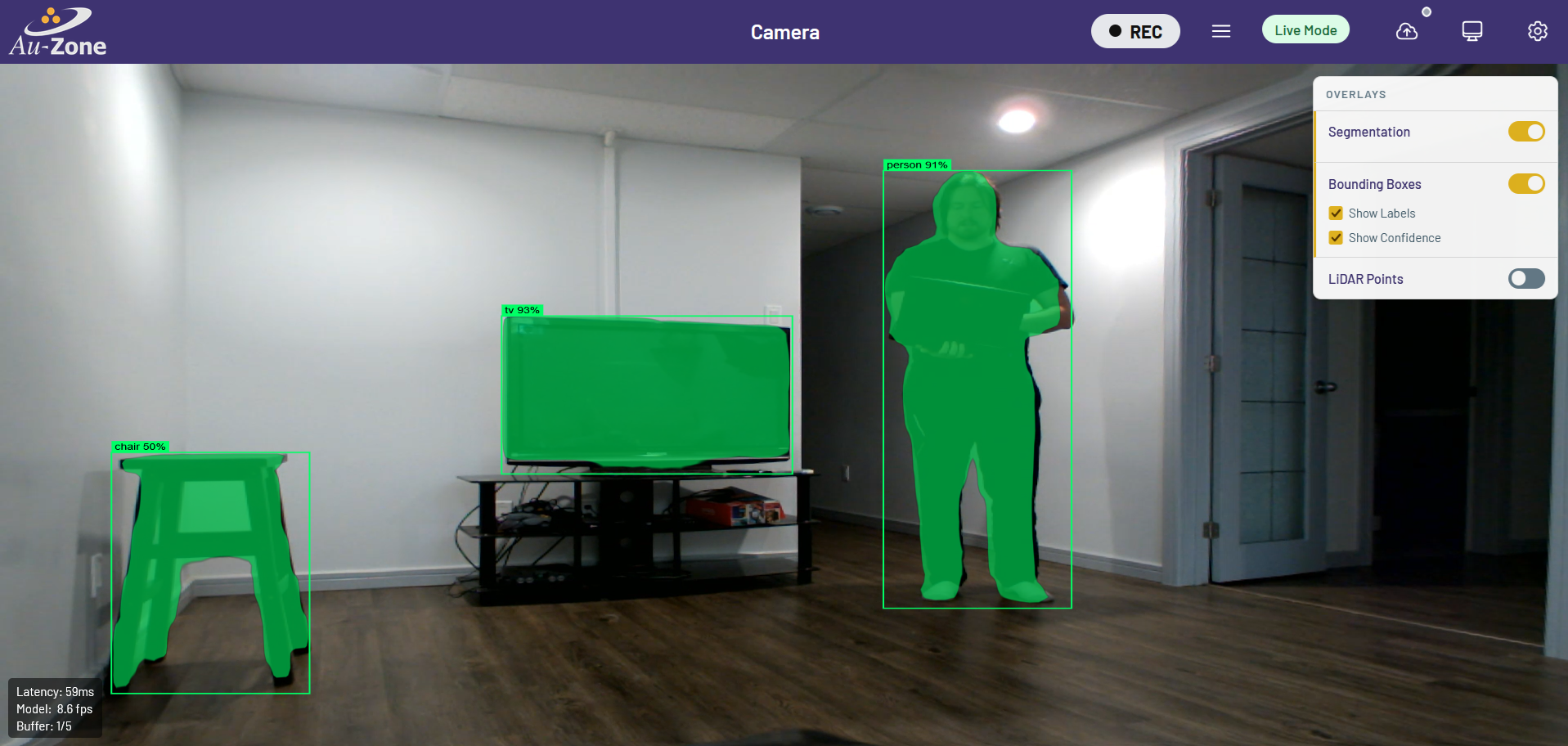
Now that the model is running, open the Raivin's Web UI, go to the Camera Page, enable the segmentation overlay, and check the camera to see the model's detections.
Deploying a New Model to the Fusion Service
The Fusion Service model can be configured from the "The Radar model" field of the Fusion Settings page, or by SSH into the device and editing the /etc/default/fusion file, using the following the command:
sudo vi /etc/default/fusion
Change the model line to point to the new Fusion model /home/torizon/fusion.tflite. The fusion model pipeline is disabled while this setting is empty, the EdgeFirst Fusion Models shipped with the Raivin are available under /usr/share/edgefirst/fusion/.
# Path to the radar-camera fusion model (TFLite).
MODEL="/home/torizon/fusion.tflite"
#MODEL="/usr/share/edgefirst/fusion/radarexp-ultra-short.tflite"
The fusion model requires the radar cube to be enabled on the radar publisher. After that, restart the Fusion Service using the following command:
sudo systemctl restart fusion
Summary
At this point, the new models should be uploaded to the Raivin and you should be able to see the outputs on the Camera page with the segmentation overlay enabled and, for fusion models, on the Radar page.