MCAP Recording Service
Overview
The Recorder Service enables you to capture and store the middleware topics in MCAP format, providing a comprehensive recording solution for your Raivin system. This service acts as a data historian, collecting published topics from various services for later analysis, playback, and dataset creation in EdgeFirst Studio.
Maivin Instructions
The instructions below are based on a Raivin platform, however, the same instructions can be applied to a Maivin platform.
How It Works
When active, the Recorder Service:
- Discovers and records every topic published on the device, or only the topics selected in its configuration
- Embeds the message schemas in the MCAP file so the recording can be decoded by Foxglove Studio, EdgeFirst Studio, and the EdgeFirst Publisher without access to the device
- Records the timestamp of the publishing service rather than the receive time when the publisher provides one
- Compiles data into an MCAP-format recording under the configured storage location
- Automatically saves the file upon service termination
- Provides real-time recording status
The topics are recorded with the device hostname namespace stripped, so the channels in the MCAP file are named /camera/h264, /model/output, and so on. The zero-copy camera/frame topic is not recorded, the camera pixels are recorded from the camera/h264 stream.
The MCAP Modal
The MCAP Recording Service is managed on its own modal, which can be accessed by clicking the "MCAP Details" button on the top navbar of any Raivin Web UI Page.
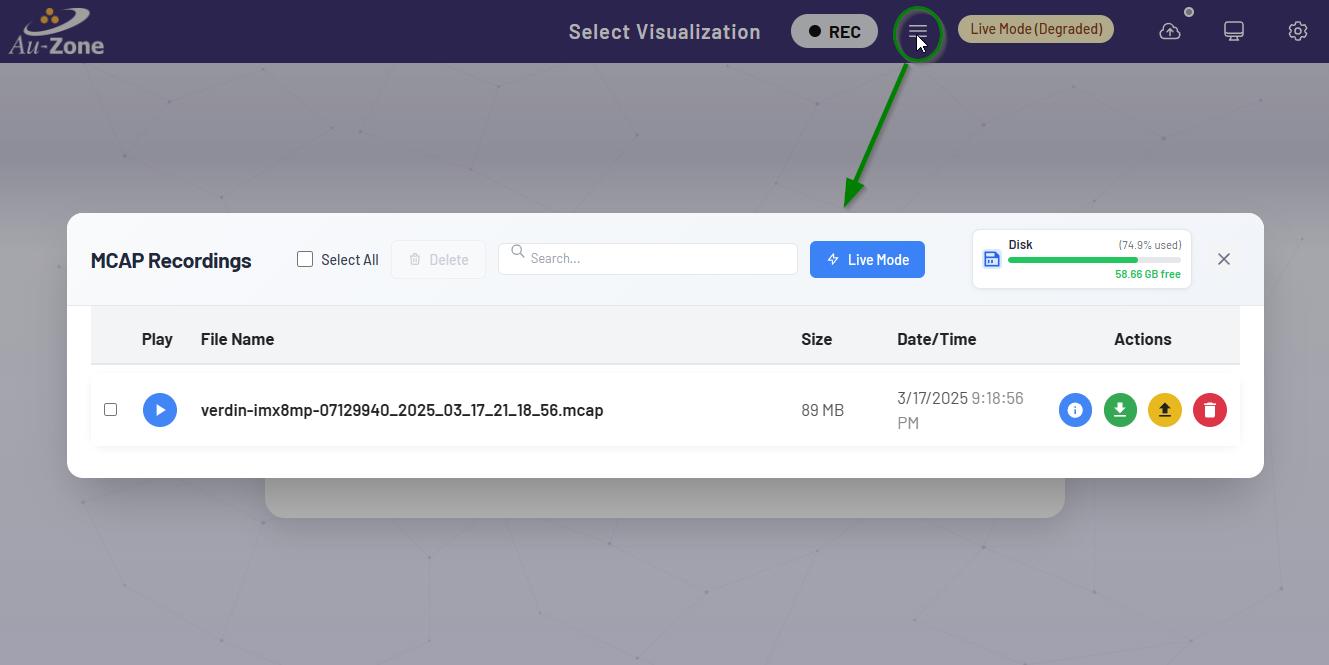
At the top ribbon of the MCAP Modal we have the title, the Disk Usage Infobar, and the "Live Mode" button. Under the ribbon, we have the Recording Toggle, which will start or end an MCAP recording. We also have the "Live Mode" button, which will take the Raivin out of "Replay Mode" and back to "Live Mode".
Underneath the MCAP navbar, we have the current MCAP recording directory, which is /home/torizon/recordings by default or /media/DATA when an SD card is configured as the storage location. Under this directory text, we have the "Search files..." textfield if we need to search for a specific file.
Under all of that, we have a list of MCAP files in the recording directory. For each MCAP file, the following elements and information exist, starting from left to right:
- A playback button
 . Clicking this will put the device into "Replay Mode", replaying the sensor information from this MCAP file.
 - The filename of the MCAP
- The size of the MCAP, in MB
- The creation date and time of the MCAP
- The Action buttons, which are:
- The "Info" button
 , which shows information about the topics recorded in the MCAP file (see below).
 - The "Download" button
 , which will download the MCAP file to your local machine.
 - The "Upload" button, which uploads the MCAP file to EdgeFirst Studio as described in Publishing.
- The "Delete" button
 , which will remove the MCAP file.
- The "Info" button
Recordings are deleted one at a time, the notification names the deleted file so several deletions in a row stay readable. To leave the MCAP Modal, click the "X" close button in the top right corner of the modal.
Record MCAP
MCAP recordings can be started and stopped using the Recording Button at the device's top navbar. It is to the left of the MCAP Details hamburger button, which is used to open the MCAP Details Modal.

Both of these buttons are available on every page of the Maivin, Raivin, and other edge devices running the EdgeFirst middleware.
Note
You must close all modals to be able to click the "Recording" and "Details" Buttons.
For more information about recording MCAPs, please read the MCAP Recording section.
Start Recording
To start a recording, simply click the "Recording" button to begin capturing data.

Note
It may take up to 30 seconds for a recording to start, depending on topic tracked.
Low Disk Space
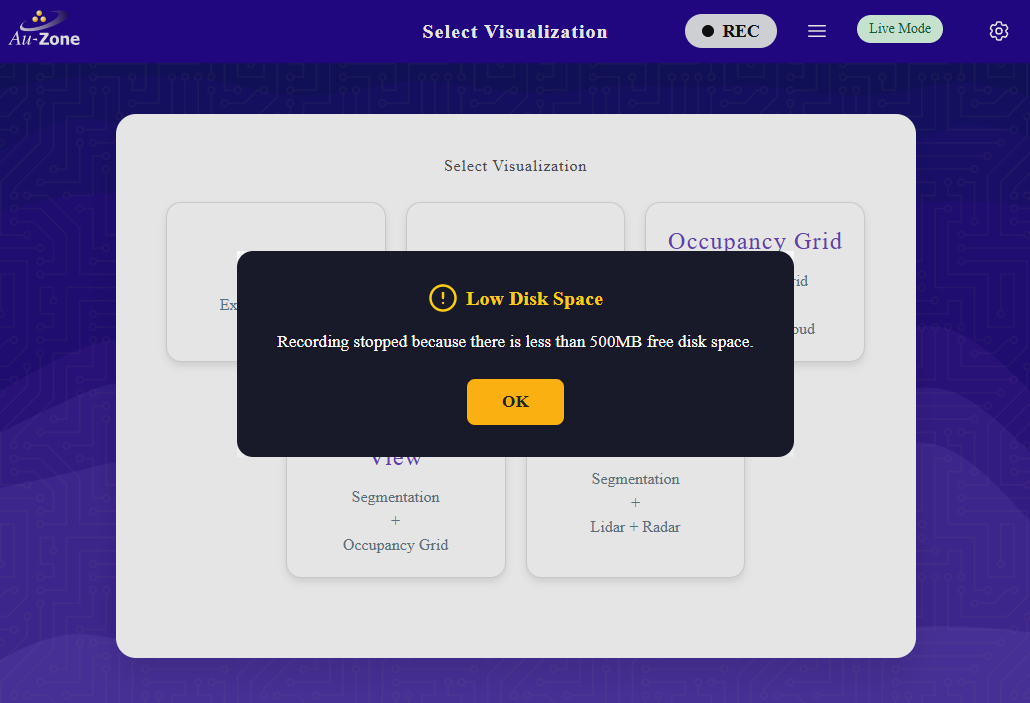
If there is not enough room on the drive to record an MCAP, recording will automatically stop and you will get a "Low Disk Space" error.
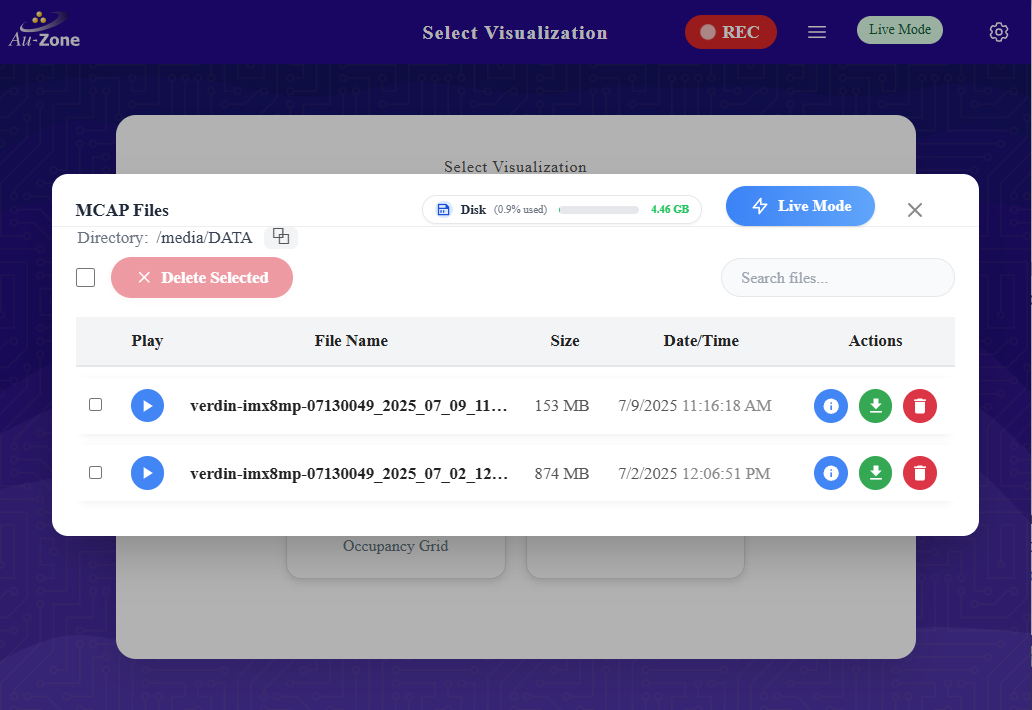
If you were to open the MCAP Details Modal while recording, you would see a new MCAP file in the MCAP list.
Stop Recording
To stop recording, click the "Recording" button a second time.
Download MCAP
To download an MCAP recording from the device, click the MCAP Details hamburger button  to open the MCAP Details Modal.
Use the "Download" button in the row containing the name of the MCAP file you want to download, which will download the MCAP file to your local machine.
You can also use an SSH client to copy files off the Raivin.
Managing Recordings
Once a recording is complete, you can see the size in MB of the captured data on the MCAP page. You can also get more detailed metadata, such as the topics recorded, by clicking the "Details" button for the MCAP recording.
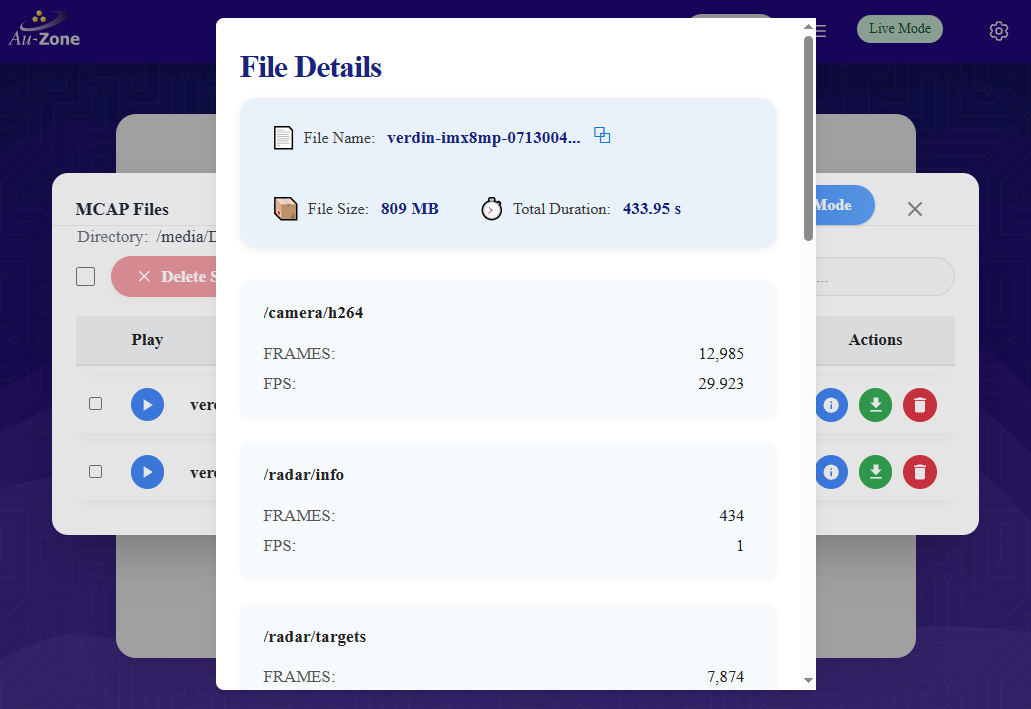
The details modal contains the filename, size, duration in seconds, and a list of each topic captured with frame count and frames per second of data for the topic.
At the bottom of the "File Details" modal, there is a "Close" button to close the modal.
Note
MCAP recording file names are saved in hostname_YYYY_mm_DD_HH_MM_SS.mcap format, where:
- hostname is the hostname of the device, e.g.
verdin-imx8mp-071744901 - YYYY_mm_DD is the zero-padded year, month, and day that the recording was started
- HH_MM_SS is the UTC time the recording started in 24-hour notation
Any MCAP recording can be deleted by clicking its "Delete" button and confirming that you wish to delete the recording.
The mcap command line tool is also installed on the device for inspecting recordings over SSH, for example mcap info recording.mcap lists the channels, schemas, and message counts.
Configuration
The Recorder Service can have the following settings configured:
- Which topics to record, all published topics by default
- Location of the recording file
- Recording compression
- Maximum recording duration
- Radar cube frame rate limit
These settings can be configured in the MCAP Recorder Settings Page.
Recording On Boot-up
The Recording Service can be set up to automatically start on boot-up.
Warning
Having the Recording Service run for prolonged periods of time will fill the storage of the Raivin. Use this functionality with caution and consider setting a maximum duration.
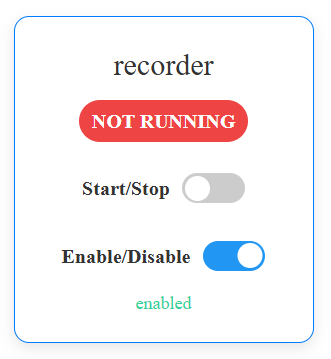
On the Services Status page, you can use the Recorder Service status card to enable the recorder service to start on boot.
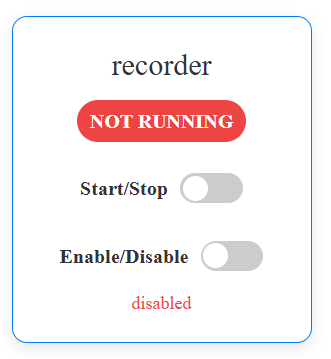
Flip the Enable/Disable switch to enable to enable the Recorder Service on boot.
Note
You can start and stop the Recording Service here as well as on the MCAP Recording Page by flipping the Start/Stop switch.
Next Steps
Now that you have your MCAP, there are many things you can do with it, such as:
- Use Foxglove Studio to view the downloaded MCAP, especially with some advanced Foxglove understanding
- Use the Replay Service to view the recorded MCAP on the device
- Publish the MCAP to EdgeFirst Studio