Publishing
EdgeFirst Client
For the full MCAP snapshot workflow (create-snapshot, restore-snapshot), see the EdgeFirst Client CLI.
Once you have a MCAP created from the Recording Service, you can upload it as a dataset to EdgeFirst Studio to auto-annotate and train additional models from. There are three methods to upload the MCAP to EdgeFirst Studio: upload the MCAP directly from the Web UI of the device, download the MCAP from the Raivin and use EdgeFirst Studio to create a snapshot, or use the EdgeFirst Client on the Raivin device to directly upload the file from the Raivin to the Studio as a snapshot.
Warning
Uploading snapshots should not deduct funds from your EdgeFirst Studio account. However, creating datasets from snapshots, called restoring snapshots, will absolutely incur costs.
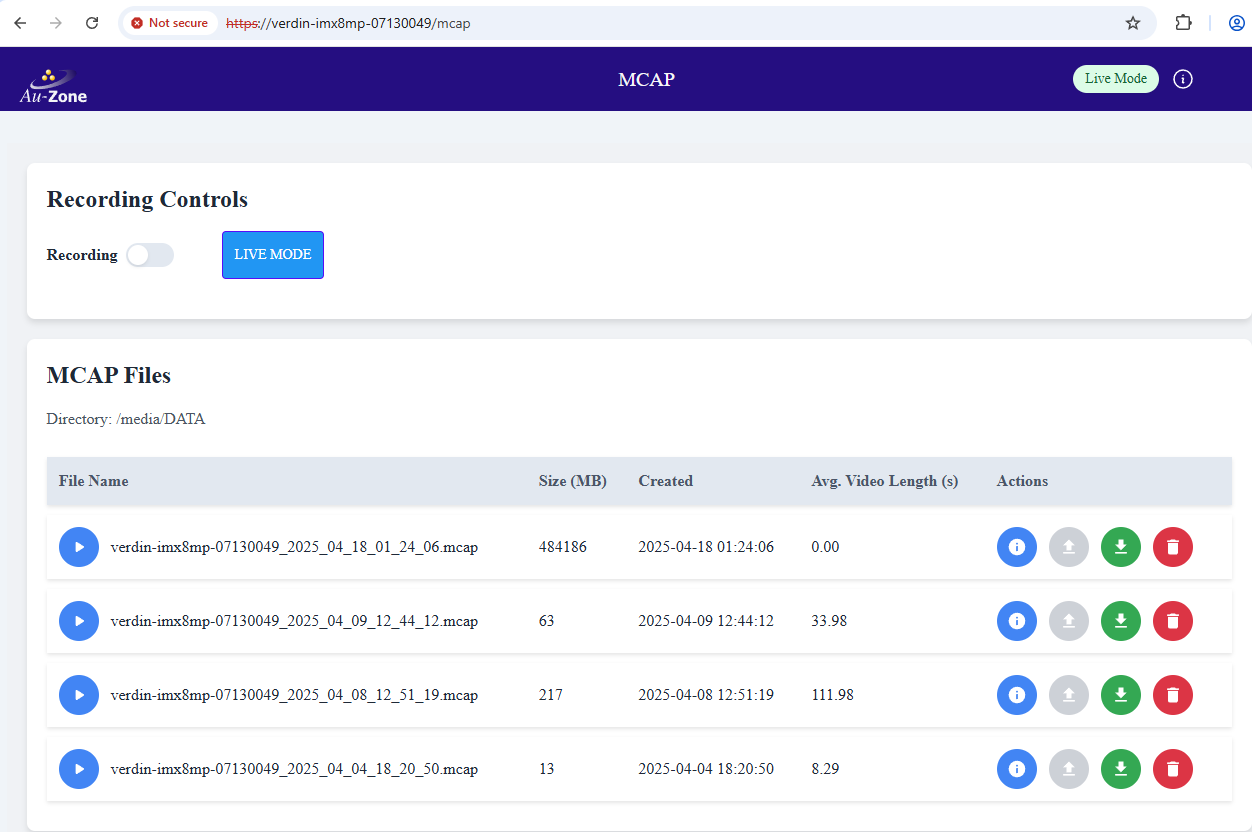
For the examples below, we will use the Raivin with a hostname of verdin-imx8mp-07130049 with a MCAP save directory of /media/DATA and the MCAP file to copy named verdin-imx8mp-07130049_2025_04_09_12_44_12.mcap. Here is the screenshot of the MCAP Recording page of such a device:
Prerequisites
It is assumed you have followed the steps in the Recording Service page and have an MCAP file as well as working knowledge of the page.
You must have followed the steps in the EdgeFirst Studio Quick Start to create a user account, login to the account, and create an initial project. You will need the username and password for all publishing methods.
Methods 2 and 3 below require working knowledge with SSH and command-line interfaces. It is recommended that you read and follow the steps on that page to confirm SSH connectivity with the Raivin.
Method 1: Upload from the Web UI
The Web UI can upload recordings directly from the device to EdgeFirst Studio. The upload runs in the background on the device, so it continues if the browser is closed, and the progress is reported in the MCAP Modal.
First log in to EdgeFirst Studio from the device. Click the EdgeFirst Studio button on the top ribbon, which shows a gray indicator while logged out, and enter your EdgeFirst Studio username and password in the "Login to EdgeFirst Studio" dialog. The indicator turns green once the device is logged in, clicking it again shows the account and offers to log out.
Next open the MCAP Modal and click the "Upload" button in the row of the recording to upload. The "Upload to EdgeFirst Studio" dialog offers two upload modes:
- Basic (Snapshot only) uploads the recording as a snapshot. The snapshot then appears on the EdgeFirst Studio Snapshot page where it can be restored into a dataset of any project.
- Extended (with AGTG) uploads the recording as a snapshot and then restores it into a dataset of the selected project with automatic annotation. Select the project, optionally enter a dataset name, and pick the labels to annotate from the project's label list.
Click "Upload" to start. The dialog reports the upload progress and completes with the snapshot identifier, "Continue in Background" closes the dialog while the upload proceeds. The upload state is persisted on the device, an upload interrupted by a power loss is reported as failed when the device restarts.
Note
The Extended mode has known limitations in this release, refer to the Known Issues. When in doubt use the Basic mode and restore the snapshot in EdgeFirst Studio.
Method 2: Download the MCAP from the Raivin and Publish to Studio
The second method is to download the MCAP from the Raivin. This can be accomplished in two ways :
- use the download button for the MCAP on the MCAP Details Modal to download the MCAP to your PC via the Raivin's Web UI.
- use SCP to download the file to your PC via the command-line interface.
For our example above, you would click the "download" button of the recording or run the following command on your PC:
scp torizon@verdin-imx8mp-07130049:/media/DATA/verdin-imx8mp-07130049_2025_04_09_12_44_12.mcap .
Once the MCAP file is downloaded to your PC, you can login to EdgeFirst Studio and use the EdgeFirst Studio Snapshot page to upload the MCAP file to Studio.
Method 3: Publish the MCAP directly using the EdgeFirst Client
The third method is to use the EdgeFirst Client on the device to directly upload the MCAP to EdgeFirst Studio as a snapshot. This requires that you SSH into the device and run commands on the Linux shell of the Raivin.
First, you would need to use the SSH client to log into the device:
$ ssh torizon@verdin-imx8mp-07130049
Last login: Fri Apr 25 15:29:08 2025 from 10.10.20.3
torizon@verdin-imx8mp-07130049:~$
Confirm the version of the EdgeFirst Client installed on the device, Torizon for Maivin 2026.08 ships version 2.13.2:
torizon@verdin-imx8mp-07130049:~$ edgefirst-client --version
edgefirst-client 2.13.2
torizon@verdin-imx8mp-07130049:~$
From here, you should run a directory listing to see the files in the MCAP save directory:
torizon@verdin-imx8mp-07130049:~$ ls -l /media/DATA/
total 496109120
-rw-r--r-- 1 torizon torizon     14445456 Apr  4 18:20 verdin-imx8mp-07130049_2025_04_04_18_20_50.mcap
-rw-r--r-- 1 torizon torizon    228244643 Apr  8 12:53 verdin-imx8mp-07130049_2025_04_08_12_51_19.mcap
-rw-r--r-- 1 torizon torizon     66462206 Apr  9 12:44 verdin-imx8mp-07130049_2025_04_09_12_44_12.mcap
-rw-r--r-- 1 torizon torizon 507706576896 Apr 22 11:28 verdin-imx8mp-07130049_2025_04_18_01_24_06.mcap
torizon@verdin-imx8mp-07130049:~$
From here, we can run the EdgeFirst Client for the /media/DATA/verdin-imx8mp-07130049_2025_04_09_12_44_12.mcap file. Enter your username and password on the command-line in lieu of the XXXXXXXX.
torizon@verdin-imx8mp-07130049:~$ edgefirst-client --username XXXXXXXX --password XXXXXXXX create-snapshot /media/DATA/verdin-imx8mp-07130049_2025_04_09_12_44_12.mcap
[365] available: verdin-imx8mp-07130049_2025_04_09_12_44_12.mcap
torizon@verdin-imx8mp-07130049:~$
The output line shows the the snapshot for the file was created, is available to be restored, and has snapshot ID of 365. We can confirm that the snapshot is created by using the EdgeFirst client to list the snapshots.
torizon@verdin-imx8mp-07130049:~$ edgefirst-client --username XXXXXXXX --password XXXXXXXX snapshots
[331] available: dataset_cards
[364] available: verdin-imx8mp-07130049_2025_04_04_18_20_50.mcap
[365] available: verdin-imx8mp-07130049_2025_04_09_12_44_12.mcap
torizon@verdin-imx8mp-07130049:~$
We can see that the newly created snapshot is in this list.
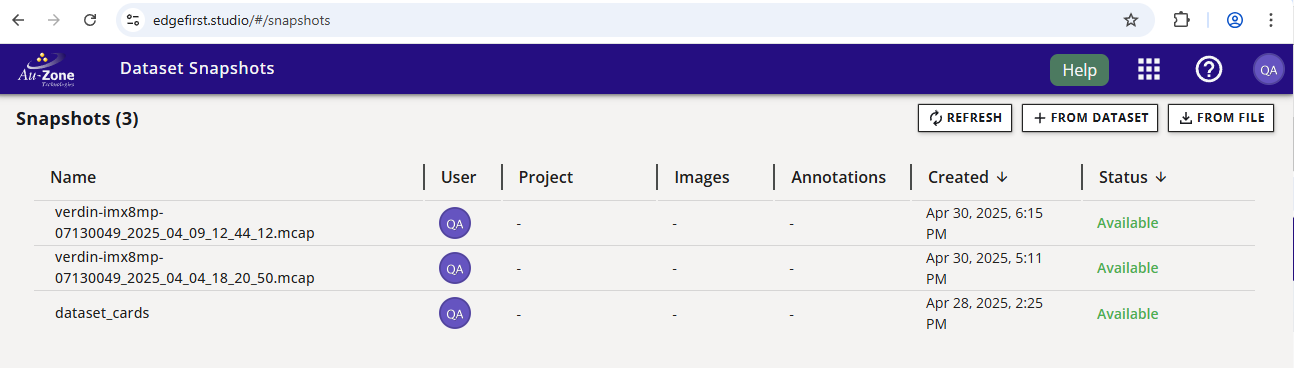
We can also confirm the snapshot on the EdgeFirst Studio Snapshot screen.
Exporting Recordings on the Device
The EdgeFirst Publisher is also installed on the device as the publisher command. It converts a recording into the EdgeFirst Dataset Format, a ZIP archive of camera frames along with an Arrow annotations table carrying the detections and segmentation masks recorded from the model service, the GPS location, and the IMU pose. The publisher recognizes recordings from the current release, from earlier releases with the rt/ prefix, and recordings carrying a hostname prefix.
publisher zip -f 1 --out export verdin-imx8mp-07130049_2025_04_09_12_44_12.mcap
The -f option samples the recording at the given frame rate. The export walks every H.264 frame of the recording, so a sampled export of a long 60 FPS recording can take several minutes on the device, run long exports inside a tmux session. Refer to Maivin Publisher with 4K for exporting 4K tiled recordings.
Next Steps
Once the MCAP is uploaded as a snapshot to EdgeFirst Studio, you can restore the snapshot into the initial project you created as part of the EdgeFirst Studio Quick Start.
Warning
Restoring a snapshot into a dataset will accrue costs from your EdgeFirst Studio account.