Deploy Fusion Model
Now that you have validated your model, you can deploy your model in a Raivin Platform by following this guide. Otherwise, we provide other methods of deploying the model listed under the Getting Started.
This guide will showcase two methods of deploying the model.
- Live View (Camera Page): Displays the live camera feed with the model output overlaid.
- MCAP Recording: Allows control of the recording options and provides download file options to replay the recording.
Download the Model
Download the model from EdgeFirst Studio into the device. There are two methods for downloading the model. The first method is to download the model from EdgeFirst Studio and then SCP the model file to the device. The second method is to use the EdgeFirst Client to download the model directly in the device.
As mentioned under the Training Outcomes section, the trained models can be downloaded by clicking the the training session card in EdgeFirst Studio.
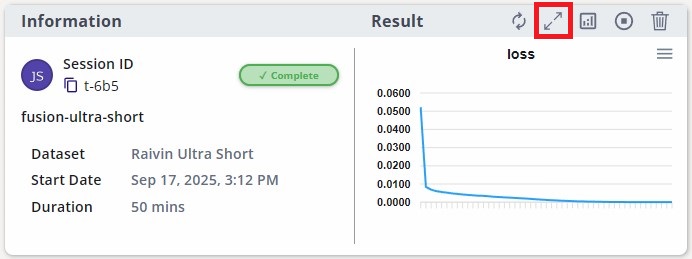
This will open the session details and the models are listed under the "Artifacts" tab as shown below. Click on the downward arrow indicated in red to download the models to your PC. In this example, you will be deploying the TFLite model in the device.

Deployment Tab
You may have noticed the "Deployment" tab to the right of the "Artifacts" tab. This is a placeholder for future functionality, so please don't worry about it.
Once the model is downloaded in your PC, you can SCP the model to the device by using this command template.
$ scp <path to the downloaded TFLite model> <destination path>
An example command is shown below.
$ scp fusion.tflite torizon@verdin-imx8mp-15140753:~
This method expects you to have already connected to the device via SSH. The EdgeFirst Client can be installed via pip3 install edgefirst-client. You can verify the installation with the client version command.
$ edgefirst-client version
EdgeFirst Studio Server: 3.7.8-a50429e Client: 1.3.3
Next login to EdgeFirst Studio with the command.
$ edgefirst-client login
Username: user
Password: ****
You can download the model on the device using the download-artifact command as shown below.
$ edgefirst-client download-artifact <session ID> <model name>
For example edgefirst-client download-artifact t-fbb fusion.tflite. This command will download to the current working directory.
The download-artifact expects three arguments.
- session ID: Pass the trainer or validation integer session ID associated with the models.
- model name: Pass the specific model that will be downloaded to the device. Usually this is
mymodel.tflite.
You can find more information on using the EdgeFirst Client in the command line.
Visit the Web UI Service
Use your browser to connect to the Web UI of the remote device, enter the following URL https://<hostname>/.
Note
Replace <hostname> with the hostname of your device.
You will be greeted with the Raivin Web UI Main Page page.
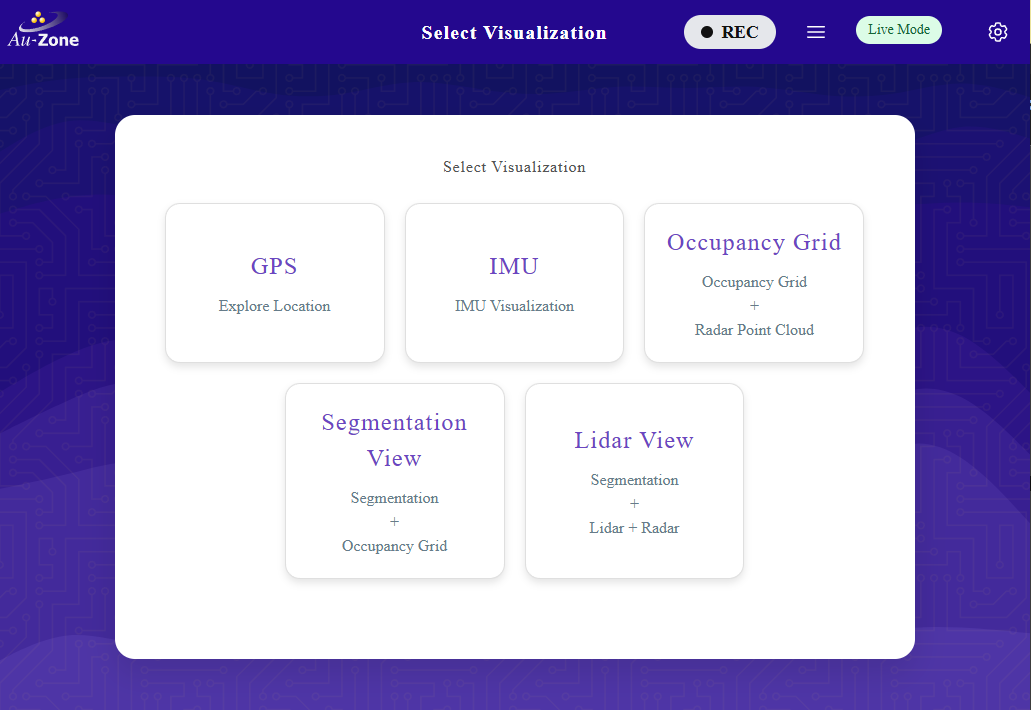
For more information, please see the Web UI Walkthrough.
Update the Model Path
Next you will need to specify the path to the model in the device. You can either update the model path in the Web UI or via the command line.
Configure Model Settings
Whenever a new model has been updated, ensure that the model settings such as the score and the IoU thresholds are ideally set for this model.
Once you are in the Web UI main page, you can specify the path to the model by following the steps below.
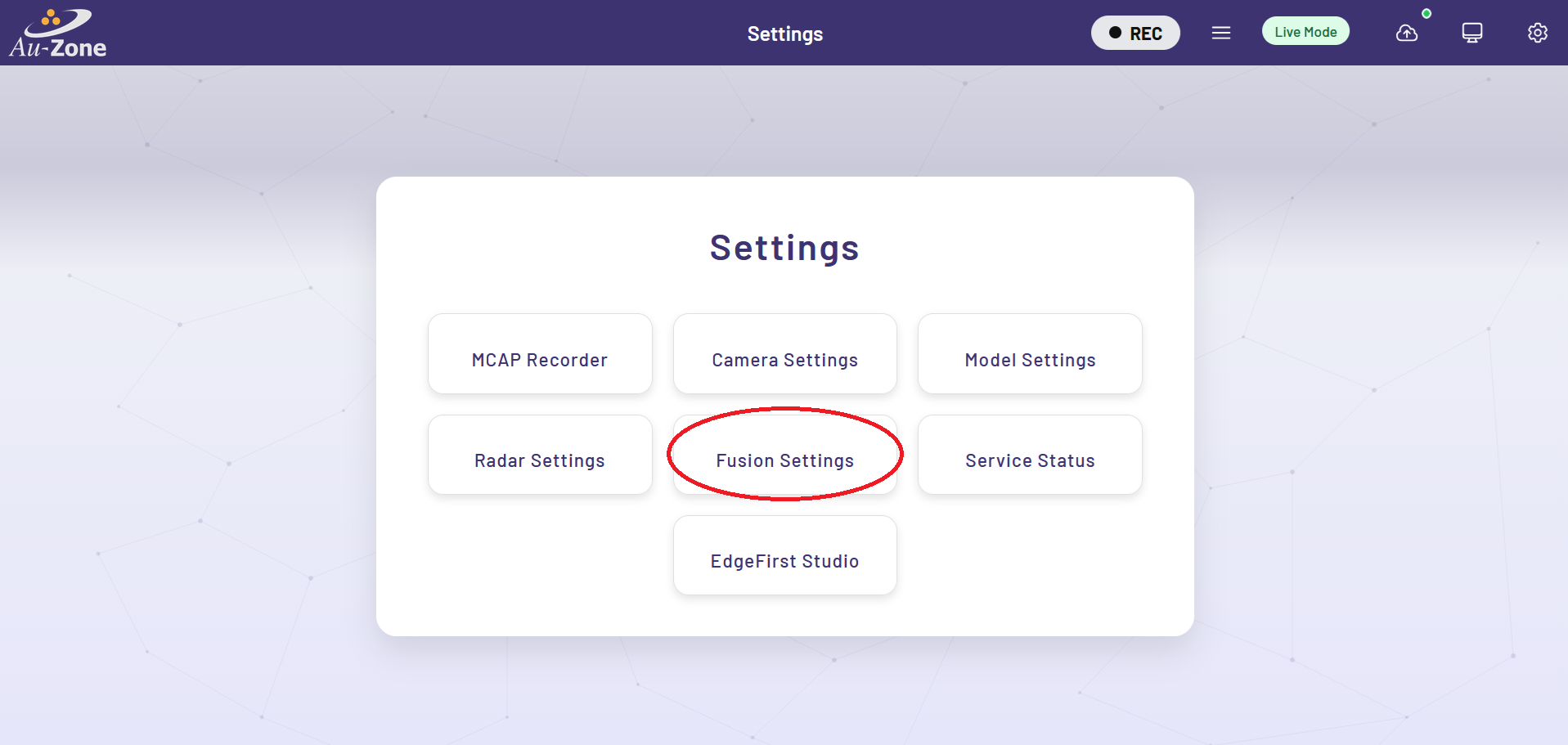
Click the settings icon on the top right corner of the page.

Select "Fusion Settings".
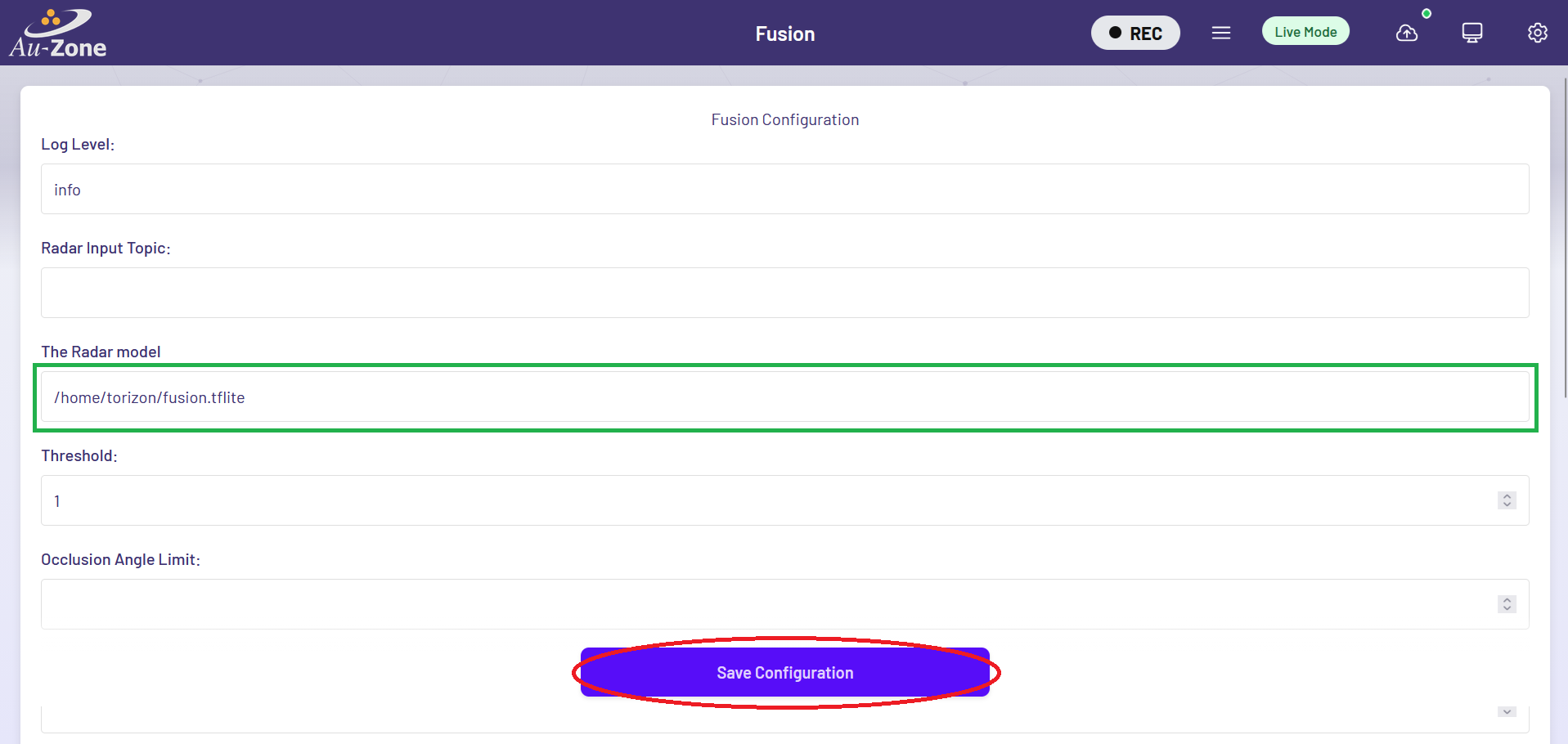
Configure the path to the model in your device as specified under "The Radar model". The fusion model also requires the radar cube to be enabled on the Radar Settings page. Once configured, click "Save Configuration" to save your changes.
To update the model path using the command line in the device, edit the following file using sudo vi /etc/default/fusion.
Edit the MODEL= line to point to the specific path to your model, for example MODEL="/home/torizon/fusion.tflite". To edit, press i to enter into "Insert Mode". You should now be able to edit the lines. To exit "Insert Mode", press the ESC key on your keyboard. Next save and exit the file by typing :wq on your keyboard. More examples for using vi can be found here.
# Path to the radar-camera fusion model (TFLite).
MODEL="/home/torizon/fusion.tflite"
Once the path to the model has been updated, restart the model service using sudo systemctl restart fusion.
Enable and Start the Camera and Model Services
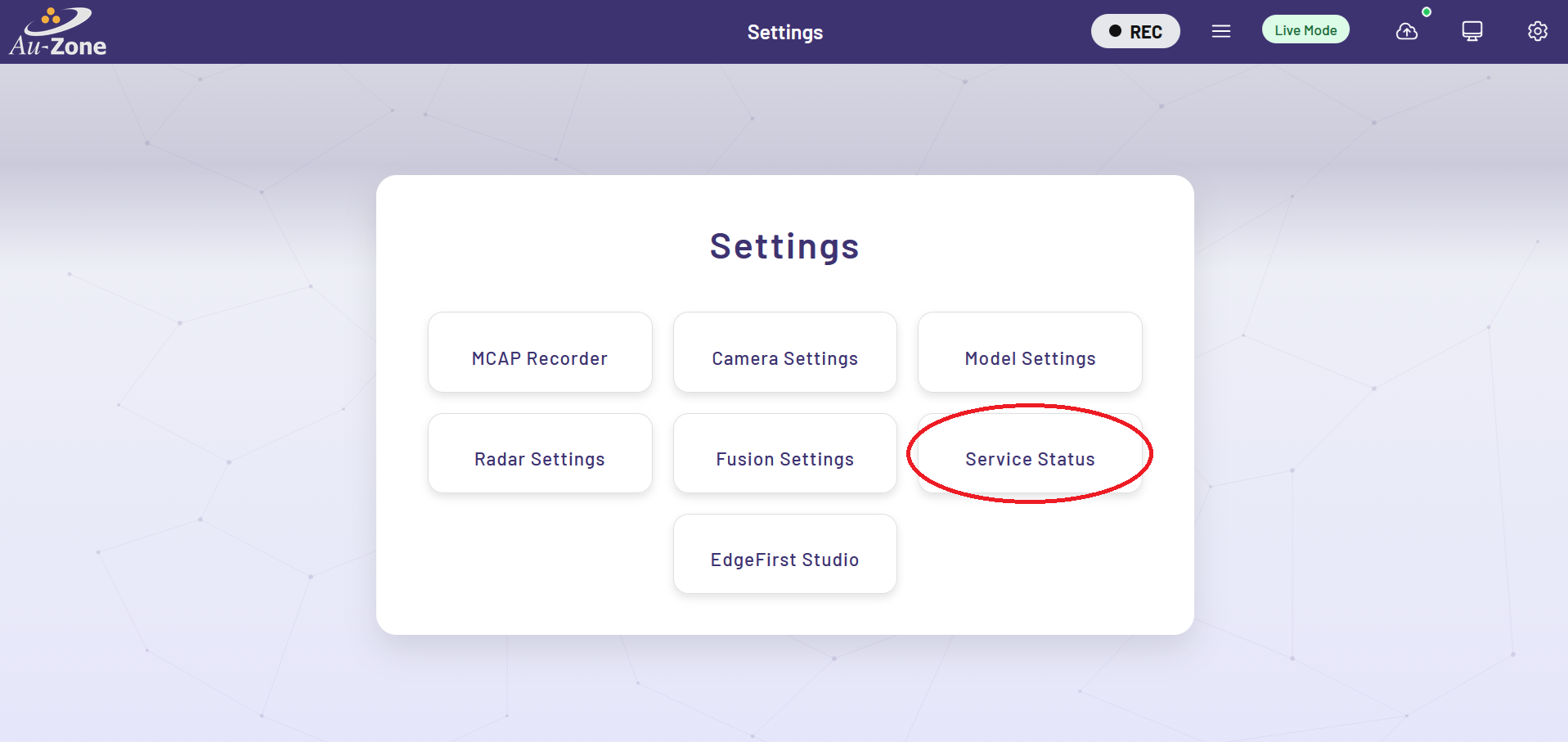
Once the model path in the device is specified, ensure that all services are enabled. To verify, go back to the settings and click on the "Service Status" button.
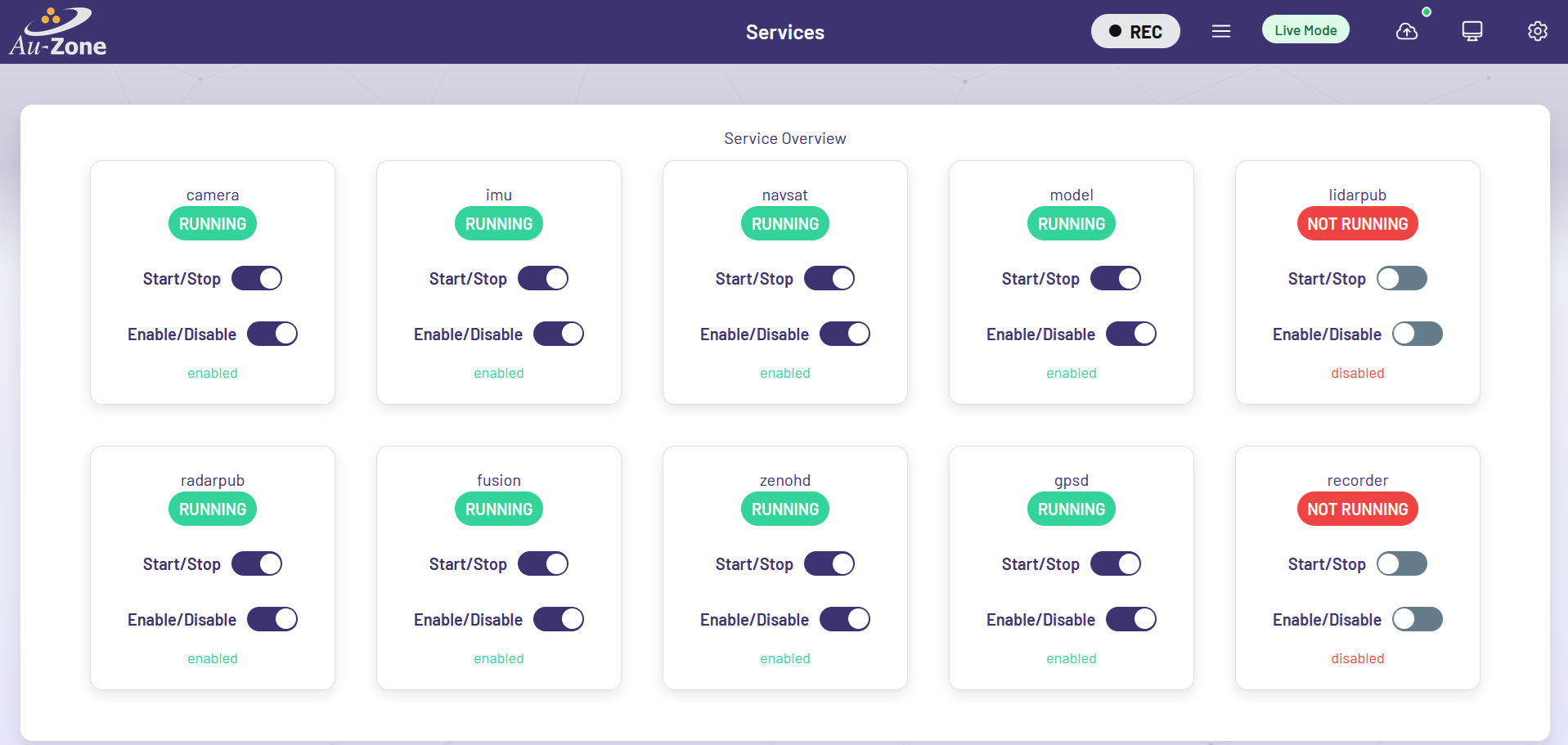
You will be greeted with the "Service Overview" page. Ensure that all services are enabled and running by toggling the "Enable" and "Start" buttons as shown. Only "Enable" the "recorder" service as shown. You will be using the recorder service in MCAP Recording.
Live View (Camera Page)
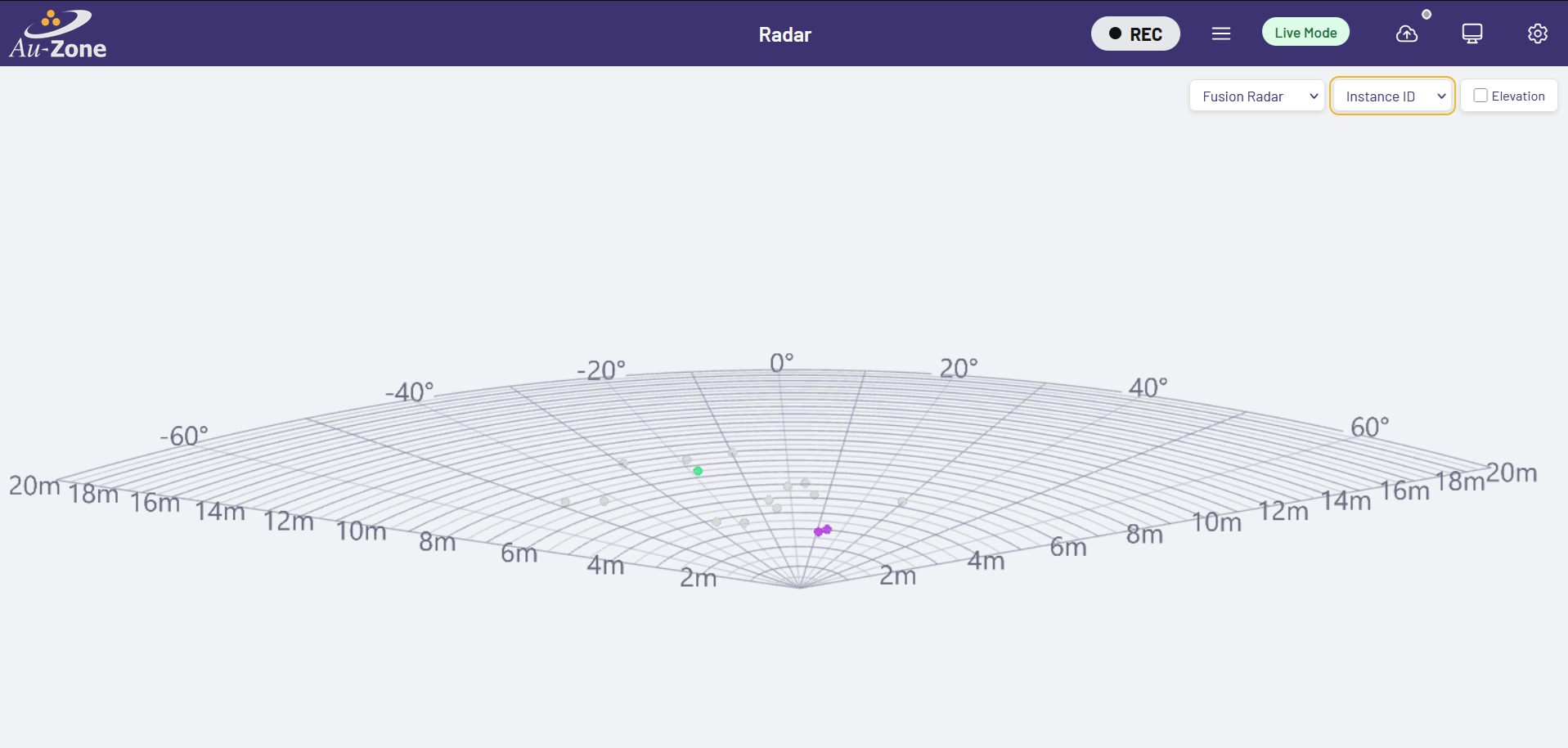
Now you will see a live inference of the model in the device. Once all services are enabled, go back to the main page and then select the "Camera" card as shown, then enable the segmentation overlay from the page controls.

This will run inference on the model specified to generate segmentation masks of identified objects on the camera feed. The "Radar" card opens the Radar page where the fusion output colors the radar points by the classes of the objects they belong to in world coordinates. Examples are shown below.
Now that the model has been updated, you can make new recordings using the model's inference and then visualize the recording using Foxglove Studio.
Inference Visualization in Foxglove
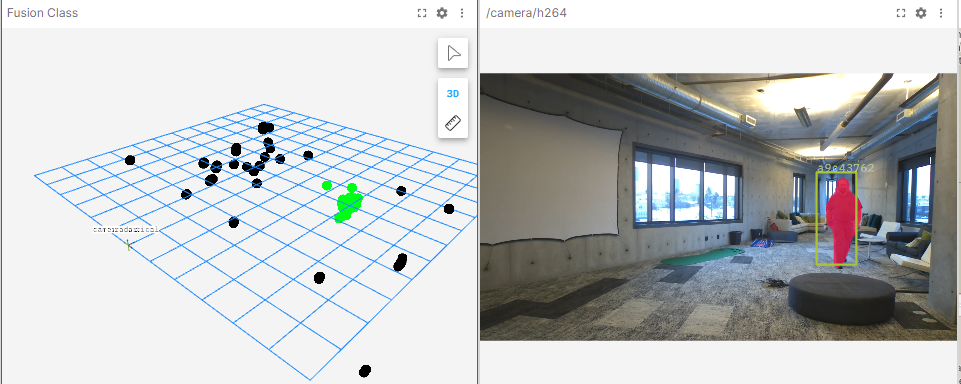
Once the MCAP recording has been downloaded, you can use Foxglove Studio to see the playback of MCAP recordings and the model inference. The following preview shows the segmentation mask from the model identifying the person in the frame (right) and the occupancy grid highlighting the radar clusters that correspond to the person's position in world coordinates.
More information on the MCAP playback is provided in Foxglove Studio. Modifying panels and customizing various settings are also shown in Advanced Foxglove.
Conclusion
In this guide, you have trained and validated a model from EdgeFirst Studio, copied the model into the Raivin, configured the Raivin model services, and ran inference on the model in the Raivin. You have seen the model running live using the Raivin's camera and ran a Raivin MCAP recording to capture the model inference in the frames that can be visualized using Foxglove Studio.