Raivin Setup Guide
This article will walk you through the Raivin hardware setup and then lead you to resources for using additional features.
Unboxing
The Raivin box contains the following items:
- The Raivin vision module
- A five-meter power cable, M12 circular connector (male) to 2.1mm x5.5mm barrel adapter (female)
- Box with power adapters
- Power-adapter with interchangeable plugs. 2.1mm x 5.5mm barrel adapter (male) connector.
- Interchangeable plugs for the following regions:
- NEMA 1-15P (Type A) (North America)
- CEE-7/16 Alternative II "Europlug" (Type C) (Europe)
- AS/NZS 3112, ungrounded (Type I) (Australia / Oceania)
- BS 1363 (Type B) (British) wall adapter
- Desktop tripod
Connecting the Device
If you wish to mount your device to the tripod, it should be done now before connecting any of the other cables. There are three mount points on the bottom of the device and one on each side. Screw the tripod into the center bottom mount point.
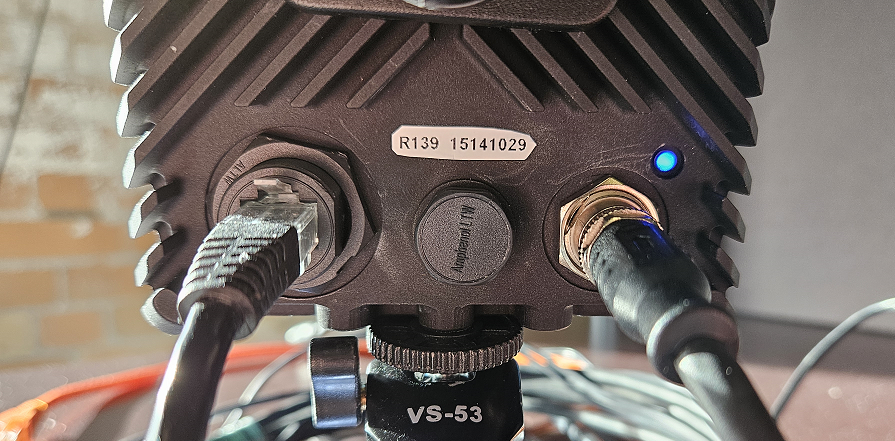
Next, connect a standard Category 5 network cable (not included) from your shared network into the device.
Optionally, you can connect an antenna to the SMA connector on the top-right corner of the back of the device to enhance GPS reception.
Chose the proper power adapter plug from your region and connect it to the power cable. Then connect the M12 connector of the power cable to the connection at the back of the module, making sure to align the tab at the top of the connector to its corresponding slot.
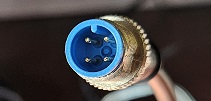
The device should boot up as soon as it is connected. A blue light above and to the right of the power connector should start blinking.
Danger
The Raivin may get hot during operation. Do not handle while operating. Temperature can be measured with the cat /dev/carrier_temp command, which will output device temperature in millidegree Celsius.
On Boot Up
On the back of the device, you will find an eight-digit number. This is the ID number. The hostname of the device will be "verdin-imx8mp-ID.local", which is advertised over Multicast Domain Name System (mDNS). For the steps below, the eight-digit number is "15141029". The device will have a hostname of verdin-imx8mp-15141029.local. This hostname can be used to connect to the device over SSH and HTTP.
Tip
On Windows machines, you will not need to add the '.local' suffix.
The device has a web interface that can be connected to via both HTTP and HTTPS by entering http://verdin-imx8mp-<id>.local. On first connection to the web interface, you will get a "Your connection is not private" warning.
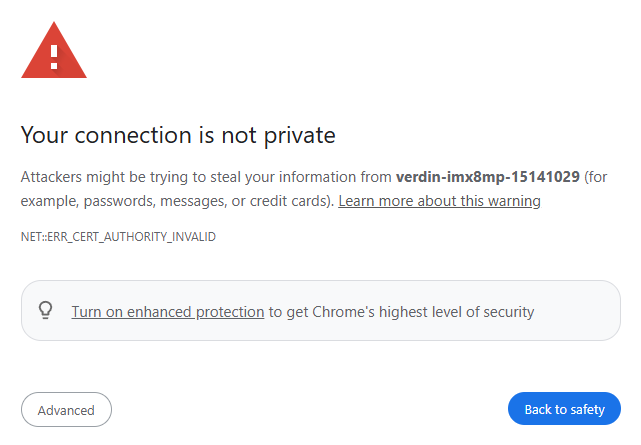
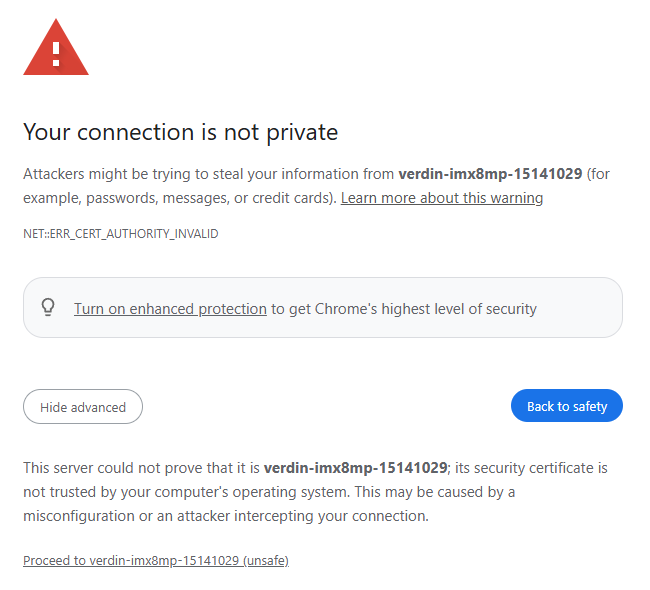
This is expected and nothing to worry about -- the HTTPS connection needs a SSL certificate which the vision module does not have. Click the "Advanced" button, and then "Proceed to" link.
After all that, you should see the Raivin Main Page.
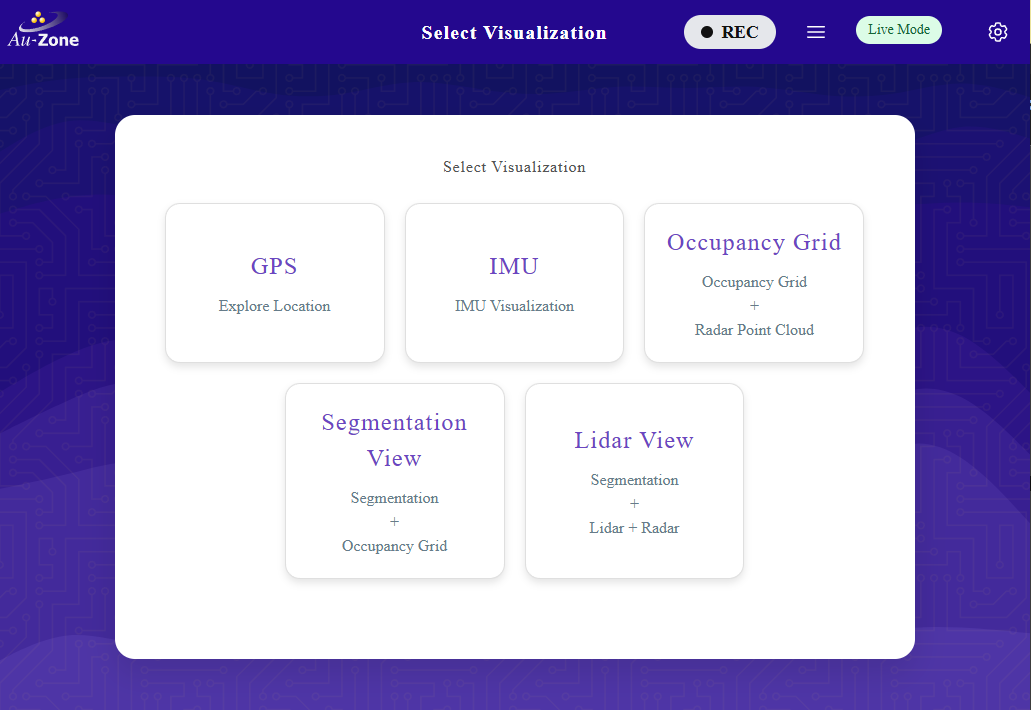
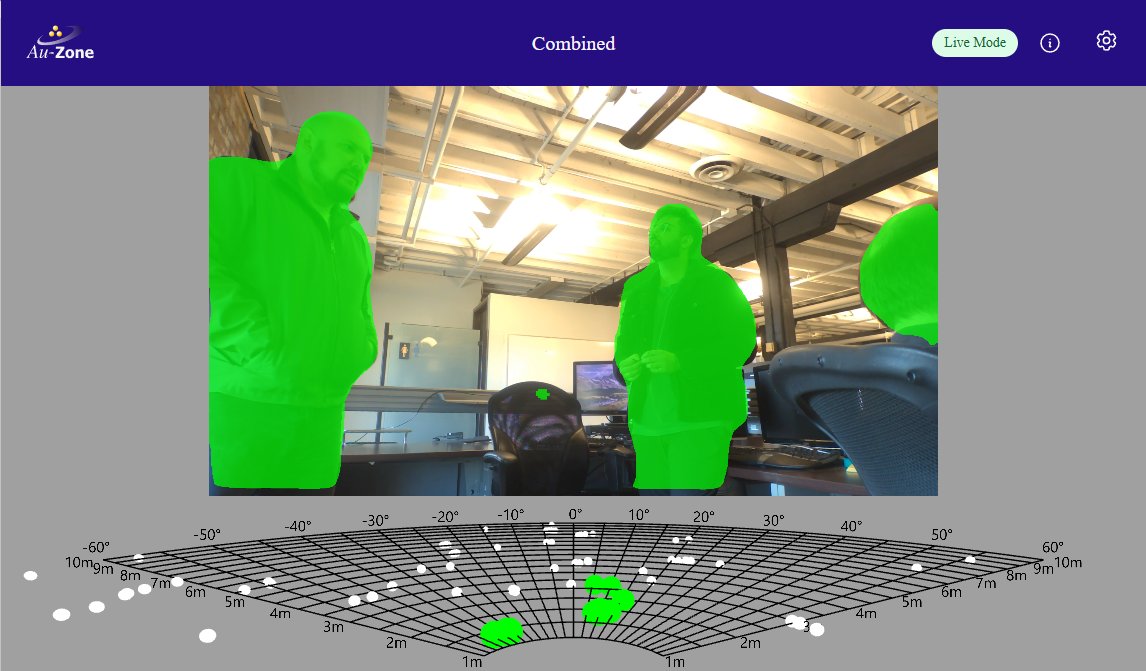
From here, we recommend that you check out the Camera page by clicking the "Camera" card and the Radar page by clicking the "Radar" card.
Note
The ultra-short range RadarExp model included in this release was trained for a fixed camera and mostly tested indoors. The radar publisher is configured for the low center frequency and ultra-short frequency sweep to match.
CPU Performance Scaling
There are various CPU performance modes available on the platform which can be set by accessing the terminal on the device.
$ cat /sys/devices/system/cpu/cpufreq/policy0/scaling_available_governors
conservative ondemand userspace powersave performance schedutil
| Mode | Behavior | Tradeoff |
|---|---|---|
| performance | Locks CPU at maximum frequency | 🔥 highest power, lowest latency |
| powersave | Locks CPU at minimum frequency | 🐢 lowest power, slowest |
| schedutil | Scheduler-driven dynamic scaling (modern default) | ⚖️ balanced, efficient |
| ondemand | Quickly ramps up on load, drops when idle | ⚡ responsive but older approach |
| conservative | Slowly increases/decreases frequency | 🌿 smoother, but slower response |
| userspace | Manual control from user-space programs | 🛠️ full control, more work |
To see the current performance mode, run this command.
$ cat /sys/devices/system/cpu/cpufreq/policy0/scaling_governor
performance
To see the clock frequency limits, run these commands.
$ cat /sys/devices/system/cpu/cpufreq/policy0/scaling_cur_freq # Current CPU frequency
1600000
$ cat /sys/devices/system/cpu/cpufreq/policy0/scaling_max_freq # Max CPU frequency
1600000
$ cat /sys/devices/system/cpu/cpufreq/policy0/scaling_min_freq # Min CPU frequency
1200000
If you want maximum performance from the device, you can set the device to performance mode which runs the CPU cluster at the highest available frequency.
$ echo performance | sudo tee /sys/devices/system/cpu/cpufreq/policy0/scaling_governor
performance
You can find more information on CPU Performance Scaling here.
Next Steps
Now that you have completed these initial steps, we recommend that you read the following walkthroughs:
- Raivin Web UI Walkthrough, to see what each UI card on the splash screen does
- SSH Walkthrough, to learn how to SSH into your Raivin and basic command-line operations
- Raivin Recording Walkthrough, to learn how to record datasets and download them to your PC
- Model Upload Walkthrough, to learn how to upload vision models and radar fusion models to your Raivin
- Software Updates, to keep your Raivin on the latest release