Studio Client
The EdgeFirst Studio Client, edgefirst-client, provides an API and command-line interface (CLI) into the EdgeFirst Studio. This client provides programmatic and command-line access to many of the features of the EdgeFirst Studio, specifically related to the upload of MCAP file into snapshots and snapshot conversion or restoration into datasets. The commands below will mirror the UI actions described in the snapshot walkthrough linked above.
Data Format
The client works with the EdgeFirst Dataset Format:
- Snapshots: Downloaded as ZIP + Arrow file pairs
- Annotations: Can be exported as JSON or Arrow format
See the Format Documentation for details on the file structure.
This page describes the command-line interface, the Bridge In API documentation is yet to be added.
A summary of the core features is listed below:
- Project List & Search
- Dataset List & Search & Export
- Annotations Listing & Export to JSON and Arrow
- Snapshot Download & Upload & Restore to Dataset (including Auto-Annotations)
- Trainer List & Search
- Trainer Session List & Search & Artifacts Download
- Validator List & Search
Installation
The Python package includes the command-line application and is an easy way to install the binary.
$ pip install edgefirst-client
Included with EdgeFirst Middleware
The edgefirst-client is installed as part of the standard EdgeFirst Middleware installation, no additional setup is required.
Once installed you can confirm you can communicate with the EdgeFirst Studio Server with the version command.
$ edgefirst-client version
EdgeFirst Studio Server: 3.7.3-f0b4eee Client: 1.3.3
Authentication
Authentication to the EdgeFirst Studio Server is done using the standard login you would use from the web interface. To avoid having to type your username and password each time, an authentication token can be generated and saved using the login command.
$ edgefirst-client login
> EdgeFirst Studio Username ********
> EdgeFirst Studio Password ********
[2025-05-01T18:08:59Z INFO  edgefirst_client] Saved configuration to /home/torizon/.config/edgefirststudio/config.toml
This will generate an authentication token in /home/torizon/.config/edgefirststudio/config.toml which remains valid for 7 days. At any time you can use the logout command to forget the token and remove it from the configuration file, or re-run the login command to regenerate it.
To query the token, use the following command:
$ edgefirst-client token
This should produce an output similar to:
$ edgefirst-client token
eyJhbGciOiJIUzI1NiIsInR5cCI6IkpX...
Dataset Preparation
Once data has been recorded using the MCAP Recording Service of the Raivin, and we have access to the mcap files, it is very simple to upload the files into a project. The next step we have to do is to create a snapshot and then restore it as a dataset (optionally using AGTG for auto annotation of the images).
Create a Snapshot
To create a snapshot, locate the folder with the MCAP files and run the following command:
$ edgefirst-client create-snapshot <path>
[<SNAPSHOT_ID>] <status>: <Name of the folder or file specified>
where path is the path to the folder containing the MCAP files or the path to the mcap file. Refer to the MCAP Recording page for more information. Notice that the snapshot can only be restored if status is available (keyword after the [ID], status can also be unavailable if any error occurs).
This command with a successful output would looks as follows:
$ edgefirst-client create-snapshot /media/DATA/verdin-imx8mp-15141091_2025_01_31_14_21_58.mcap
[1816] available: verdin-imx8mp-15141091_2025_01_31_14_21_58.mcap
The created snapshot will be listed under the "Data Snapshots" page in EdgeFirst Studio
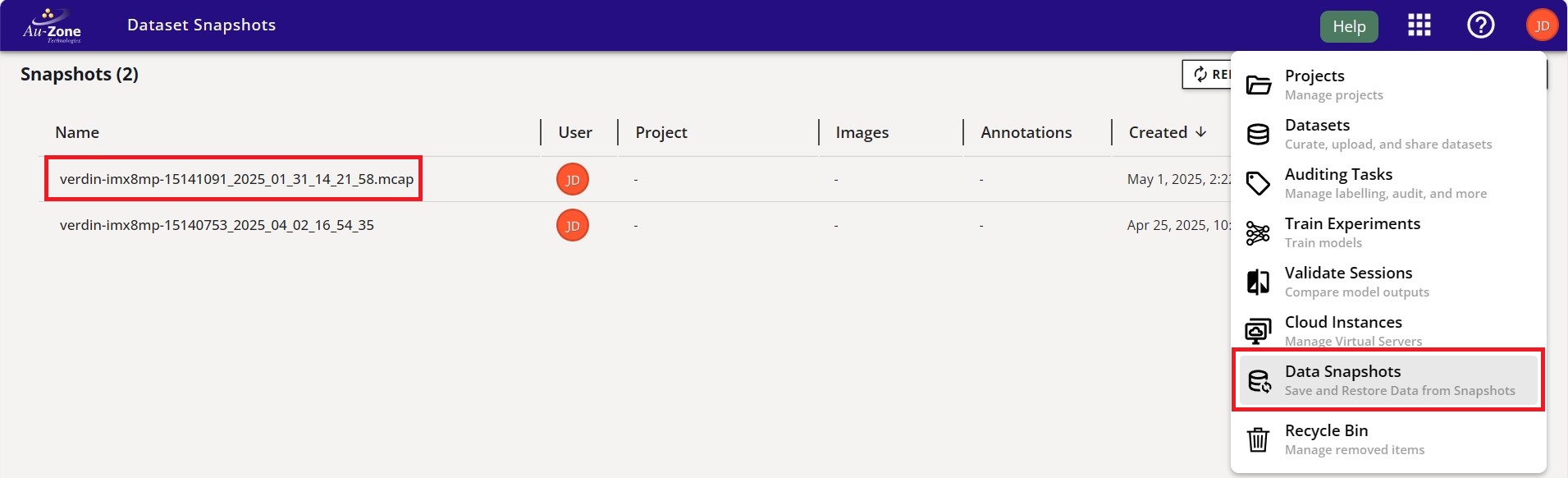
Also, available snapshots can be listed by calling:
$ edgefirst-client snapshots
[<SNAPSHOT_ID>] available: <Snapshot Name (folder name from above)>
[<OTHER_ID>] unavailable: <Snapshot Name (a different name)>
Example output would look like:
$ edgefirst-client snapshots
[1651] available: verdin-imx8mp-15140753_2025_04_02_16_54_35
[1816] available: verdin-imx8mp-15141091_2025_01_31_14_21_58.mcap
Make a note of the snapshot ID that was created. In this case, the snapshot ID is 1816.
Restore Snapshots
Warning
Restoring snapshots to datasets will deduct funds from your EdgeFirst Studio account.
To restore any snapshot as a dataset, we need to get the project ID where the dataset is going to be stored. Available projects can be listed by calling:
$ edgefirst-client projects
[<PROJECT_ID>] <Project Name>: <Project Description>
For example:
$ edgefirst-client projects
[265] Sample Project: Sample project contains a collection of datasets to help users get started on the platform.
[628] Object Detection: This project trains and deploys Vision models for detecting objects.
Make a note of the project ID where the dataset will be stored. In this case the project ID is 628.
Now that we have the project ID 628 and the snapshot ID 1816, we can restore the snapshot using the restore-snapshot command.
$ edgefirst-client restore-snapshot <PROJECT_ID> <SNAPSHOT_ID> --dataset-name "Dataset Name" --dataset-description "Dataset Description"
For example:
$ edgefirst-client restore-snapshot 628 1816 --dataset-name "Upload from verdin-imx8mp-15141091" --dataset-description "This is a dataset generated from Raivin verdin-imx8mp-15141091 on January 31, 2025"
[task: 3499] Upload from verdin-imx8mp-15141091: verdin-imx8mp-15141091_2025_01_31_14_21_58.mcap
The command above will spin up some cloud services to transform input data into datasets and output a task ID that is running on the services to restore the snapshot.
The dataset upload process will be shown in EdgeFirst Studio.
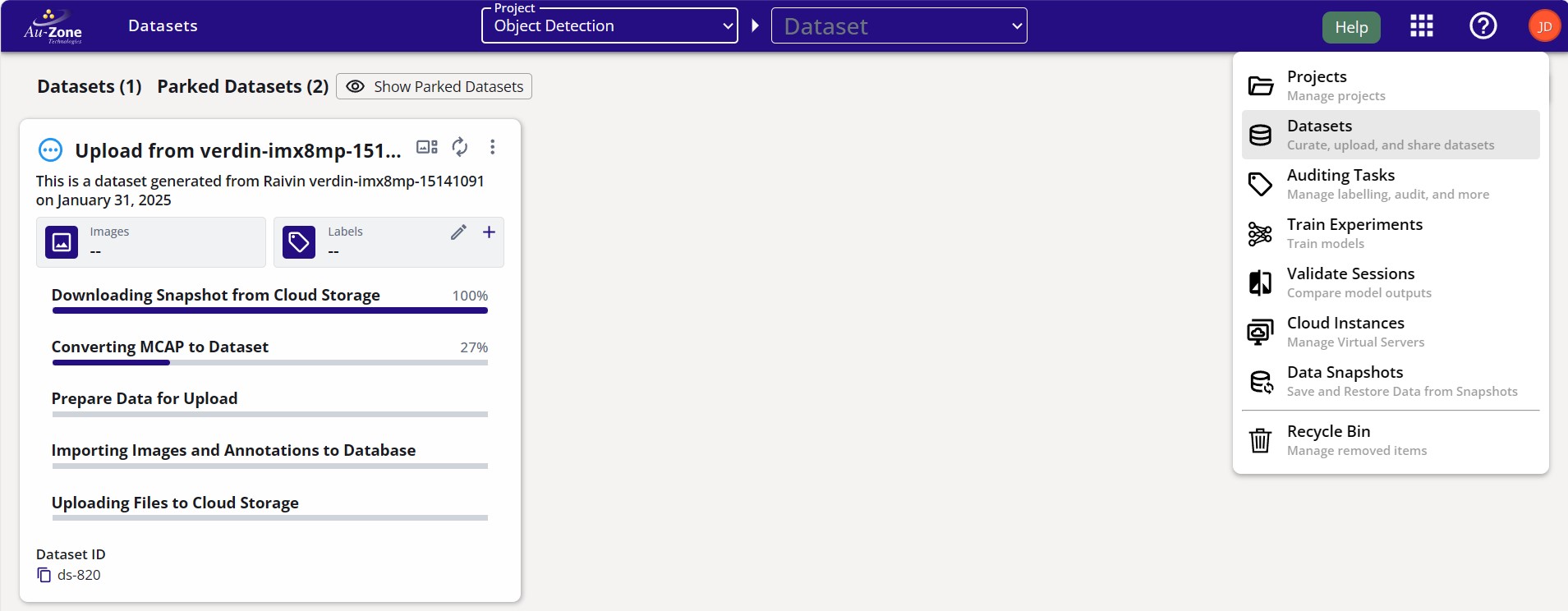
We can use the datasets command to confirm that the dataset was uploaded to the project with ID 628:
$ edgefirst-client datasets 628
[2080] Upload from verdin-imx8mp-15141091: This is a dataset generated from Raivin verdin-imx8mp-15141091 on January 31, 2025
The restore-snapshot command provides several options to customize the dataset creation process:
--autodepth: Enables automatic depth map generation for the dataset--autolabel: Specifies labels for automatic annotation of objects in the dataset (e.g.person,car)--topics: Filters which topics from the mcap files to include in the dataset (if not specified, all topics are included)--dataset-name: Sets the name for the new dataset--dataset-description: Provides a description for the dataset
Warning
Automated depth generation and labeling services will incur additional costs on top of the snapshot restoration.
For example, to create a dataset with automatic depth maps and annotations for person and car objects, run the following command:
$ edgefirst-client restore-snapshot <PROJECT_ID> <SNAPSHOT_ID> --dataset-name "Dataset Name" --dataset-description "Dataset Description" --autodepth --autolabel "person car"
For example:
$ edgefirst-client restore-snapshot 628 1816 --dataset-name "Upload from verdin-imx8mp-15141091 with AGTG" --dataset-description "This is a dataset generated from Raivin verdin-imx8mp-15141091 on January 31, 2025 with depth map generation and automated labelling for the class person and car." --autolabel "person car" --autodepth
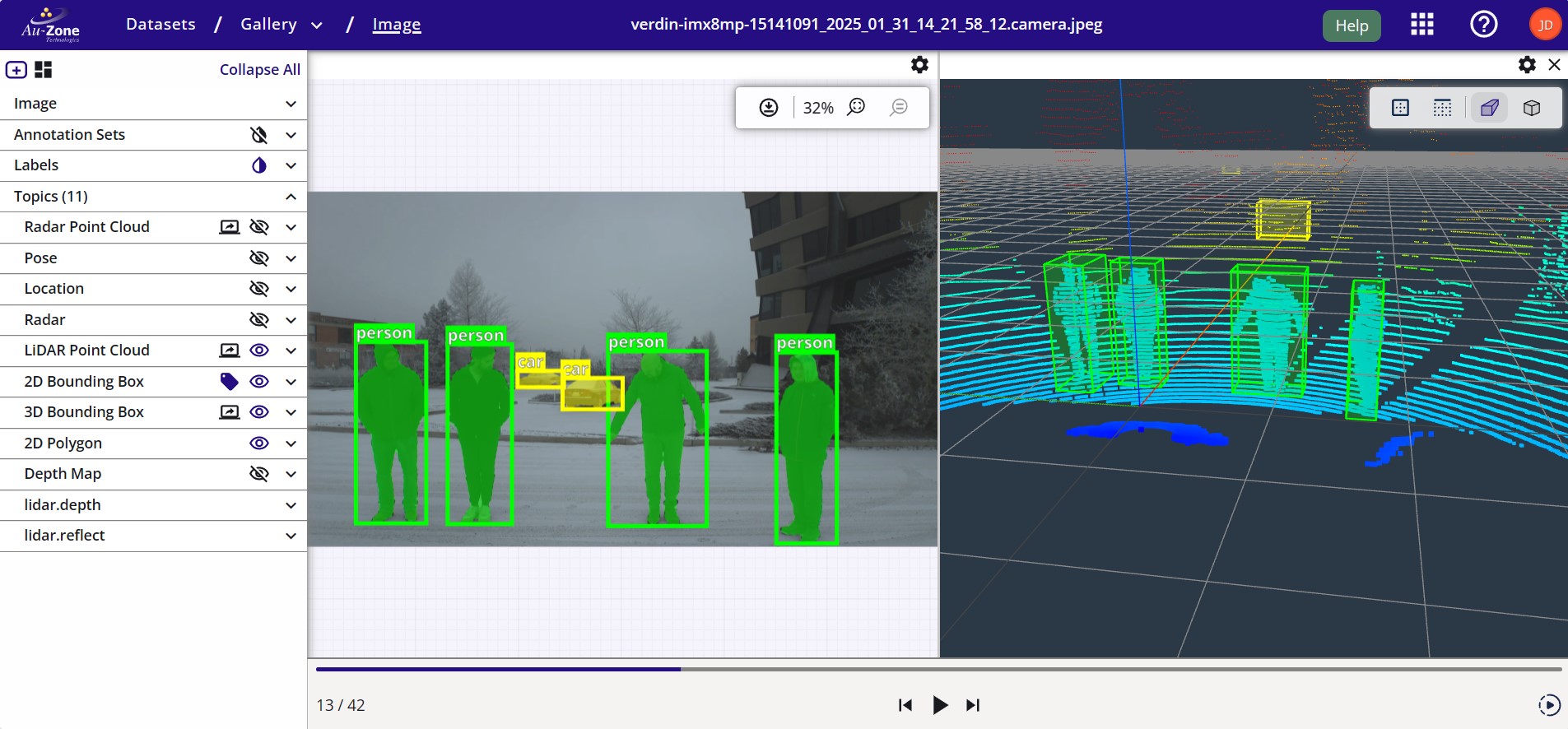
The --autolabel parameter currently supports COCO labels. We can list any class found in the COCO labels list to auto annotate these classes. In EdgeFirst Studio, we can visualize the results of the auto-annotations when restoring the snapshot. In this example, "person" and "car" are being shown as specified from the command above.
Command Reference
The EdgeFirst Studio Client provides a comprehensive set of commands for interacting with EdgeFirst Studio. Here's a detailed explanation of the available commands:
Authentication Commands
version: Displays the current EdgeFirst Studio Server version
$ edgefirst-client version
edgefirst-client 1.3.3
login: Authenticates with the server and stores the token in the configuration file
$ edgefirst-client login
Username: your_username
Password: ****
logout: Removes the stored authentication token
$ edgefirst-client logout
token: Displays the current authentication token
$ edgefirst-client token
eyJhbGciOiJIUzI1NiIsInR5cCI6IkpXVCJ9...
Project Management
projects: Lists all projects accessible to the authenticated user
$ edgefirst-client projects
[25] MultiTask: This project contains datasets for both object detection and segmentation
[54] ObjectDetection: This project contains datasets that only support object detection task
project: Retrieves detailed information for a specific project using its ID
$ edgefirst-client project 54
find-projects: Searches for projects by name
$ edgefirst-client find-projects ObjectDetection
[54] ObjectDetection: This project contains datasets that only support object detection task
Dataset Operations
datasets: Lists all datasets (optionally filtered by project ID). If project ID is not provided all the datasets will be listed
$ edgefirst-client datasets 54
[32] Playingcards: A dataset for detecting playingcards
dataset: Retrieves detailed information for a specific dataset using its ID
$ edgefirst-client dataset 32
find-datasets: Searches for datasets by name (optionally filtered by project)
$ edgefirst-client find-datasets Playingcards --project-id 54
Annotation Management
A single dataset is allowed to have multiple annotations sets. That is the reason why annotations are separated from dataset-download commands.
annotation-sets: Lists available annotation sets for a specific dataset
$ edgefirst-client annotation-sets 32
[1] Default Annotation Set
[2] Validation Set
annotations: Retrieves annotations for a dataset and annotation set, filtered by types. Types could be any of the following options:box2d,box3d,segmentation. By default this command will return a JSON file. However, the user can always return an Arrow dataframe by adding the--arrowas shown below.
$ edgefirst-client annotations 32 --types box2d,segmentation
...
"object_id": "605152ea-e681-4f02-a60a-a70e525e9acd",
  "label_name": "suitcase",
  "group": "train",
  "box2d": {
    "h": 0.21910417,
    "w": 0.23835938,
    "x": 0.69021099,
    "y": 0.874552085
  }
...
$ edgefirst-client annotations 32 --arrow dataset.arrow --types box2d,segmentation
Snapshot Operations
snapshots: Lists available snapshots
$ edgefirst-client snapshots
[101] Snapshot 2023-01-01
[102] Snapshot 2023-02-01
snapshot: Retrieves detailed information for a specific snapshot
$ edgefirst-client snapshot 101
find-snapshots: Searches for snapshots by description
$ edgefirst-client find-snapshots "January 2023"
create-snapshot: Creates a new snapshot from a local file or directory
$ edgefirst-client create-snapshot ./my_dataset
download-snapshot: Downloads a snapshot to the local filesystem as a ZIP + Arrow file pair (see EdgeFirst Dataset Format)
$ edgefirst-client download-snapshot 101 --output ./snapshot_2023_01
restore-snapshot: Restores a snapshot to a project
$ edgefirst-client restore-snapshot 101 54 --name "Restored Dataset" --topics "list of topics" --autolabel "list of labels"
Training Management
trainer-sessions: Lists training sessions (optionally filtered by trainer)
$ edgefirst-client trainer-sessions
[456] ... Artifact { name: "modelpack.h5", model_type: "modelpack" },...]
[324] ... Artifact { name: "modelpack.h5", model_type: "modelpack" },...]
trainer-session: Retrieves detailed information for a specific training session
$ edgefirst-client trainer-session 324
[324] ... Artifact { name: "modelpack.h5", model_type: "modelpack" },...]
download-artifact: Downloads artifacts from a training session. Notice this command requires theoutputparameter is pointing to a file and not to a folder
$ edgefirst-client download-artifact 324 labels.txt --output /home/reinier/labels.txt
Each command supports various options and flags that can be viewed using the --help flag with any command. For example:
$ edgefirst-client projects --help
List all projects available to the authenticated user

Usage: edgefirst-client projects

Options:
  -h, --help  Print help
Usage
Usage information is provided by the help command.
EdgeFirst Client Library and CLI

Usage: edgefirst-client [OPTIONS] <COMMAND>

Commands:
  version                Returns the EdgeFirst Studio Server version
  login                  Login to the EdgeFirst Studio Server with the provided username and password.  The token is stored in the application configuration file
  logout                 Logout by removing the token from the application configuration file
  sleep                  Sleep for the specified number of seconds (for testing purposes)
  token                  Returns the EdgeFirst Studio authentication token for the provided username and password.  This would typically be stored into the STUDIO_TOKEN environment variable for subsequent commands to avoid re-entering username/password
  organization           Show the user's organization information
  projects               List all projects available to the authenticated user
  project                Retrieve project information for the provided project ID
  datasets               List all datasets available to the authenticated user.  If a project ID is provided, only datasets for that project are listed
  dataset                Retrieve dataset information for the provided dataset ID
  create-dataset         Create a new dataset in the specified project
  delete-dataset         Delete a dataset by marking it as deleted
  create-annotation-set  Create a new annotation set for the specified dataset
  delete-annotation-set  Delete an annotation set by marking it as deleted
  download-dataset       Download a dataset to the local filesystem from the EdgeFirst Studio server.  The dataset ID is required along with an optional output file path, if none is provided the dataset is downloaded to the current working directory
  download-annotations   Download dataset annotations to a local file.  This command accompanies the `DownloadDataset` command and is used to download the annotations rather than the dataset file samples (images, radar, lidar, etc.)
  upload-dataset         Upload samples to a dataset from images and/or Arrow annotations file. Supports flexible workflows: images-only, annotations-only, or both. Arrow file must follow EdgeFirst Dataset Format (https://doc.edgefirst.ai/latest/datasets/format/)
  experiments            List training experiments for the provided project ID (optional).  The experiments are a method of grouping training sessions together
  experiment             Retrieve the experiment with the provided ID
  training-sessions      List training sessions for the provided experiment ID (optional).  The sessions are individual training jobs that can be queried for more detailed information
  training-session       Retrieve training session information for the provided session ID.  The trainer session ID can be either be an integer or a string with the format t-xxx where xxx is the session ID in hex as shown in the Web UI
  download-artifact      Download an artifact from the provided session ID.  The session ID can be either be an integer or a string with the format t-xxx where xxx is the session ID in hex as shown in the Web UI.  The artifact name is the name of the file to download.  The output file path is optional, if none is provided the artifact is downloaded to the current working directory
  upload-artifact        Upload an artifact to the provided training session ID
  tasks                  List all tasks for the current user
  task                   Retrieve information about a specific task
  validation-sessions    List validation sessions for the provided project ID
  validation-session     Retrieve validation session information for the provided session ID
  snapshots              List all snapshots available to the user
  snapshot               Retrieve snapshot information for the provided snapshot ID
  create-snapshot        Create a snapshot from a local file/directory or server-side dataset
  download-snapshot      Download a snapshot to local storage
  restore-snapshot       Restore a snapshot to a dataset in EdgeFirst Studio. Supports MCAP uploads with optional AGTG (auto-annotation) and auto-depth generation
  delete-snapshot        Delete a snapshot from EdgeFirst Studio
  generate-arrow         Generate an Arrow annotation file from a folder of images
  validate-snapshot      Validate a snapshot directory structure
  coco-to-arrow          Convert COCO annotations to EdgeFirst Arrow format
  arrow-to-coco          Convert EdgeFirst Arrow format to COCO annotations
  import-coco            Import COCO dataset into EdgeFirst Studio
  export-coco            Export EdgeFirst Studio dataset to COCO format
  help                   Print this message or the help of the given subcommand(s)

Options:
      --server <SERVER>      EdgeFirst Studio Server Name [env: STUDIO_SERVER=]
      --username <USERNAME>  EdgeFirst Studio Username [env: STUDIO_USERNAME=]
      --password <PASSWORD>  EdgeFirst Studio Password [env: STUDIO_PASSWORD=]
      --token <TOKEN>        EdgeFirst Studio Token [env: STUDIO_TOKEN=]
  -h, --help                 Print help
  -V, --version              Print version