Dataset Map
The Dataset Map view plots the geographic locations of all GPS-tagged images in a project on an interactive world map. This provides a quick visual overview of where sensor data was collected across all datasets in the project.
To access the Dataset Map, open a project and navigate to Datasets, then select View on Map from a dataset's context menu, or click Map in the breadcrumb navigation after opening the datasets list.
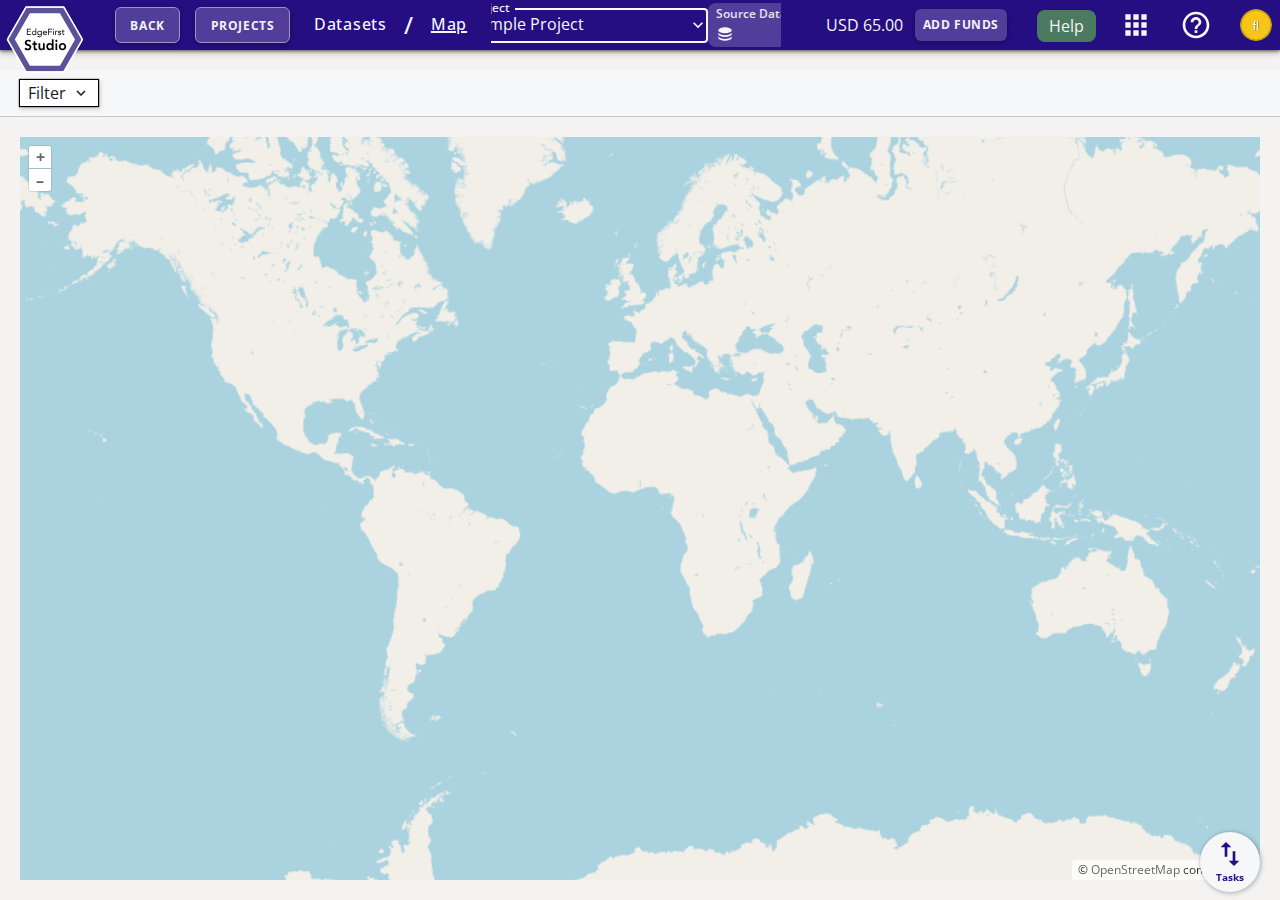
Map Controls
| Control | Description |
|---|---|
| + / – buttons | Zoom in and out on the map. |
| Filter | Open the filter panel to narrow which datasets are shown on the map. |
| Source Dataset selector | Choose which specific dataset's GPS points are displayed on the map. |
Filter Panel
Click the Filter button to open the filter panel. Filters allow you to narrow the displayed data points by dataset attributes such as name, date range, or annotation group.
GPS Requirements
For images to appear as map markers, GPS location data must have been imported through one of the following methods:
- Image EXIF — GPS coordinates embedded directly in the image file metadata at capture time.
- Annotation type — GPS location imported as a dedicated annotation type during dataset import.
Datasets or images without GPS data will not produce any map markers.
Recording GPS Data
When capturing data with EdgeFirst Perception on a platform with a GPS module, GPS coordinates are automatically embedded in the captured images. See Capturing Data for details.
Next Steps
Return to the Dataset Dashboard to manage datasets, or see the Dataset Tutorials for end-to-end dataset workflows.