Navigating EdgeFirst Studio
This page describes how to navigate towards different functionalities in the EdgeFirst Studio. When first logged in to EdgeFirst Studio, you will be directed to the User Home Page as shown below.
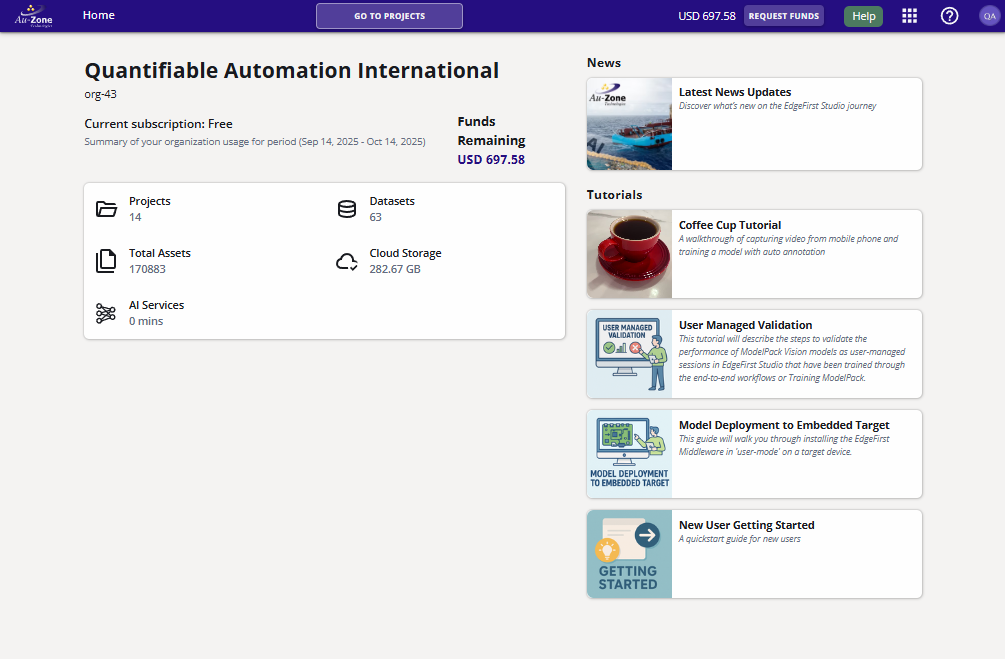
Navigation towards different functionalities in the EdgeFirst Studio portal is facilitated through the top navigation bar as shown below.

The elements of the navbar are:
- The EdgeFirst Studio Home Button. This button will return a user to the Home Page
- The "Back" button to return to the previous page
- The "Projects"button to navigate towards the Projects Page
- The Page Title. On other pages, there will be a "Projects" drop-down to navigate to other projects
- The current amount of funds and "Add Funds" button
- The Help Button. This will take the user to the page's corresponding documentation page
- The Apps Waffle Button. This will take the user to the Apps Menu
- The Help Center Button. This will take the user to the General Help Center
- The User Menu Button. This will take the user to the User Menu
User Menu

This menu can be found on the right side of the top navigation bar. This menu has the following options. More information describing this menu can be found in the user section.
Admin Console
An admin user can manage organizational details and users, and view billing information. More details are inside the links provided.
Profile
Any user can manage their profile and change their password.
Logout
Logout of EdgeFirst Studio.
Help
We provide various methods of assistance from accessing the EdgeFirst documentation or help pages for any tutorials related to the current page being landed. Otherwise, you can contact us directly for additional support.
General Help
This menu provides the options to go to the help pages, submit feedback, view release notes, see the Studio API usages, and to see the currently deployed version of EdgeFirst Studio as shown below.

Documentation
The "Help" button will point towards the link in the EdgeFirst documentation that describes the features and context of the current page being visited.
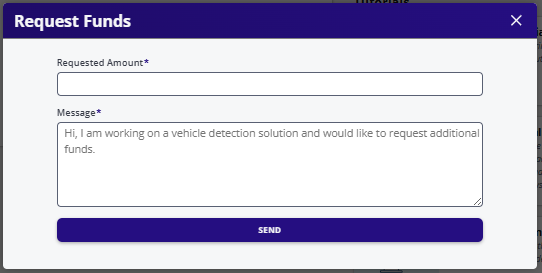
Add Funds
You can request additional funds via the "Add Funds" button. This will bring up the "Top-up" page. Here you can request funds from us via Credit Card, Coupon, or by other reasons through the "email" button.
Apps Menu
The Apps Menu provides selections towards the various tools provided in EdgeFirst Studio.

Projects
Clicking on "Projects" takes the user to the Projects Dashboard. This operation is the same as clicking on the "Projects" button on the top navigation bar. A project is a high-level collections of sensor datasets, model experiments, and other automation and management tasks associated with the dataset inputs and model outputs.
Datasets
Clicking on "Datasets" takes the user to the Datasets Dashboard. This page lists all datasets available to the user in the selected project. A dataset is a collection of sensor data, such as images, videos (sequences), radar cubes, etc. logically grouped together by the user. Usually, each dataset contained within a project will come from a single recording session.
Auditing Tasks
Clicking on "Auditing Tasks" takes the user to the Auditing Tasks Dashboard. This page lists all auditing tasks for any dataset in the selected project. Auditing tasks are formal operations of editing, approving, or removing annotations. However, other methods of annotating datasets are described in the Dataset Annotations section.
Model Experiments
Clicking on "Model Experiments" takes the user to the Model Experiments Dashboard. This page contains all training sessions and validation sessions. Additional features for comparing training charts and validation metrics are also available. More information can be found in the model training and model validation sections. A model experiment is a high-level collection of training and validation sessions. A training session is the functionality of converting datasets into vision- and radar-based models that can be deployed back to the EdgeFirst Platforms for inference. A validation session is the functionality to take a model and measure its performance against other models or a standardized validation set to see if it is ready for deployment.
Cloud Instances
Clicking on the "Cloud Instances" takes the user to the Cloud Instances Dashboard. This page allows user to view currently running cloud instances and to stop a running cloud instance in here. A cloud instance is a server dedicated to hosting any operations such as model training and validation, or AGTG operations.
Data Snapshots
Clicking on the "Data Snapshots" takes the user to the Snapshots Dashboard. This page allows users to create and restore snapshots. This is a method to preserve the current state of the dataset. A snapshot is a frozen and compact form of a dataset represented in the EdgeFirst Dataset Format.
Apps
Clicking on the "Apps" takes the user to the Apps Dashboard where it lists existing EdgeFirst Studio apps that can be run by the user to perform operations such as training, validation, or model conversions and quantizations. Model conversion can be in the form of converting ONNX to TFLite with the neutron delegate support to allow inference in NXP's i.MX 95 as an example.
Tasks
Clicking on the "Tasks" takes the user to the Tasks Dashboard where it lists all pending and running operations in EdgeFirst Studio from model training, validation, or model conversions. Furthermore, it also provides a history of these operations that were run that either completed successfully, terminated, or failed.
Recycling Bin
Clicking on the "Recycle Bin" takes the user to the Recycle Bin page. This page is used for managing the recycling bin. The deletions of the following items can be reverted or purged:
- Project
- Dataset
- Annotation Set
- Model Experiment
- Training Session
- Validate Session
Alerts
This link provides information about general alerts (if present). For example, an alert can be triggered by setting the image limit as shown here.
Next Steps
Now that you are familiar with navigating EdgeFirst Studio, learn more about managing users in your organization next.