Tasks Dashboard
The Tasks page provides a centralized view of all background operations running in EdgeFirst Studio — including model training, validation, app runs, and data imports. Both currently running and completed operations are visible here.
To access this page, click the Apps waffle icon in the top navigation bar and select Tasks from the menu.
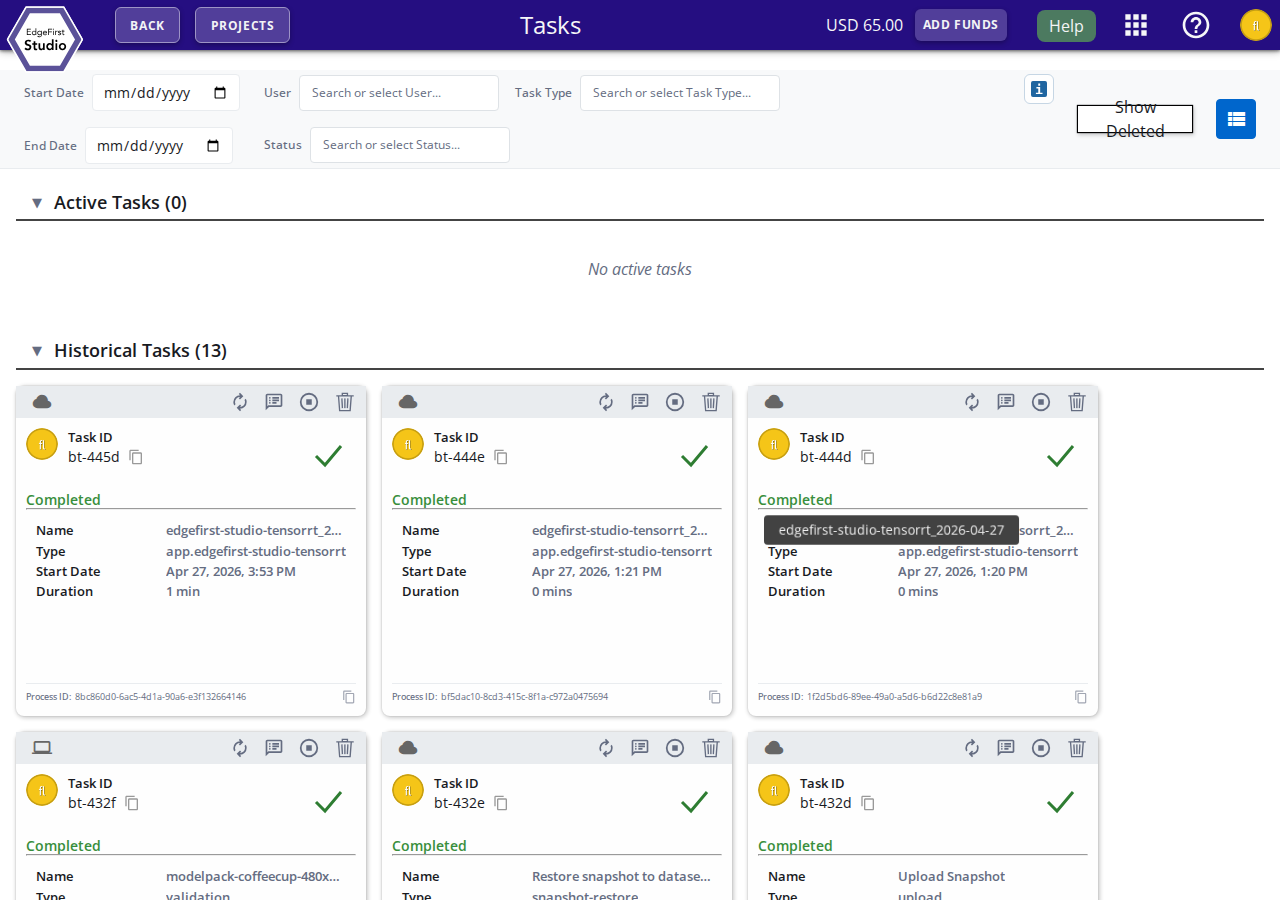
Views
The page supports two display modes, toggled with the button in the top-right corner of the toolbar:
- Card View (default) — Displays each task as an expanded card showing full details.
- List View — Displays tasks in a compact table format for a broader overview.
Filtering
Use the Start Date and End Date fields to limit the tasks shown to a specific time window. Click the calendar icon to open the date picker.
Toggle Show Deleted to include tasks that have been removed from the active list.
Task Sections
Tasks are grouped into two collapsible sections:
Active Tasks
Shows all currently running or queued operations. Each active task card displays real-time status alongside the controls described below.
Historical Tasks
Shows all completed, failed, or stopped operations. The count in the section heading reflects the total number of historical tasks matching the current filter.
Task Card
Each task card shows the following information:
| Field | Description |
|---|---|
| Task ID | A unique identifier for the task (e.g. bt-445d). Click the copy icon to copy it to the clipboard. |
| Status | The current state of the task: Completed, Running, Failed, or Stopped. |
| Name | The display name assigned to the task at creation time. |
| Type | The task category — training, validation, app.<name>, or import. |
| Trainer / Validator | For training and validation tasks, links to the associated session IDs. |
| Start Date | When the task began executing. |
| Duration | Total elapsed time. |
| Process ID | The internal process UUID. Click the copy icon to copy it. |
Task Actions
Each card has an action bar with the following buttons:
- View Logs — Open the live or historical console output for the task.
- Stop — Terminate a running task.
- Delete — Remove the task from the history list.
- Copy — Copy the task details to the clipboard.
Next Steps
For model training tasks, see Training Vision Models. For validation tasks, see Validating Vision Models. For app tasks, see Studio Apps.