Dataset History
The Dataset History page provides a full audit trail for a dataset, showing every tagged version that has been saved and a detailed change log of all modifications made to the dataset's contents over time.
To access this page, open a dataset and click the History button in the dataset toolbar.
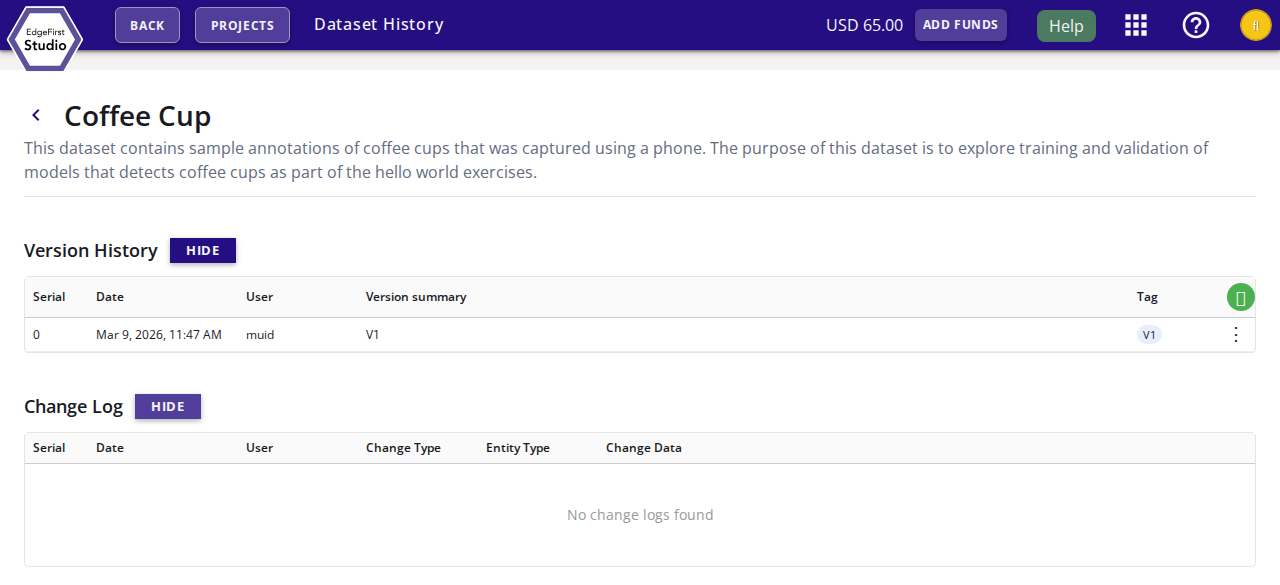
Version History
The Version History table lists every snapshot that has been explicitly tagged for the dataset. Versions allow you to pin a known-good state of a dataset so it can be referenced by training or validation sessions and restored at any time.
| Column | Description |
|---|---|
| Serial | Sequential version index starting at 0. |
| Date | When the version was tagged. |
| User | The user who created the tag. |
| Version Summary | A short description of the changes included in this version. |
| Tag | The version label (e.g. V1). |
Adding a Version
Click the + button in the table header to tag the current state of the dataset as a new version. You will be prompted to enter a version summary and an optional tag label.
Version Actions
Click the ⋮ menu on any version row to access the following actions:
- Restore in Current Dataset — Revert the dataset contents to match this version. Existing annotations that are not part of the version will be removed.
- Delete Tagged Version — Remove the version tag. This does not delete the underlying dataset data.
Change Log
The Change Log table records every individual change event applied to the dataset, regardless of whether it was tagged as a version. This provides a fine-grained audit trail of who changed what and when.
| Column | Description |
|---|---|
| Serial | Sequential event index. |
| Date | When the change occurred. |
| User | The user who made the change. |
| Change Type | The type of operation (e.g. create, update, delete). |
| Entity Type | The kind of object that was modified (e.g. annotation, image). |
| Change Data | A summary of the specific data that was changed. |
The Change Log section is collapsed by default. Click Show to expand it, or Hide to collapse it again.
Next Steps
- Annotations View — Inspect and edit dataset annotations.
- Gallery View — Browse dataset images and labels visually.
- Map View — View geospatially tagged images on a map.