Tourist Workflow
This workflow is for viewers browsing through EdgeFirst Studio. Viewers can explore the EdgeFirst Studio landing page and get an overview of the platform's features — no account required.
Is EdgeFirst Studio for you?
EdgeFirst Studio is designed for teams and individuals building AI-powered products for the edge. If any of the following sounds familiar, you're in the right place:
- You want to train and deploy vision models without managing your own training infrastructure
- You work with edge hardware — cameras, NPUs, embedded systems — and need models that actually run fast on device
- You need to manage datasets — annotate, version, audit, and share image or sensor data across a team
- You want to benchmark models on real hardware and see accuracy alongside latency, not just one or the other
- You're evaluating pre-trained models and want to compare them against your own fine-tuned results
- You're building a Physical AI system with 3D sensors (LiDAR, RADAR, depth) alongside cameras
EdgeFirst Studio is a fully managed cloud platform — no servers to provision, no training clusters to maintain. You bring your data and your target hardware; Studio handles the rest.
Not sure yet?
No account needed to start exploring. Visit the EdgeFirst Studio landing page to browse features and the public Model Zoo — then sign up when you're ready. New accounts start with $50 USD in free credits.
Explore EdgeFirst Studio
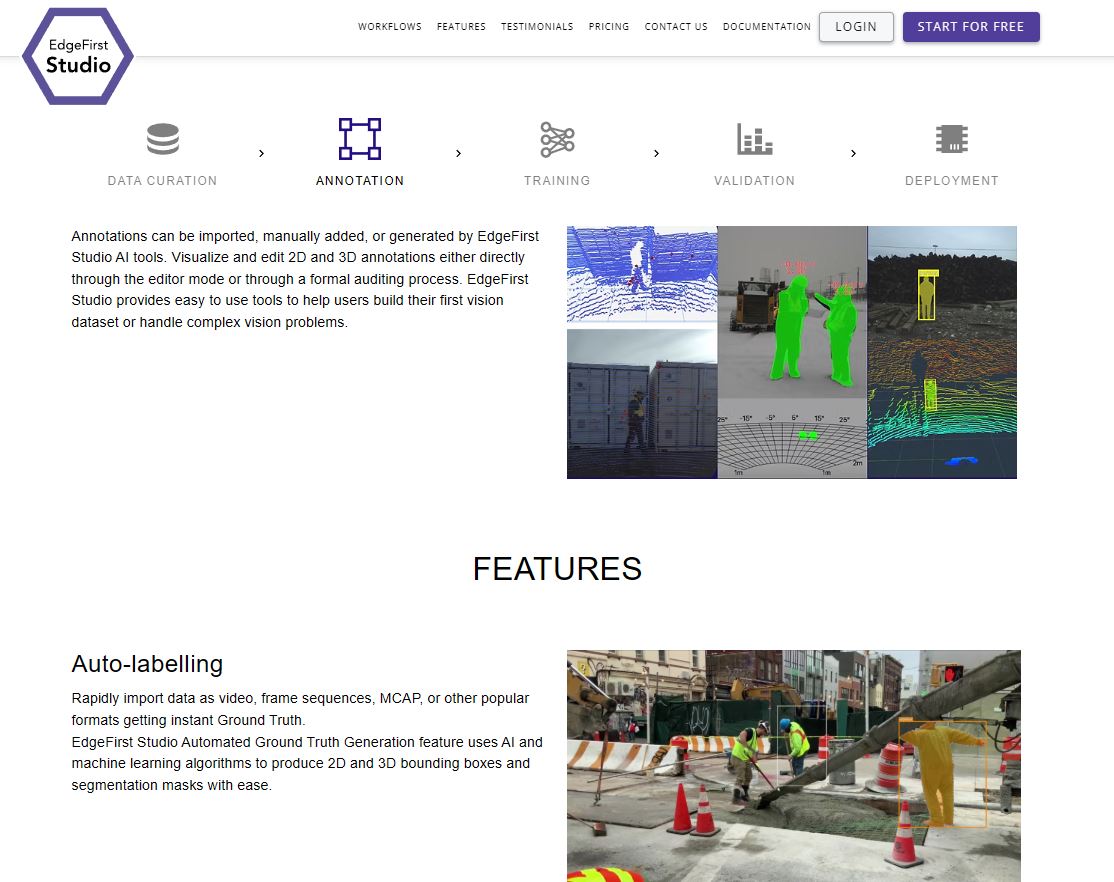
EdgeFirst Studio is accessible at edgefirst.studio. Upon visiting, you will see the EdgeFirst Studio landing page with an overview of the platform's features and capabilities — no account or sign-up is required to explore this page.
On the landing page you can:
- View the EdgeFirst Studio feature overview and product highlights
- Browse publicly available sample models in the EdgeFirst Model Zoo on Hugging Face
- Browse publicly available projects and datasets
- Learn about the EdgeFirst Perception ecosystem and supported target hardware
Explore Public Datasets
The Public Datasets button on the landing page (under Host and access public datasets) opens the Public Projects gallery.

This is the quickest way to see how a complete EdgeFirst Studio project is put together — still with no account or sign-up required.
Public projects are organized into Trending Projects and Most Recent Projects so you can quickly find popular and newly published examples. Each project is a fully worked example that bundles everything together in one place:
- Datasets — annotated images organized into annotation sets, ready to explore in the dataset viewer.
- Trained models — experiments with deployment-ready artifacts.
- Validation results — accuracy and timing metrics so you can see how each model performs before doing any work of your own.
Projects you will find here include:
| Public Project | What it demonstrates |
|---|---|
| Sample Projects | A curated set of EdgeFirst sample datasets with trained models ready for deployment and full validation results — the best starting point for a guided tour. |
| COCO Detection | A YOLO object-detection workflow trained and validated on the COCO 2017 dataset across 80 common categories (people, vehicles, animals, and everyday items). |
| COCO Instance Segmentation | A YOLO instance-segmentation workflow on COCO 2017 that adds pixel-level masks delineating each object instance. |
Read-only, but yours to build on
Public datasets and projects are read-only so the published examples stay intact. When you find one you want to work with, copy it into one of your own projects to modify the annotations, re-train the models, and run your own experiments — see the Copy a Dataset guide.
Platform Features
Use the table below as a quick overview of what is visible on the landing page.
| Feature | Description |
|---|---|
| Auto-labelling | Generate 2D and 3D bounding boxes and segmentation masks from video, frame sequences, MCAP, or other formats using AI-based Ground Truth generation. |
| 3D Perception and Physical AI | Built-in support for LiDAR, RADAR, point cloud, depth maps, and other 3D sensors with editing and auditing workflows. |
| Optimize Models | Train radar and vision models (including fusion), run parallel experiments, and compare results. |
| Validation | Review model performance and compare results across experiments across targets. |
| Deployment Targets | Deploy to Maivin, Raivin, i.MX 8M Plus, i.MX 95, NVIDIA Jetson Orin, Kinara ARA-2, Hailo platforms. |
| Public Datasets | Host and access public datasets. |
| Model Benchmarking | Benchmark and profile models on edge platforms and analyze performance. |
Ready to go further?
Sign up for a free account and browse public datasets and models by following the Tourist+ Workflow.