Tourist Plus Workflow
In this workflow, you will explore copying the Coffee Cup dataset from "Sample Project" and using the dataset to explore the annotation process. Once the dataset has been annotated, you can use the dataset to train and validate the model, and then finally deploy the model on your PC.
Copy Dataset
To copy a dataset, navigate to the dataset you would like to copy. On the dataset card, select "Copy Dataset" from the dataset options as shown below.
This will open a new dialog for the user to specify the dataset source and destination. The destination will be the location of the copied dataset. The source is the current location of the dataset. The source is set by default to the current dataset card you've selected. In the example below, the source is set to the "Coffee Cup" dataset from "Sample Project". The copied dataset will be placed as specified in the destination fields. By default a new dataset container will be created in the specified project. However, you can also create a dataset container before copying and specify this dataset container in the destination fields.
Once you have made your selection, click "Apply" at the bottom right to start the copy process.
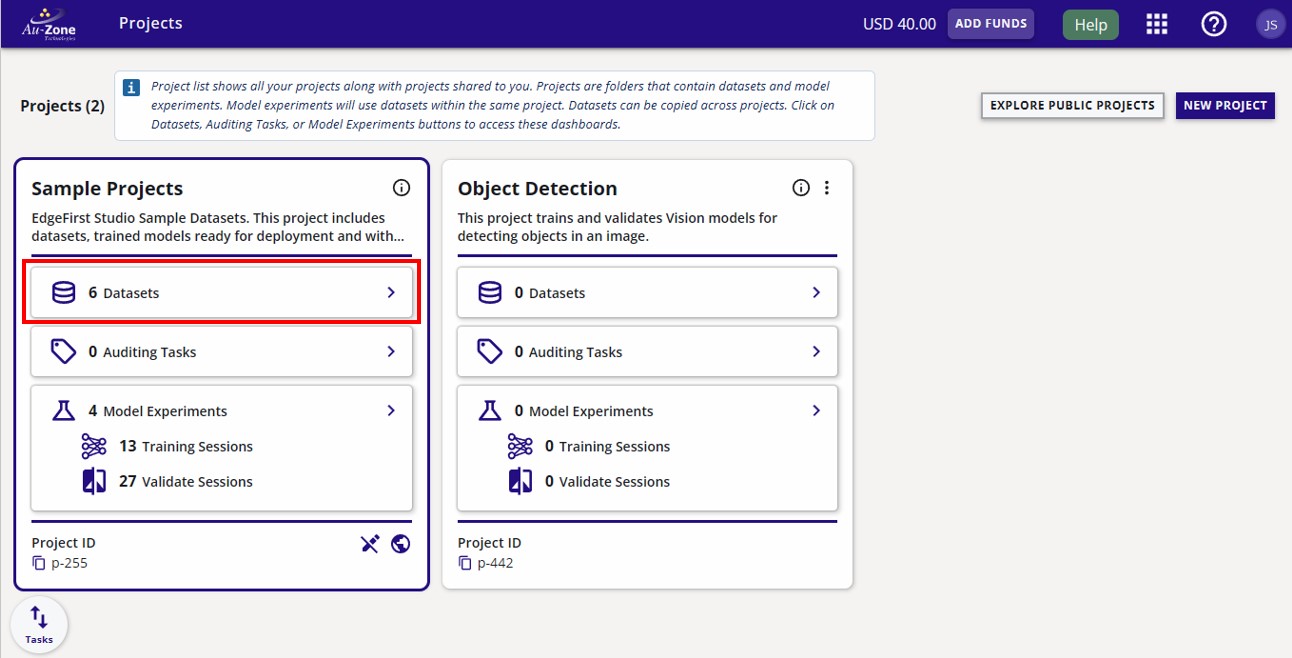
You can navigate to the copied dataset by clicking the "Project" button and then clicking on the "Datasets" button on your project as shown below.
The progress for the dataset copy will be shown on the dataset card.
Once the copying process completes, the frames and the annotations would have been copied.
| Original Dataset | Copied Dataset |
|---|---|
![]() |
![]() |
Tag Dataset
To maintain the current state of the dataset, tag the dataset with a version.
Click on the dataset options at the top right of the dataset card (three vertical dots). Then click the "History" button.
Add a new tagged version of the dataset by clicking the + green button on the right of the page as shown.
Specify the tag version and tag description. Click "Create Tag" to tag the dataset.
The new dataset tag will appear under "Version History" of this page. You can go back to the dataset card by clicking the "Back to Datasets" button.
Annotate Dataset
Now that you have a dataset in your project, you can start annotating the dataset. This will briefly show the steps for annotating the dataset, but for an in depth tutorial on the annotation process, please see Dataset Annotations.
To annotate a dataset, first create an annotation set on the dataset card.
Provide the name of the new annotation set and its description
A new annotation set was created called "new-annotations".
Next, open the dataset gallery, by clicking on the image preview of the dataset card.
The dataset will contain sequences (video) and images. Click on any sequence card to start annotating sequences.
On the top navbar, switch to the right annotation set.
Start the AGTG server by clicking on the "AI Segment Tool" and follow the prompts as indicated.
Once the AGTG server has started, go ahead and annotate the starting frame.
Once the starting frame has been annotate, go ahead and propagate the annotations throughout the rest of the frames.
Once the propagation completes, click "Save Annotations" to save the propagated annotations.
Repeat the steps for all the sequences in the dataset. For the case of individual images, the same steps apply except there is no propagation step. You can still use the AGTG feature to quickly annotate images as shown in Add 2D annotations.
Audit Dataset
After the annotation process, review each individual frame or image in the dataset that was auto-annotated. This step is also known as the audit process which is crucial in verifying that the dataset has been properly annotated and ready for training.
To view the dataset and the annotations, click on the image preview of the gallery.
The auditing step may require adding new annotations for objects that were missed during the AGTG process. Or it may require removing annotations for objects that were improperly annotated. Lastly, for annotations that require minor adjustments, EdgeFirst Studio has the features for adjusting annotations. Please click on the links as provided for further instructions on each of these features.
Once you have audited the dataset and verified that it's properly annotated, split the dataset into training and validation groups.
Train Vision Model
Now that you have a fully annotated dataset with a training and validation partition, you can begin training your model. This will briefly show the steps for training a model, but for an in depth tutorial, please see Training Vision Models.
Navigate back to the "Projects" page. You can go back to the "Projects" page by clicking the Apps Menu waffle button on the top right of the Navigation bar. Click the first selection to take you to the "Projects page".
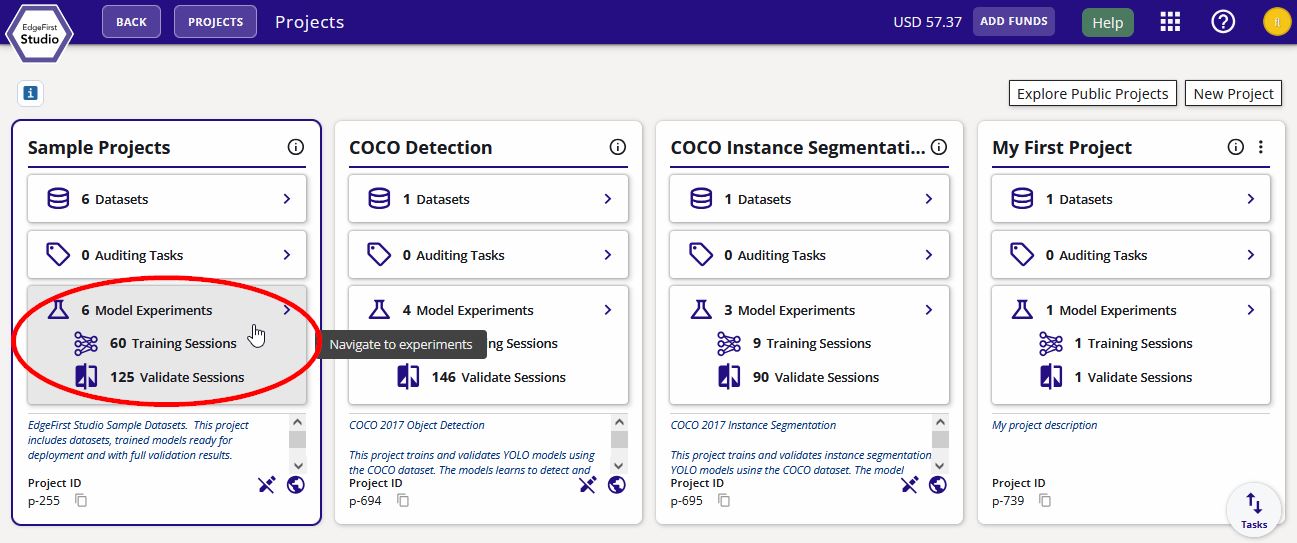
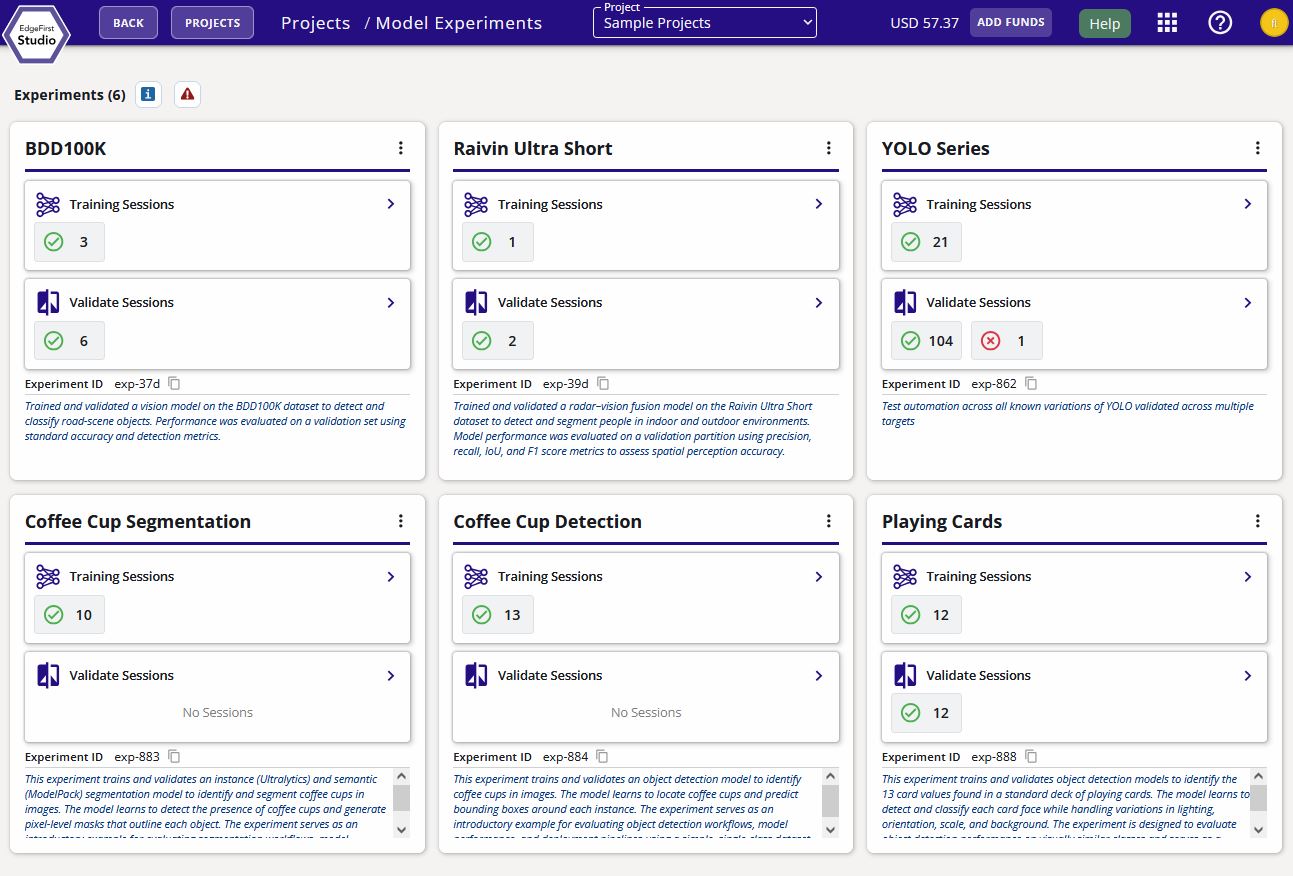
From the "Projects" page, click on "Model Experiments" of your project.
Create a new experiment by clicking "New Experiment" on the top right corner. Enter the name and the description of this experiment. Click "Create New Experiment".
Navigate to the "Training Sessions".
Create a new training session by clicking the "Actions" dropdown menu on the top right of the page and then click the "+ New" button.
Follow the settings indicated and keep the rest of the settings default. Click "Start Session" to start the training session.
The session progress will be shown like the following below.
Once completed the session card will appear like the following below.
Click the training session card for more information.
The trained models will be listed under the "Artifacts" tab. The download button next to these artifacts will download the artifacts to your machine.
Validate Vision Model
Now that you have trained a model, you can now validate the performance of your model. This will briefly show the steps for validating a model, but for an in depth tutorial, please see Validating Vision Models.
If you haven't already, click on the training session card for more information.
On the top right corner of the page, click on the "validate" button as indicated.
Specify the name of the validation session and the model and the dataset for validation. The rest of the settings were kept as defaults. Click "Start Session" at the bottom to start the validation session.
Go to the created validation session by first going back to the "Model Experiments" page.
Next, click the validation sessions of the model experiments.
The validation session progress will appear in the "Validation" page as shown below.
Once completed the session card will appear like the following below. To view the validation metrics, click on the validation charts button as indicated.
The validation metrics should appear like the following. For more information, please see the Validation Metrics section.
You can navigate back to the training session by clicking on the "Training Session" link under the "Session" tab.
After training a Vision model in EdgeFirst Studio, you can deploy the model in any device connected to a browser with access to a camera. This can be your phone or your PC as an example. This guide will show you the steps for deploying the model using EdgeFirst Studio.
Navigate to the training session you wish to deploy by going back to the "Projects" page by clicking the "Projects" button at the top left of the page.
Click on the model experiments of your project.
Click on the training sessions of your experiment.
Click on the selected training session.
Click the "Run Model" button on the top right of the page.
Live Inference
You will be given the option for either live inference or inference from a file upload. Go ahead and demo the live inference feed by clicking the "Live" option.
You should now see the live inference feed on your browser running the trained model.
Image Inference
Alternatively, you can also select the "Upload" option where you can select any image in your filesystem to pass to the model for inference.
Select an image from the filesystem to run inference.
You should now see the image with the model inference displayed in EdgeFirst Studio.
Next Steps
Explore dataset capture and annotation process by following the Web Workflow.