Navigating EdgeFirst Studio
This page describes how to navigate towards different pages and features of EdgeFirst Studio. When first logged in to EdgeFirst Studio, you will be directed to the User Home Page as shown below.
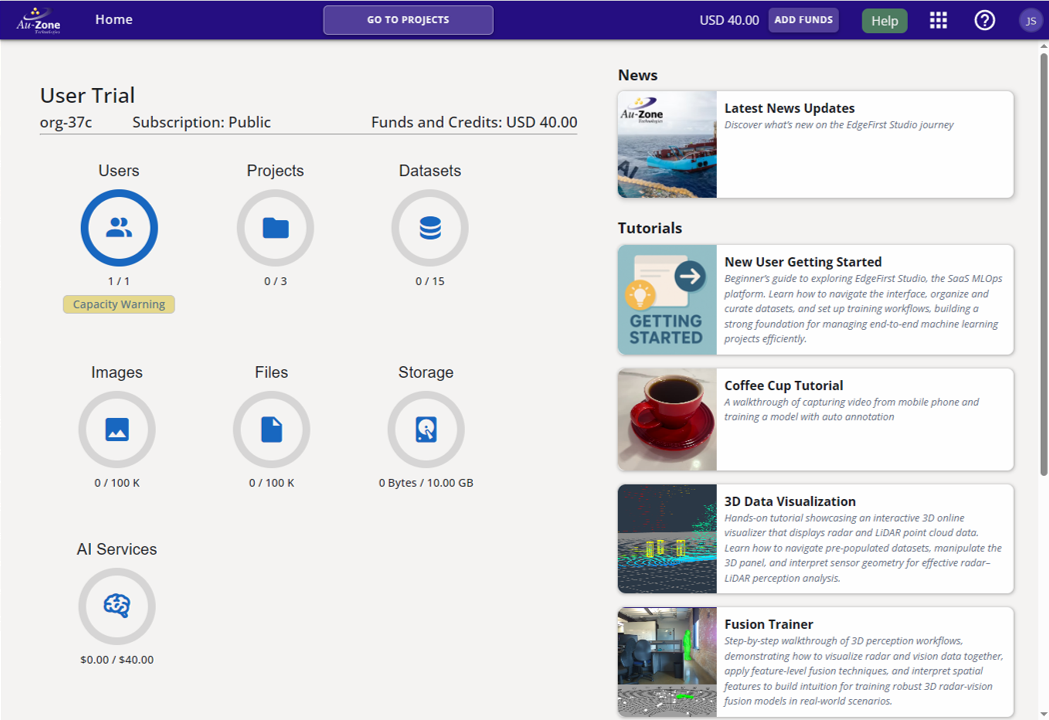
Navigation towards different functionalities in the EdgeFirst Studio portal is facilitated through the top navigation bar as shown below.

The elements of the navbar are:
- The EdgeFirst Studio Home Button. This button will return a user to the Home Page
- The "Back" button to return to the previous page
- The "Projects" button to navigate towards the Projects Page
- The Page Title. On other pages, these will be links to show parent-child pages
- The "Tasks" button and the number of active tasks will take the user to the Tasks Page
- The current amount of funds and "Add Funds" button will take the user to the Top Up Modal
- The Help Button. This will take the user to the page's corresponding documentation page
- The Apps Waffle Button. This will take the user to the Apps Menu
- The Help Center Button. This will take the user to the General Help Center
- The User Menu Button. This will take the user to the User Menu
User Menu
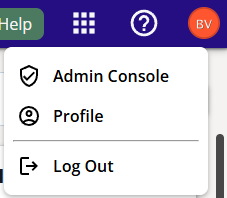
This menu can be found on the right side of the top navigation bar. This menu has the following options. More information describing this menu can be found in the user section.
Admin Console
An admin user can manage organizational details and users, and view billing information. More details are inside the links provided.
Profile
Any user can manage their profile and change their password.
Logout
Logout of EdgeFirst Studio.
Help
We provide various methods of assistance from accessing the EdgeFirst documentation or help pages for any tutorials related to the current page being landed. Otherwise, you can contact us directly for additional support.
General Help
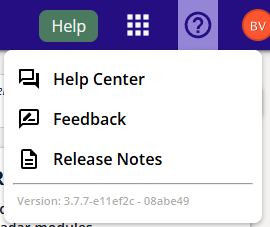
This menu provides the options to go to the help pages, submit feedback, view release notes, see the Studio API usages, and to see the currently deployed version of EdgeFirst Studio as shown below.
Documentation
The "Help" button will point towards the link in the EdgeFirst documentation that describes the features and context of the current page being visited.
Add Funds
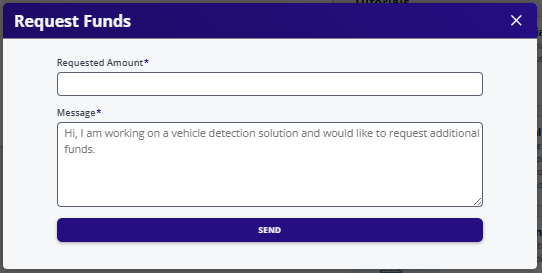
You can request additional funds via the "Add Funds" button. This will bring up the "Top-up" page. Here you can request funds from us via Credit Card, Coupon, or by other means through the "email" button.
Apps Menu
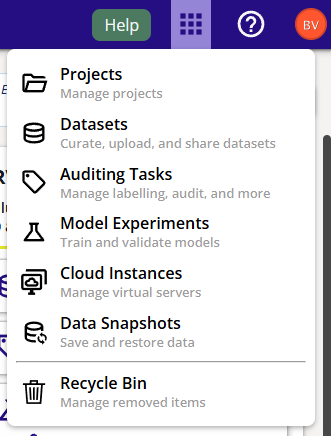
The Apps Menu provides selections towards the various tools provided in EdgeFirst Studio.
Datasets Dropdown
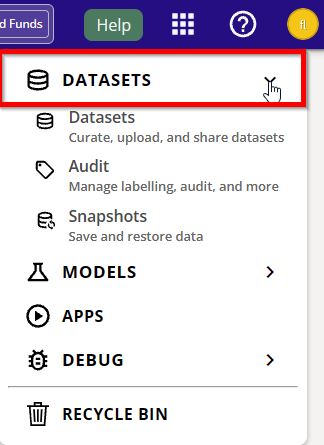
Clicking on "DATASETS" expands into further features related to datasets in EdgeFirst Studio.
Datasets
The "Datasets" button takes the user to the Datasets Dashboard. This page lists all datasets available to the user in the selected project. A dataset is a collection of sensor data, such as images, videos (sequences), radar cubes, etc. logically grouped together by the user. Usually, each dataset contained within a project will come from a single recording session.
Audit
Clicking on "Audit" takes the user to the Auditing Tasks Dashboard. This page lists all auditing tasks for any dataset in the selected project. Auditing tasks are formal operations of editing, approving, or removing annotations. However, other methods of annotating datasets are described in the Dataset Annotations section.
Snapshots
Clicking on "Snapshots" takes the user to the Snapshots Dashboard. This page allows users to create and restore snapshots. A snapshot is a frozen and compact form of a dataset represented in the EdgeFirst Dataset Format. A snapshot can either be imported into Studio as a dataset or exported back into your local machine.
Models Dropdown
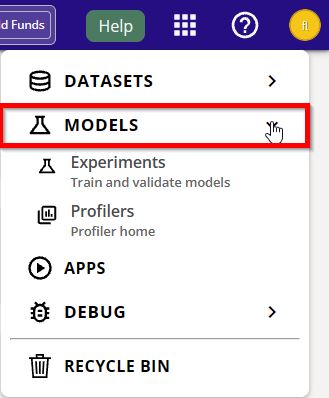
Clicking on "MODELS" expands into further features related to model operations in EdgeFirst Studio.
Experiments
Clicking on "Experiments" takes the user to the Model Experiments Dashboard. This page contains all training sessions and validation sessions. Additional features for comparing training charts and validation metrics are also available. More information can be found in the model training and model validation sections. A model experiment is a high-level collection of training and validation sessions. A training session is the functionality of converting datasets into vision- and radar-based models that can be deployed back to the embedded target for inference. A validation session is the functionality to take a model and measure its performance against other models or a standardized validation set to see if it is ready for deployment.
Profilers
Work in Progress
This feature is currently a work in progress in EdgeFirst Studio. Once ready, the feature will provide the tools for users to use as described below.
Clicking on "Profilers" takes the user to the Profiler Dashboard. This feature allows users to compare the performance of models across embedded targets to allow users to find the best model-target combination to deploy into their system. This feature provides the same set of tools as our HuggingFace Dashboard for model comparison with additional filtering, sorting, and scoping capabilities.
Apps
Clicking on "APPS" takes the user to the Apps Dashboard where it lists existing EdgeFirst Studio apps that can be run by the user to perform operations such as training, validation, or model conversions and quantizations. Model conversion can be in the form of converting ONNX to TFLite with the neutron delegate support to allow inference in NXP's i.MX 95 as an example.
Debug
This option is intended for developer and internal debugging use only.
Recycling Bin
Clicking on the "Recycle Bin" takes the user to the Recycle Bin page. This page is used for managing the recycling bin. The deletions of the following items can be restored or purged to free memory usages:
- Project
- Dataset
- Annotation Set
- Model Experiment
- Training Session
- Validate Session
Alerts
This link provides information about general alerts (if present). For example, an alert can be triggered by setting the image limit as shown here.
Next Steps
Now that you are familiar with navigating EdgeFirst Studio, learn more about managing users in your organization next.