Tasks Dashboard
The Tasks page provides a centralized view of all background operations running in EdgeFirst Studio where it lists all pending, running, terminated, failed, or successful MLOPs processes in EdgeFirst Studio — including model training, validation, app runs, and data imports. Both currently running and completed operations are visible here in a single paginated view. Furthermore, it also keeps a history of operations ran that either completed successfully, terminated, or failed.
To access this page, click the Tasks button in the top navigation bar.

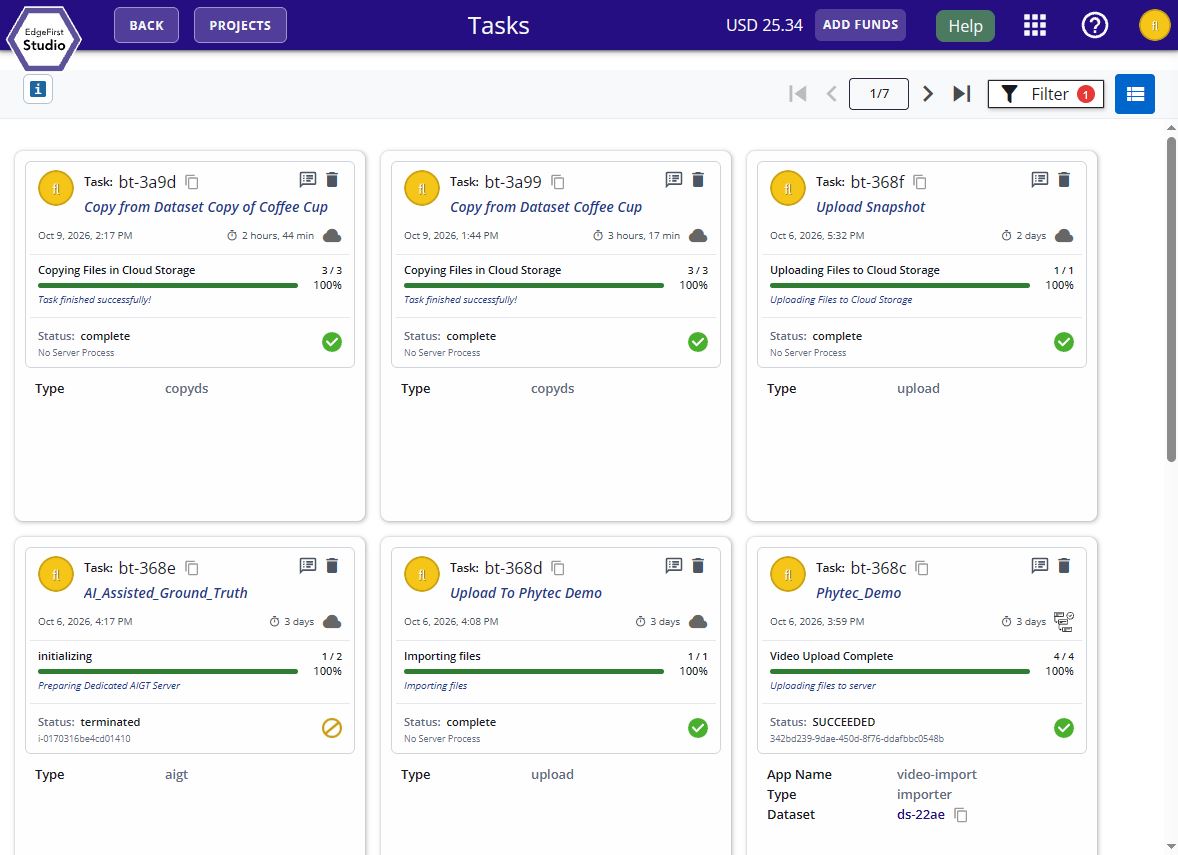
The tasks page will look like the following:
Toolbar
The toolbar at the top-right of the page provides the main navigation and display controls:
- Page navigation — Jump to the first, previous, next, or last page of tasks.
- Page indicator — Shows the current page number and total number of pages.
- Filter — Opens the task filters. The badge on the button shows how many filters are currently active.
- View toggle — Switch between Card View and List View.
Views
The page supports two display modes, toggled with the button in the top-right corner of the toolbar:
- Card View (default) — Displays each task as an expanded card showing full details.
- List View — Displays the same task information in a denser row-based layout for easier scanning.
Filtering
Use the Filter button to narrow the list of tasks. Depending on the active filters, you can limit the results shown on the page and focus on the operations relevant to your current workflow.
Task Card
Each task card shows the following information:
| Field | Description |
|---|---|
| Task ID | A unique identifier for the task (e.g. bt-445d). Click the copy icon to copy it to the clipboard. |
| Name | The display name assigned to the task at creation time, shown beneath the task ID. |
| Status | The current state of the task such as complete, queued, running, terminated, or failed. |
| Timestamp | The date and time associated with the task entry. |
| Duration / Age | The elapsed runtime or age shown next to the timestamp. |
| Progress | The current stage label, step counter, progress bar, and percentage complete. |
| Message | A short status message describing the current or final task state. |
| App Name | The app or service associated with the task when applicable. |
| Type | The task category — training, validation, app.<name>, or import. |
| Linked resources | Related items such as experiment, dataset, training session, or validation session. These identifiers can be copied from the card. |
| Process ID | The internal process UUID shown in the status area for tasks that expose it. |
Task Actions
Each task card includes action buttons near the top-right corner for task management. Depending on the task state and type, these actions can include:
- View Logs — Open the live or historical console output for the task.
- Task Actions Menu — Open additional task-specific actions.
- Delete — Remove the task from the visible history when supported.
In List View, the same information is displayed in a more compact format while preserving the per-task action controls.
Next Steps
For model training tasks, see Training Vision Models. For validation tasks, see Validating Vision Models. For app tasks, see Studio Apps.