On Cloud Validation
This tutorial walks through how to run validation in the cloud using EdgeFirst Studio which runs on a self-hosted EC2 instance. This option is ideal for users who do not have access to an embedded platform to host the validation process locally.
In this tutorial, you will validate a Vision model trained using either the end-to-end workflows or the Training Vision guide. Note that a Vision model detects objects in camera frames or images. If you are working with Fusion models, refer to Validating Fusion Models.
Alternatively, EdgeFirst Studio also supports On-Target Validation. In this mode, the model is deployed and validated directly on an embedded platform. For more details, see On Target Validation.
Specify Project Experiments
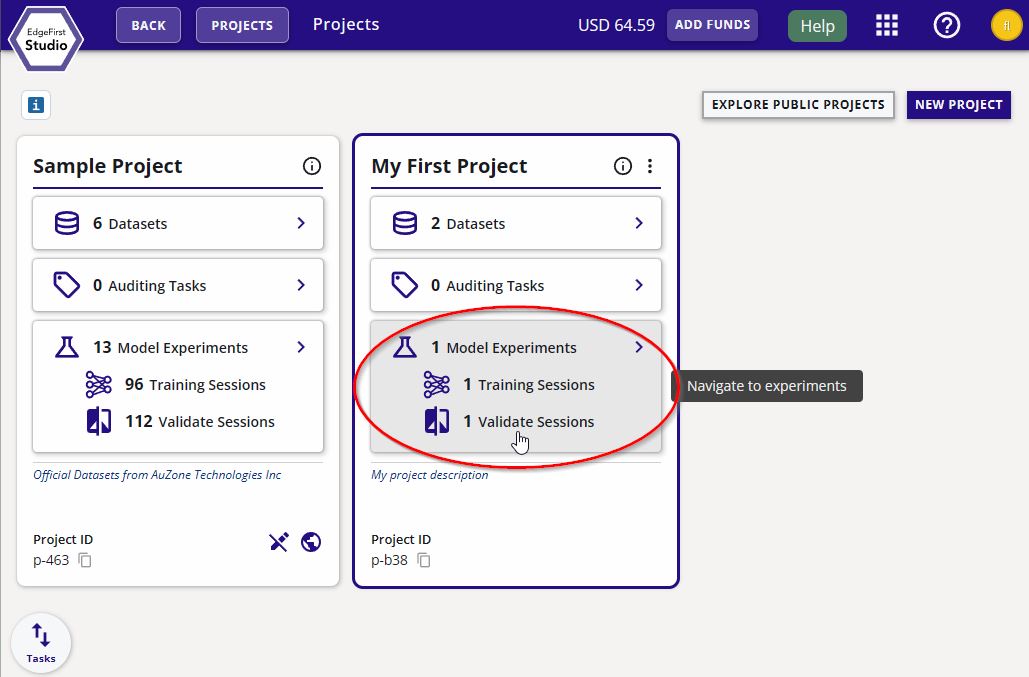
From the Projects page, choose the project that contains the training session with the models you want to validate. In this example, the project chosen is called "My First Project". Next click the "Model Experiments" button as indicated in red.
Create Validation Session
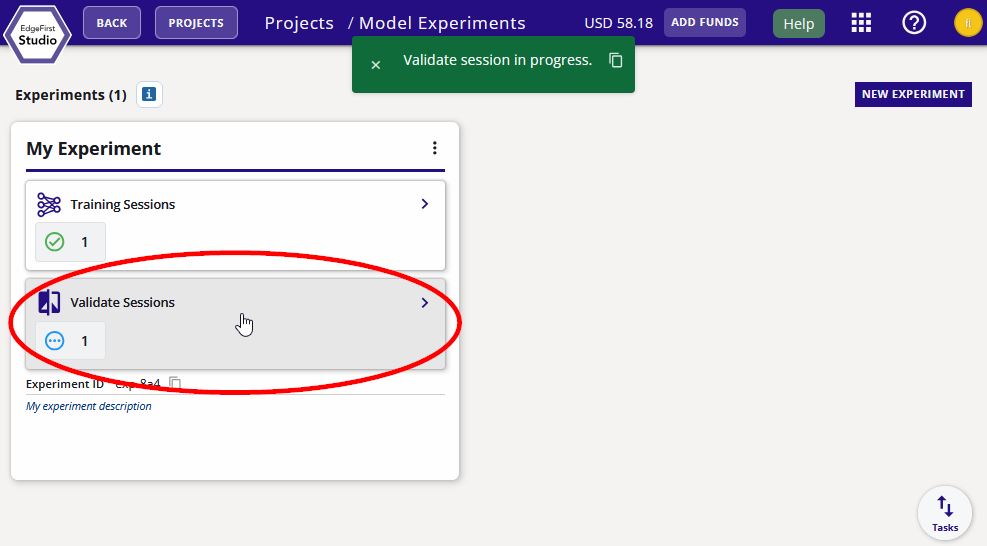
In the experiment card, click the "Validate Sessions" button as indicated in red below.
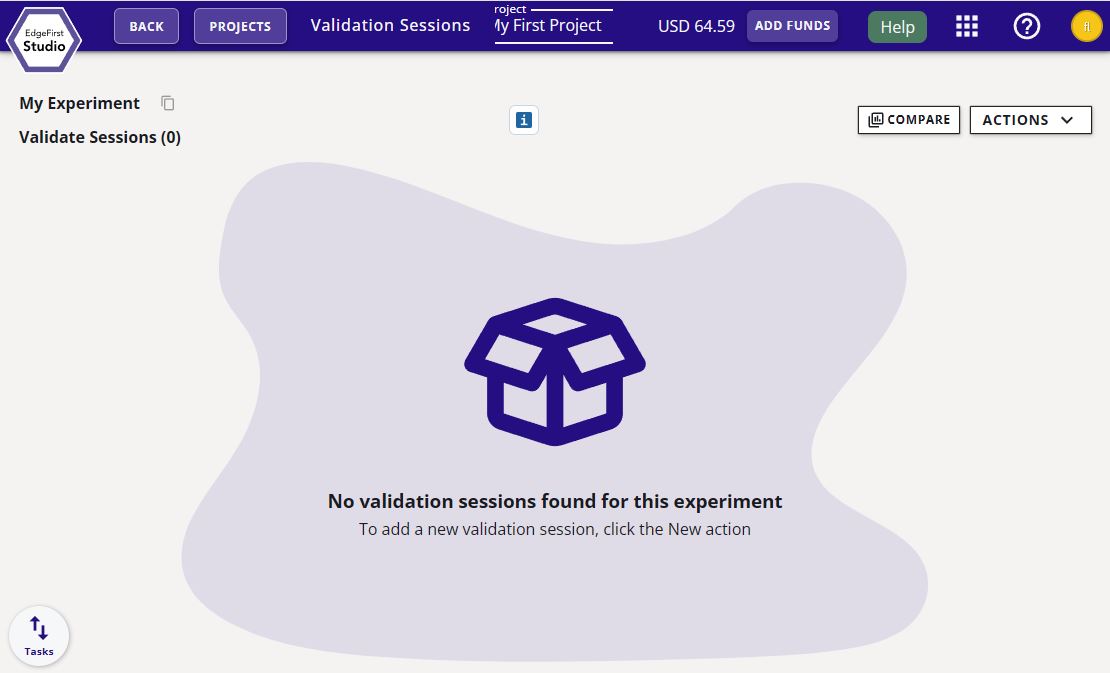
You will be greeted to the "Validate Sessions" page as shown below.
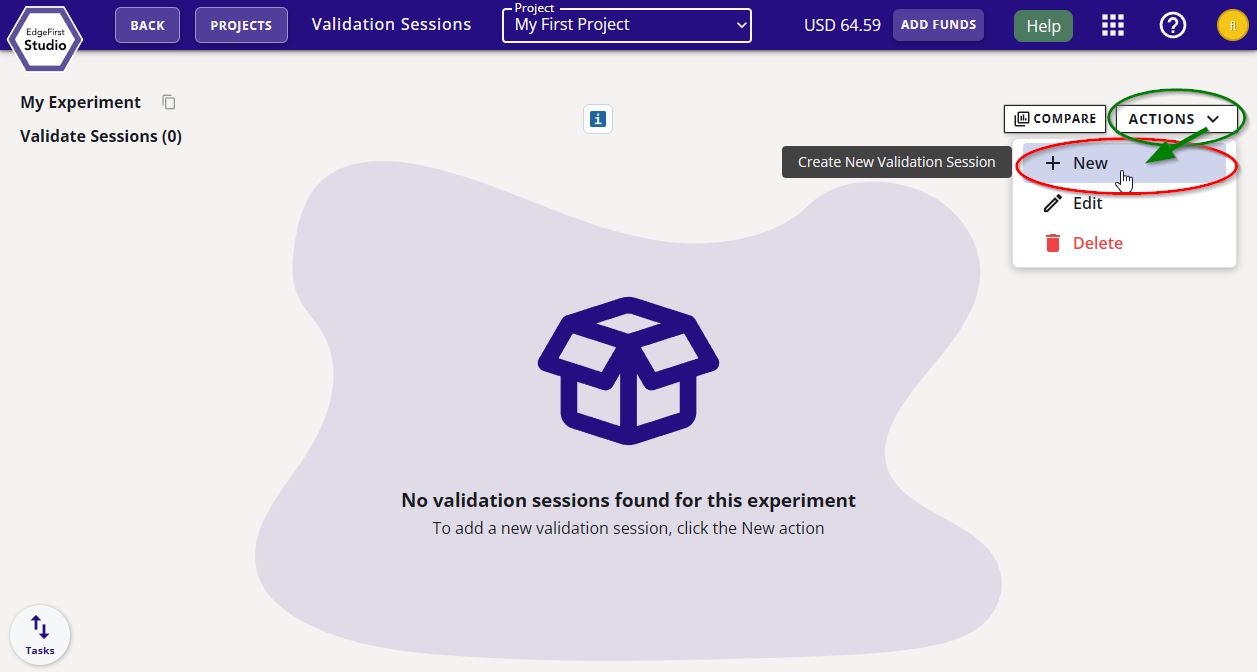
Start a validation session by clicking on the "Actions" button on the top right corner of the page and then click "+ New" as indicated.
You will be greeted with the validation session dialog. Select the model to use for validation. Select either an ONNX, Keras, or TFLite model — these are the formats supported by cloud validation. When you are ready, click START APP to begin the validation process.
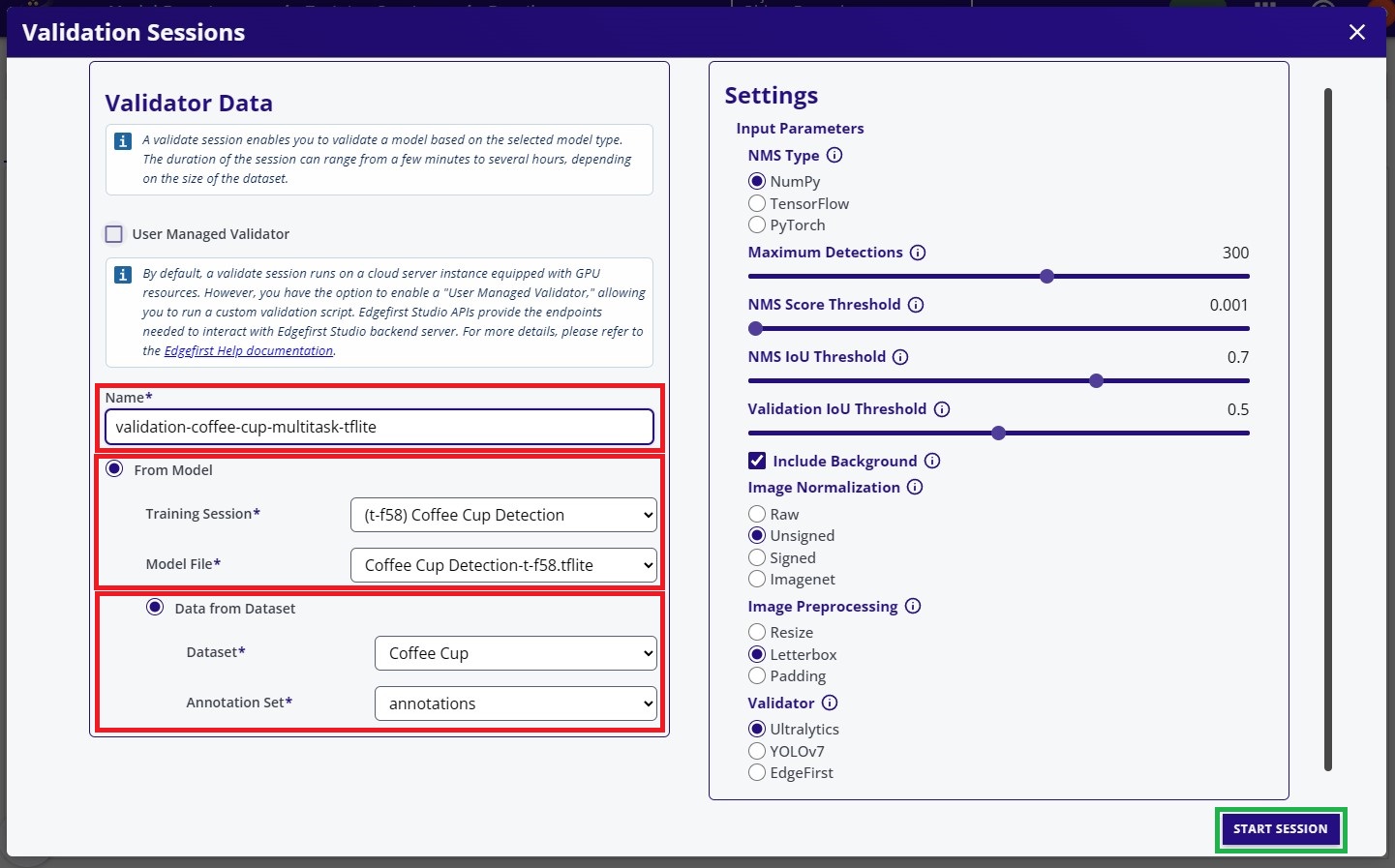
Session Progress
Once the validation session has started, the progress with the stages will be shown on the left and additional information and status is shown on the right.
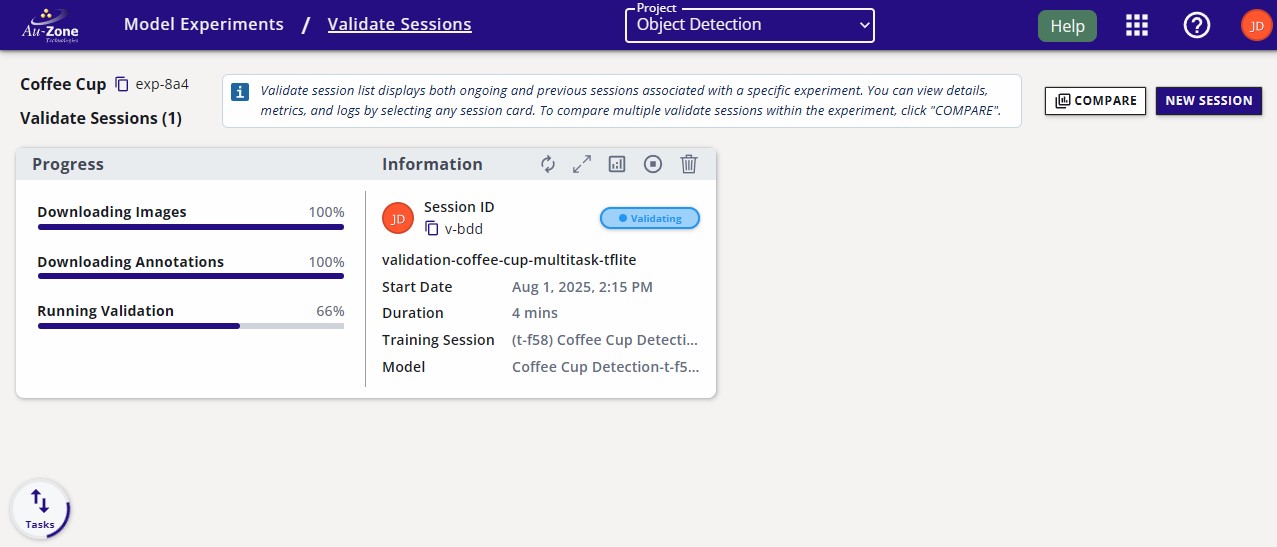
Completed Session
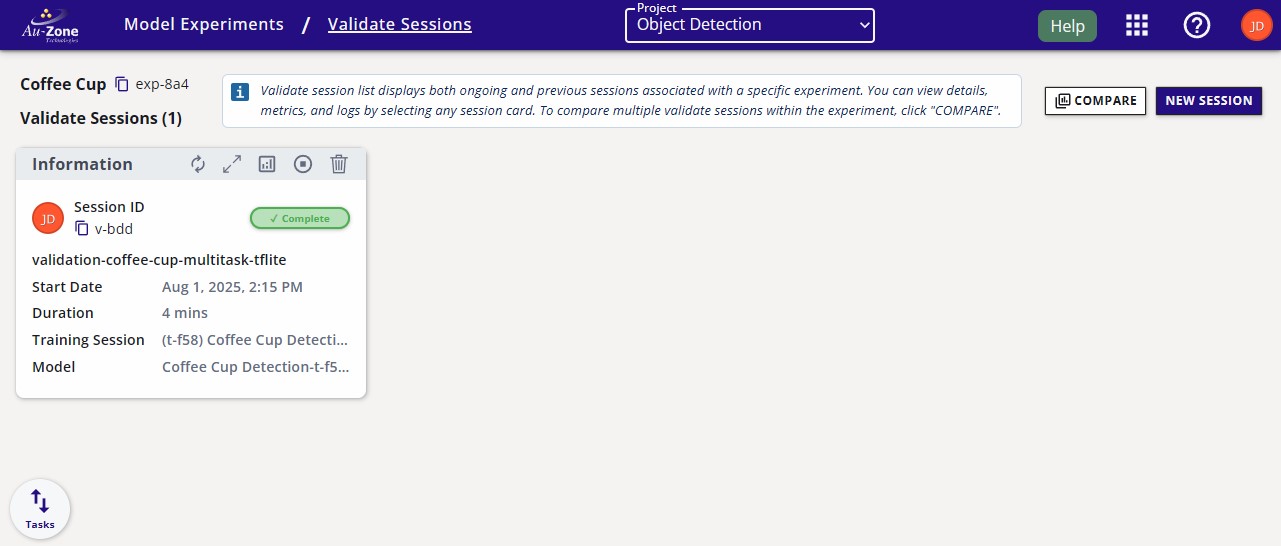
The completed session will look as follows with the status set to "Complete".
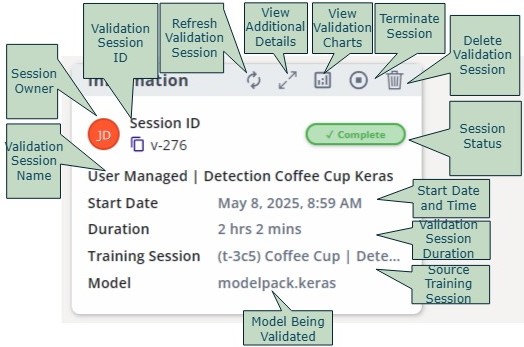
The attributes of the validation sessions in EdgeFirst Studio are labeled below.
Validation Metrics
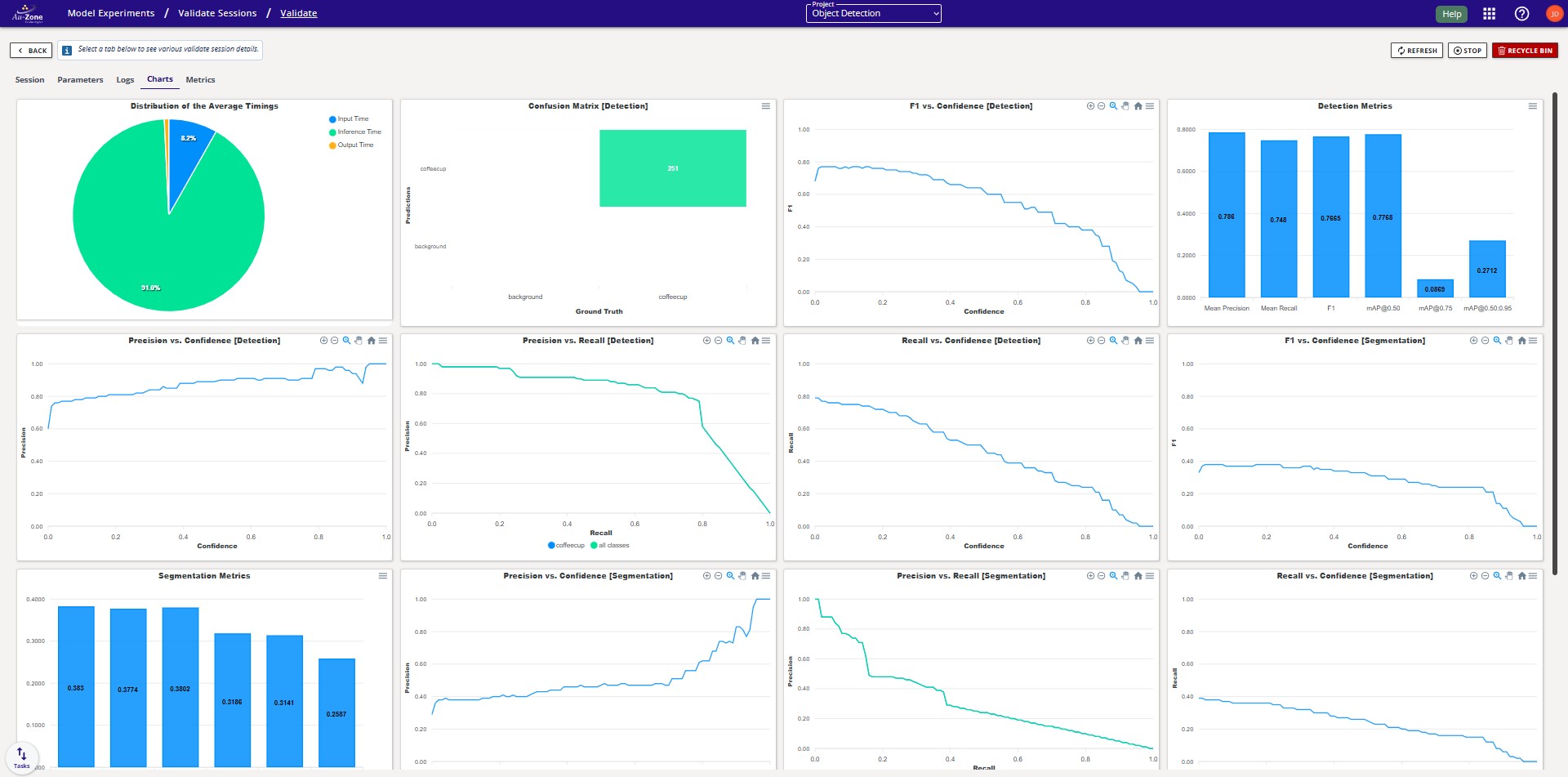
Once the validation session completes, you can view the validation metrics by clicking the "view validation charts" button on the top of the session card.
Info
See detection and segmentation metrics for further details.
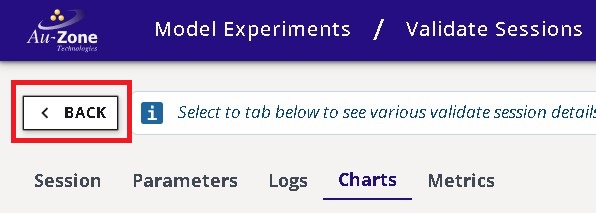
You can go back to the validation session card by pressing the "Back" button as indicated in red below on the top left corner of the page.
Comparing Metrics
It is also possible to compare validation metrics for multiple sessions. See Validation Sessions in the Model Experiments Dashboard.
Next Steps
Now that you have validated your model, you can find examples for deploying your model in EdgeFirst Studio, PC, Embedded Targets, the Maivin, and the Raivin.