Validate Vision Model
Now that you have trained a model, you can validate its performance. The purpose of validation is to determine whether the selected model meets the performance requirements before deployment. EdgeFirst Studio offers two validation paths depending on your goal:
| Path | Where it runs | Supported formats |
|---|---|---|
| Cloud Validation (this guide) | EdgeFirst Studio EC2 | ONNX, Keras, TFLite |
| On-Target Profiling | Your edge platform | All converted formats (.tflite, .hef, .dvm, .engine) |
Validating on target hardware?
Cloud validation only supports ONNX, Keras, and TFLite artifacts. If you want to measure real inference latency and accuracy on your target device — including NPU-compiled formats like Neutron, Hailo, Ara2, or TensorRT — use the EdgeFirst Profiler.
Cloud Validation
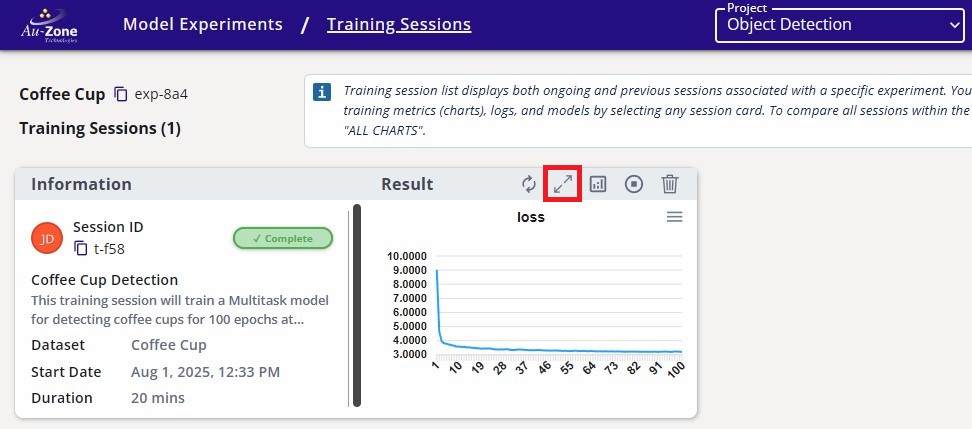
If you haven't already, click on the training session card for more information.
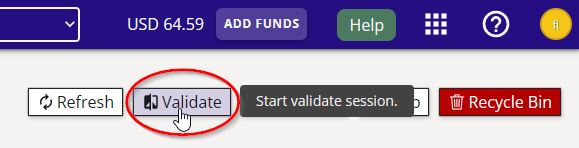
On the top right corner of the page, click on the "validate" button as indicated.
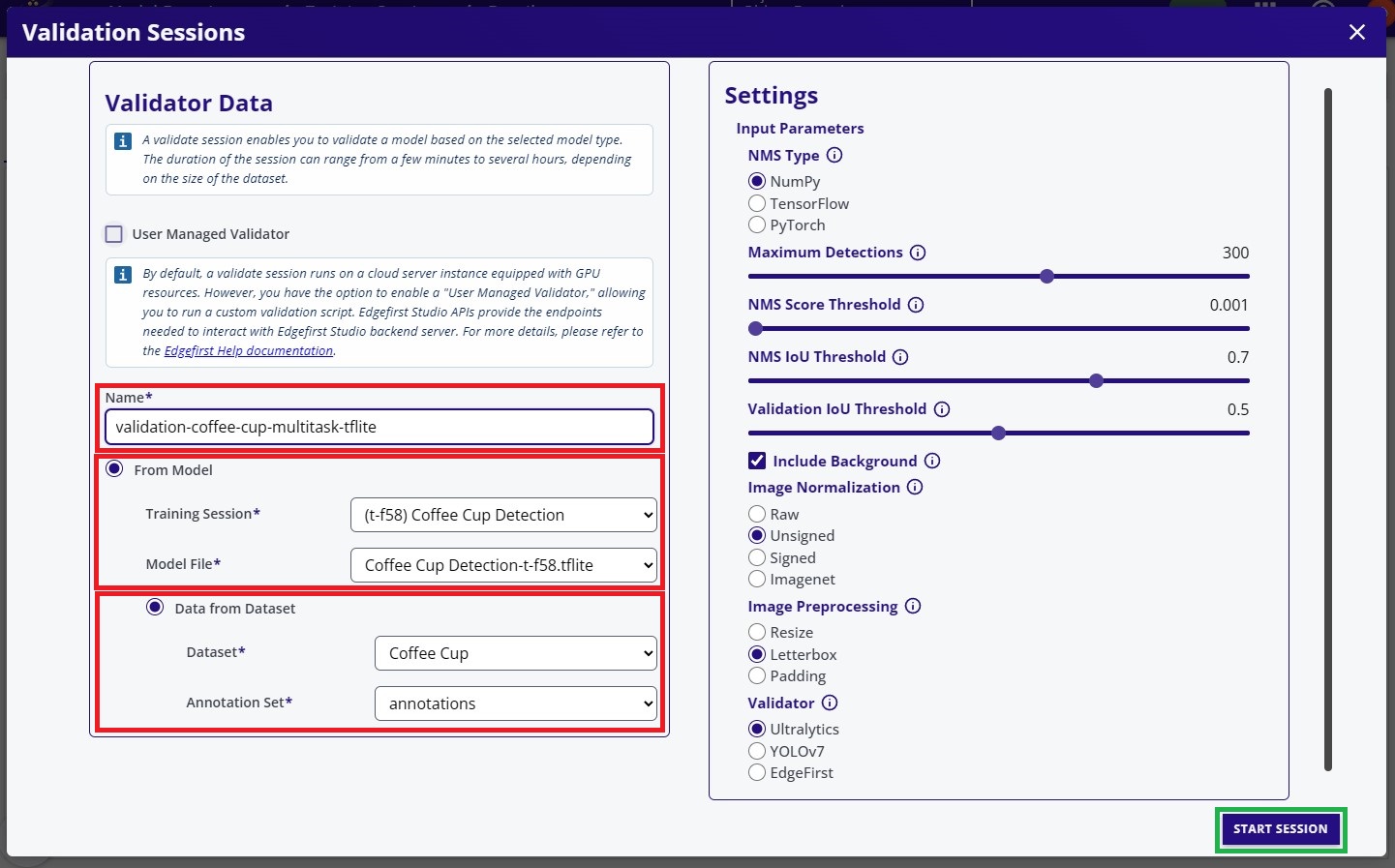
Enter a name for the validation session, then select the model and dataset to use for validation.
Under Model Selection, choose an ONNX, Keras, or TFLite artifact — these are the formats supported by cloud validation.
For this example, all remaining settings were left at their default values. When you are ready, click Start Session at the bottom of the page to begin the validation process.
InsufficientInstanceCapacity

If you see this error after starting your validation session, retry creating the session. This can happen when AWS reports that no EC2 instances are currently available to launch; the current workaround is to retry.
Go to the created validation session by first going back to the "Model Experiments" page.
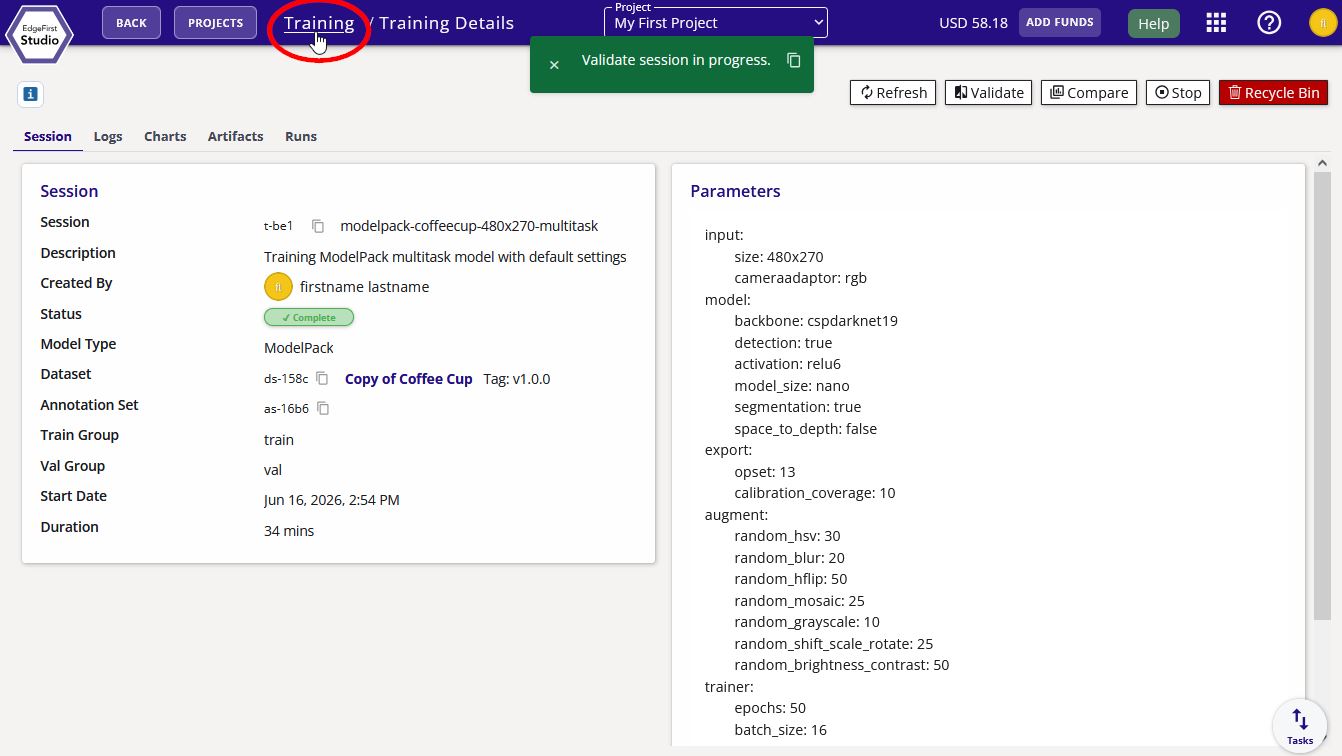
Next, click the validation sessions of the model experiments.
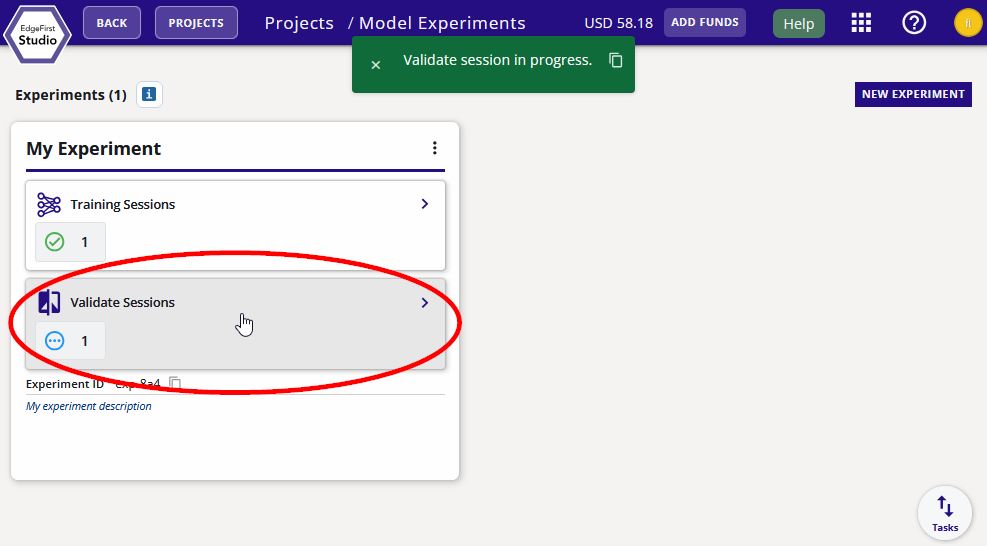
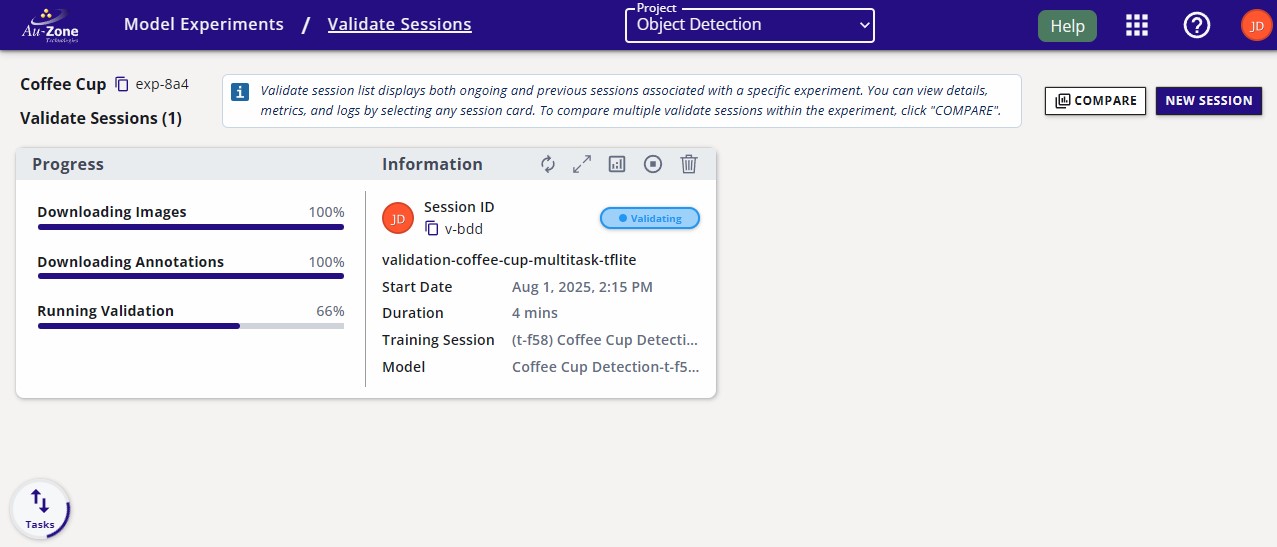
The validation session progress will appear in the "Validation" page as shown below.
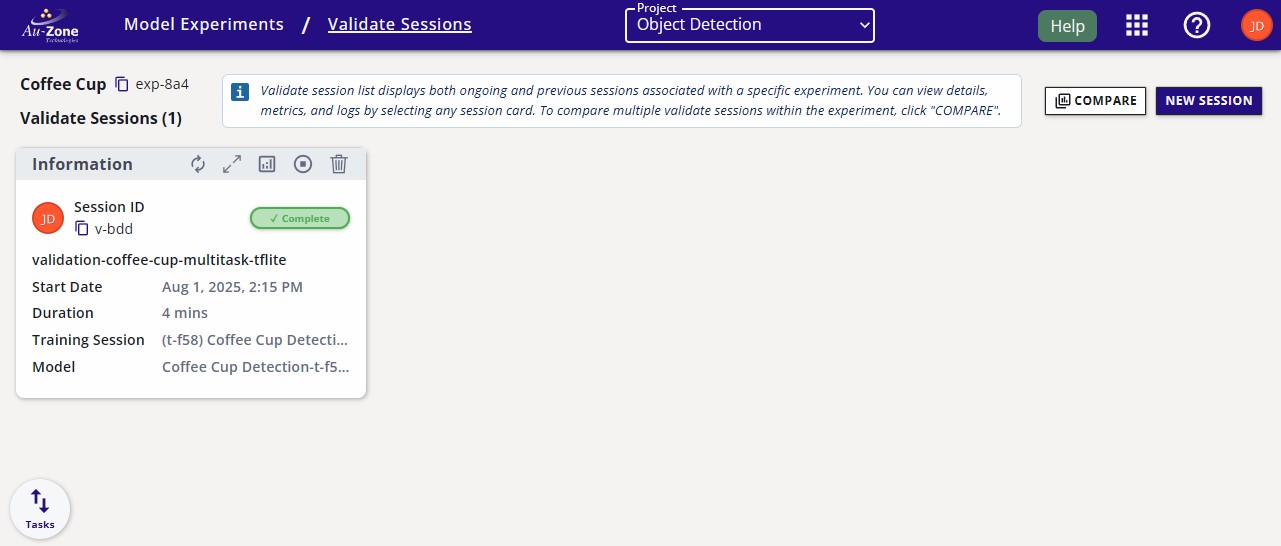
Once the session is complete, the session card will appear like the following. To view the validation metrics, click the validation charts button as indicated.
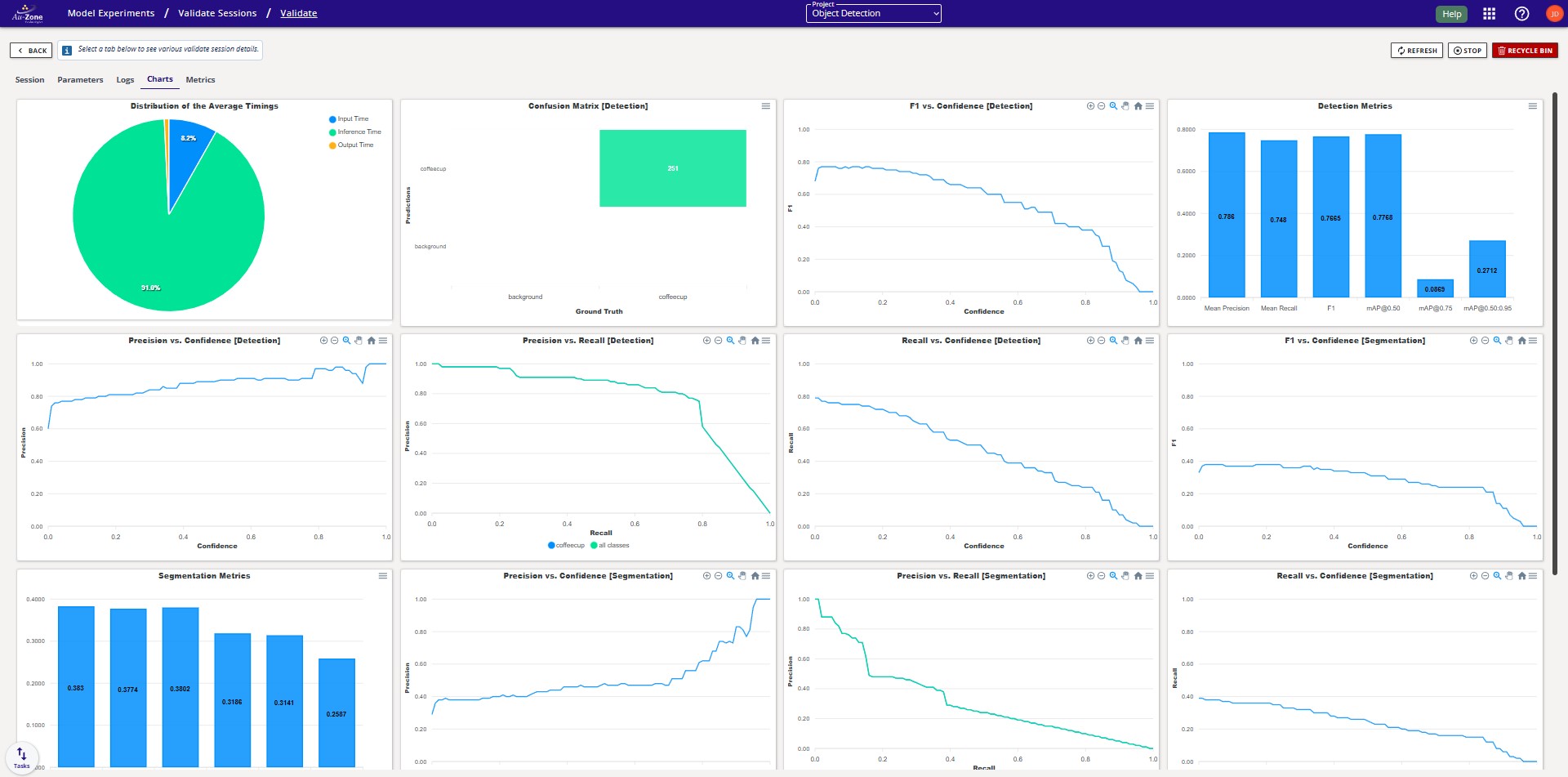
The validation metrics should appear like the following. For more information, please see the Validation Metrics section.
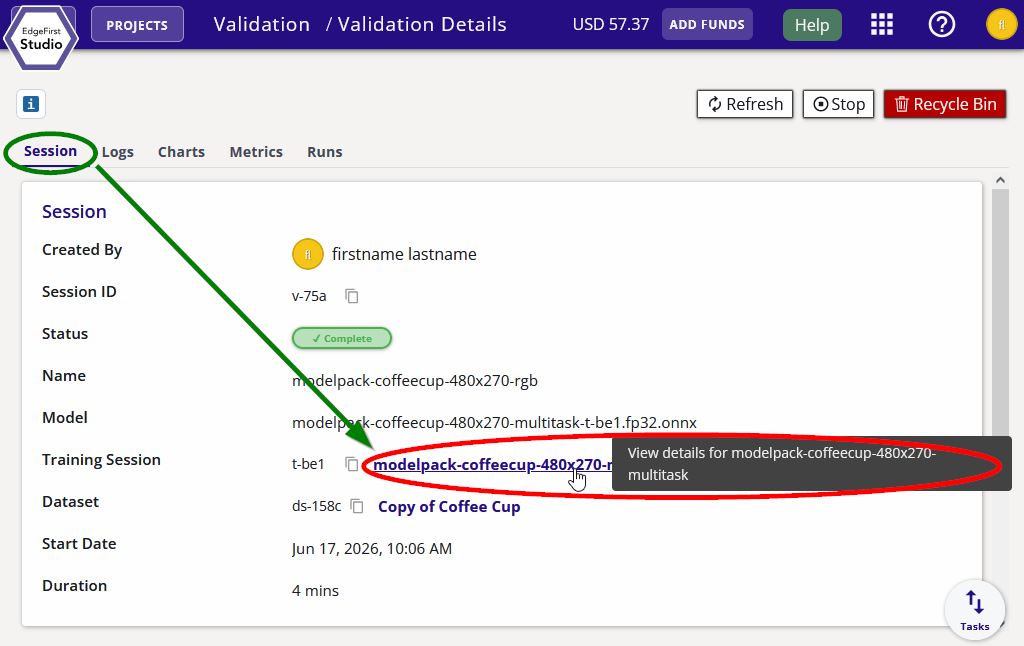
You can navigate back to the training session by clicking on the "Training Session" link under the "Session" tab.