Running Pre-trained Models in EdgeFirst Studio
EdgeFirst Studio includes a built-in model runner that allows you to quickly run models on a live camera feed or on stored images, providing an instant live preview of model results. This guide walks you through running pre-trained models in EdgeFirst Studio.
Supported Platforms
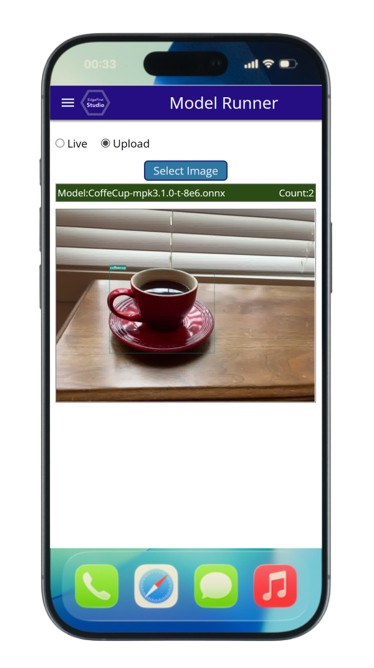
| Platforms & Model Support | Preview |
|---|---|
| - PC: Windows, Linux, MacOS - Mobile: iOS, Android - Web: Chrome browser - Models: ModelPack (.onnx format) |
 |
1. If you haven't already, log in to EdgeFirst Studio
- Go to EdgeFirst Studio
- If you do not have an account, create a free account on the landing page
- Log in with your username and password
2. Locate a Model to Run
EdgeFirst Studio provides several pre-trained models in the Sample Projects section.
-
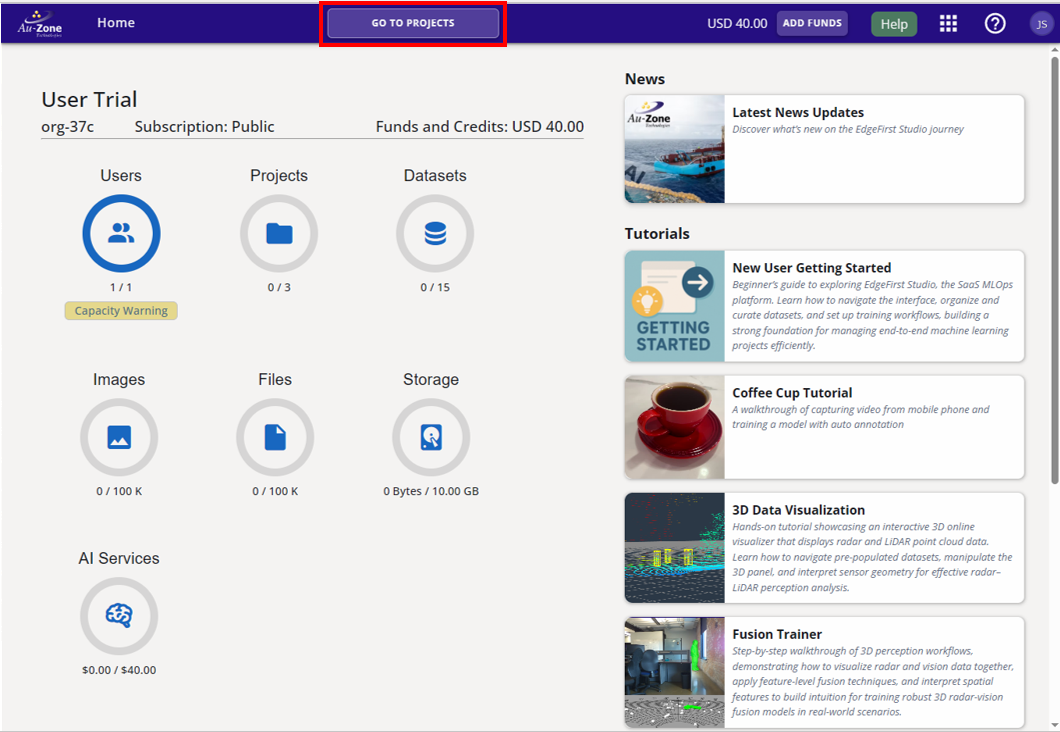
On the landing page after login, click PROJECTS at the top next to "Home". This opens the Projects Dashboard
Go To Projects -
Find the Sample Projects card and click Model Experiments
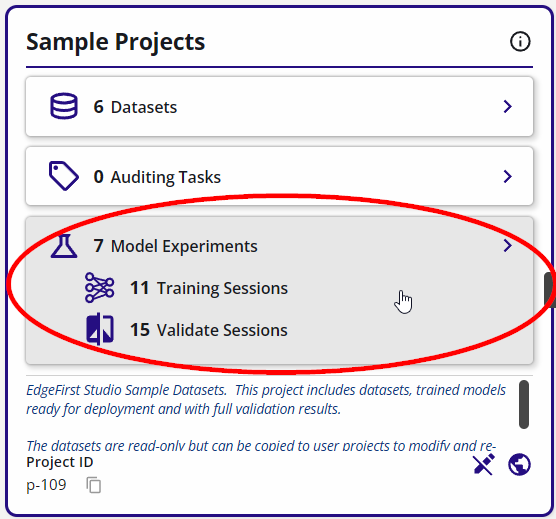
Sample Projects On the Experiments page, each card represents an experiment with multiple training and validation sessions.
-
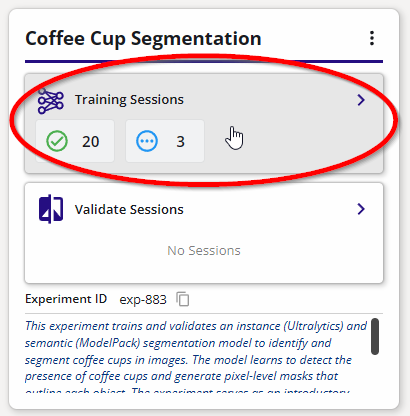
Click on the Training Sessions for the "Coffee Cup Segmentation" Experiment to view available sessions. Each session will have a model in different formats if training completed successfully
Coffee Cup Experiment -
Click the training session CoffeCup-mpk3.1.0 to open its details page
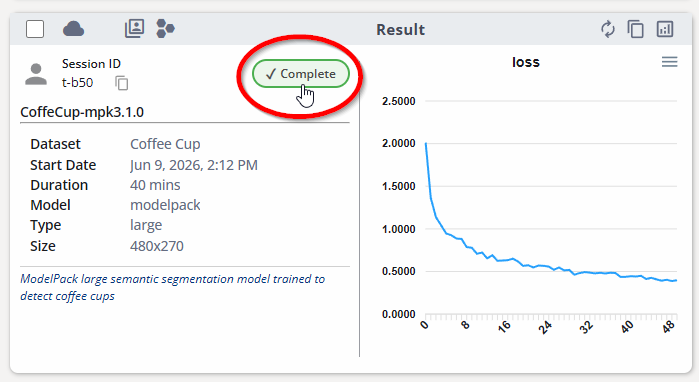
Coffee Cup Training Card -
Open the Artifacts tab and click the Play button next to the artifact you want to deploy. For cloud inference, only ONNX model artifacts are supported.
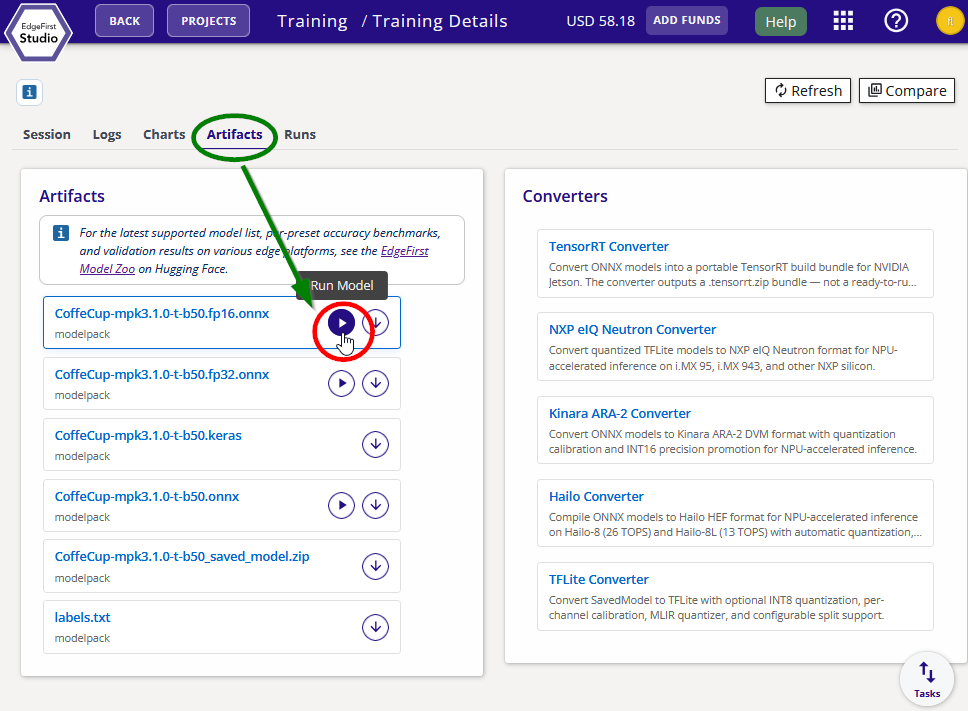
Training Session Details -
Click the Run Model button. If the model is not supported or the ONNX file is missing, this button will not appear. This opens the Model Runner dashboard
3. Test with Static Images
Download these images to test the model (on PC: right-click and select "Save Image As"; on mobile: tap and hold):
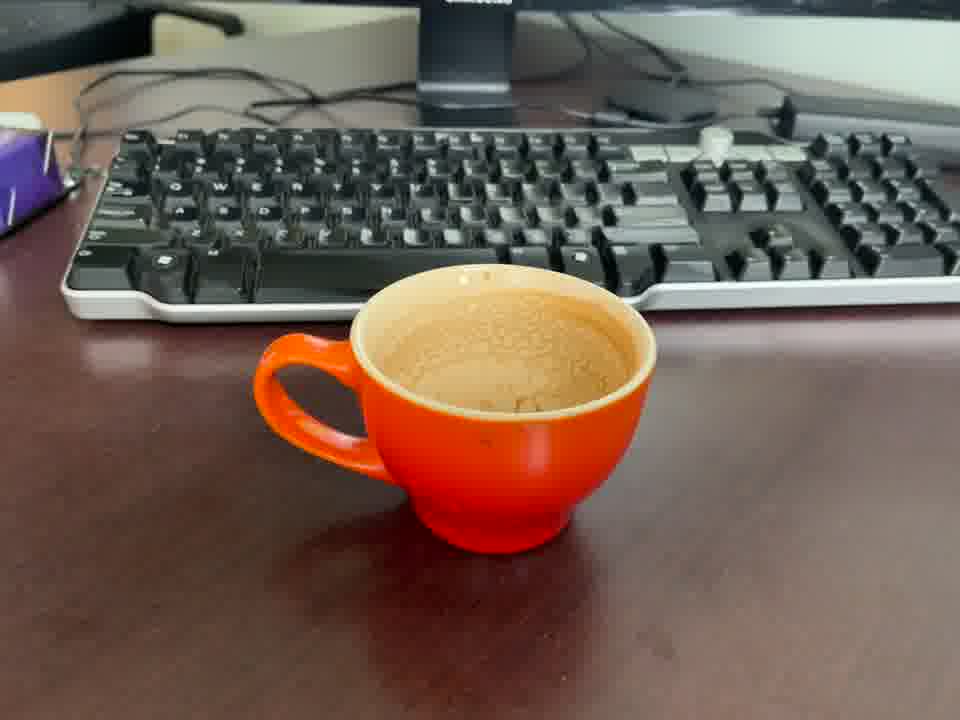

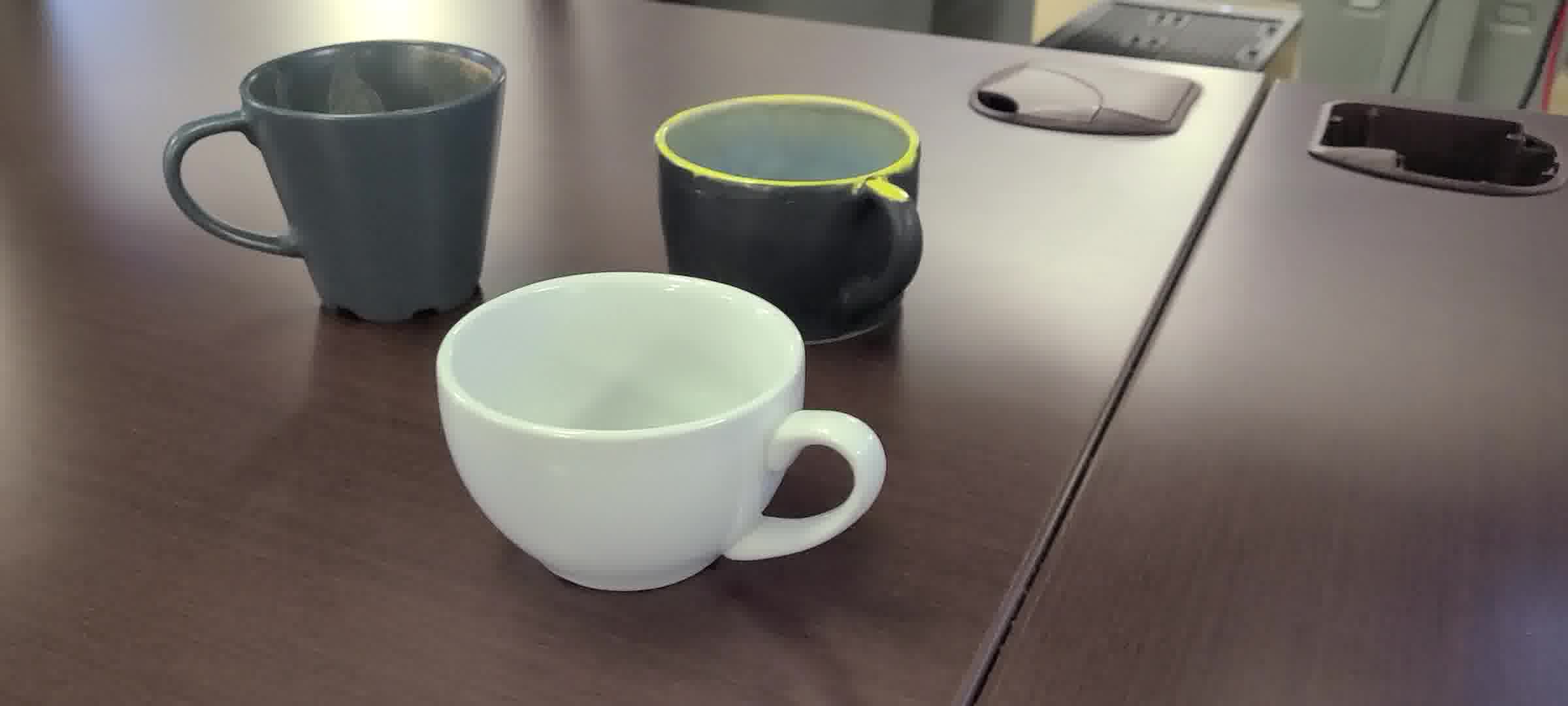
In the Model Runner Dashboard, upload any of these images to see the model results:
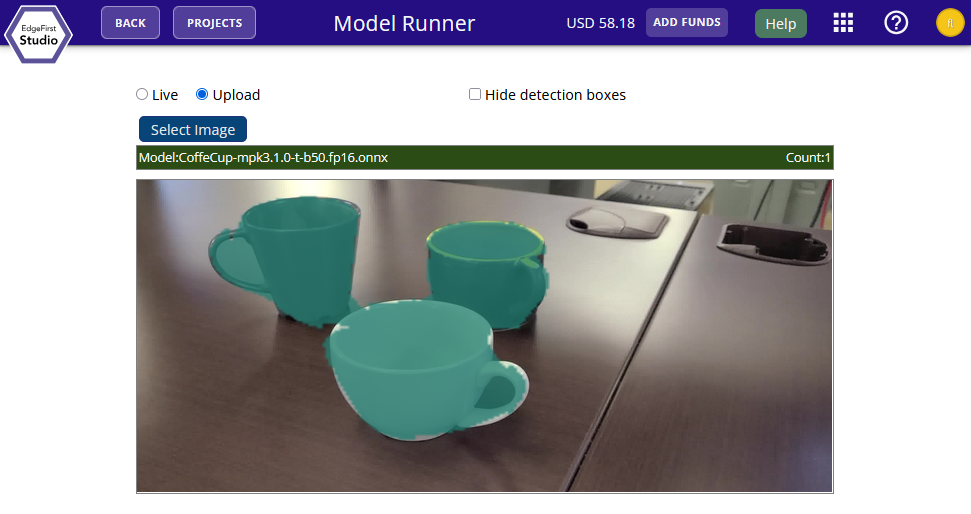
4. Running Model on Live Camera Stream
- In the Model Runner dashboard, select Live
- Choose your camera and allow access when prompted
- The model will start running on the live stream. Point the camera at coffee cups to see results in real time
You're now ready to experience the full MLOps workflow in EdgeFirst Studio. In under an hour — and for approximately $8 USD—you can copy a dataset, train a model, validate its performance, and deploy it in the browser.
The journey begins by creating a project, which acts as the central workspace for all your datasets, models, validation sessions, and deployments.