Split and Tag Restored Dataset
Split Dataset
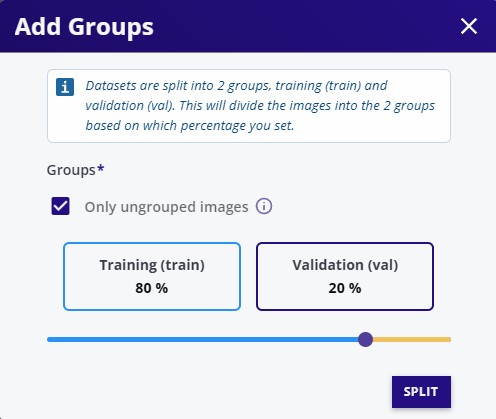
Partitioning the dataset is crucial in reserving dataset portions used for training and portions used for validation to assess the performance of the model. By default in EdgeFirst Studio, the partitions are 80% towards training and 20% towards validation. This operation randomly shuffles the data prior to assigning them to the specified groups.
Warning
The dataset needs to be re-split whenever new sample images or frames are added to the dataset. Newly added samples are not automatically added to any group that already exists.
Consider the following dataset without any groups reserved.
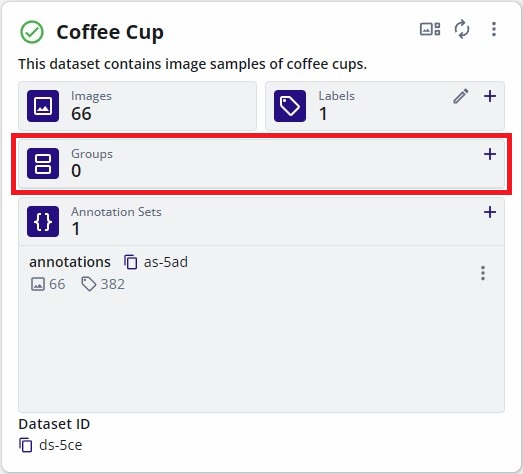
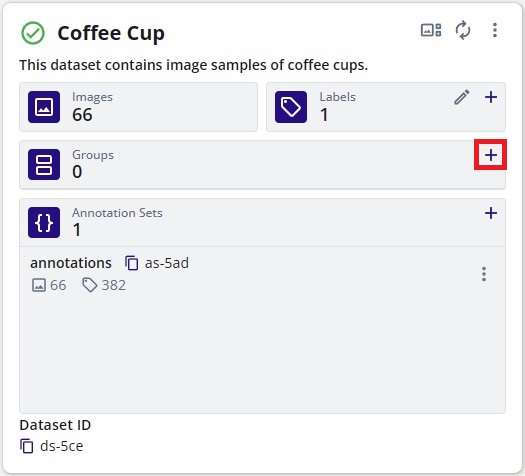
To create the dataset groups, click on the "+" button in the "Groups" field.
This will open a new dialog to specify the percentages of the partition belonging to the "Training" group or "Validation" group. By default 80% of the samples will be dedicated to training and the remaining 20% will be dedicated towards the validation samples.
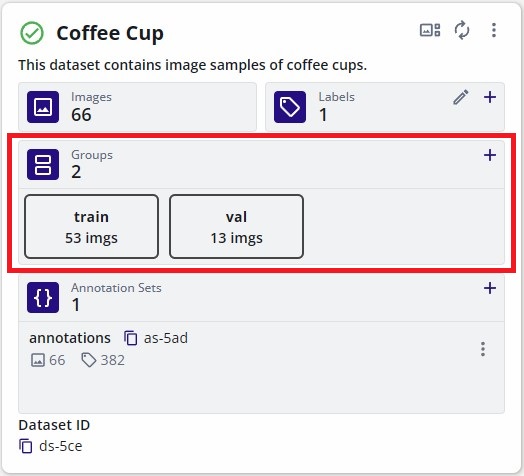
Once the groups are specified, click "Split" to create the groups. This will automatically divide the samples in the dataset based on the percentages of each group specified.
Tag Dataset
Before a dataset can be used for training, it must be tagged to preserve its current state. Assign a version tag to the dataset.
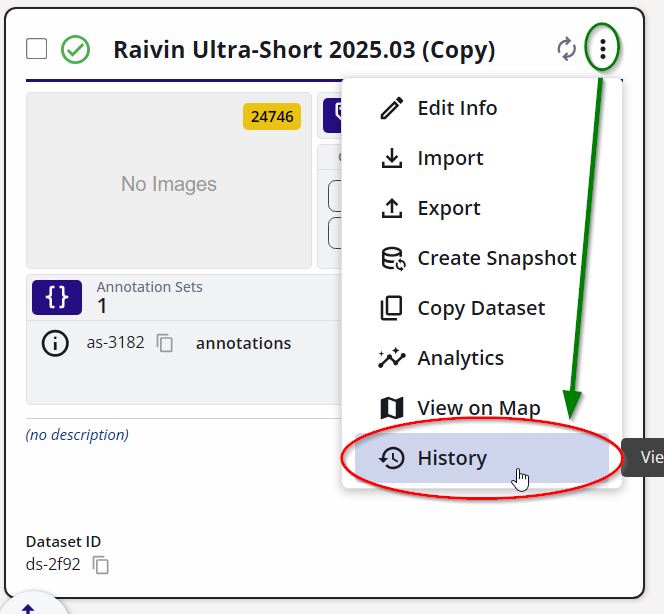
Click on the dataset options at the top right of the dataset card (three vertical dots). Then click the "History" button.
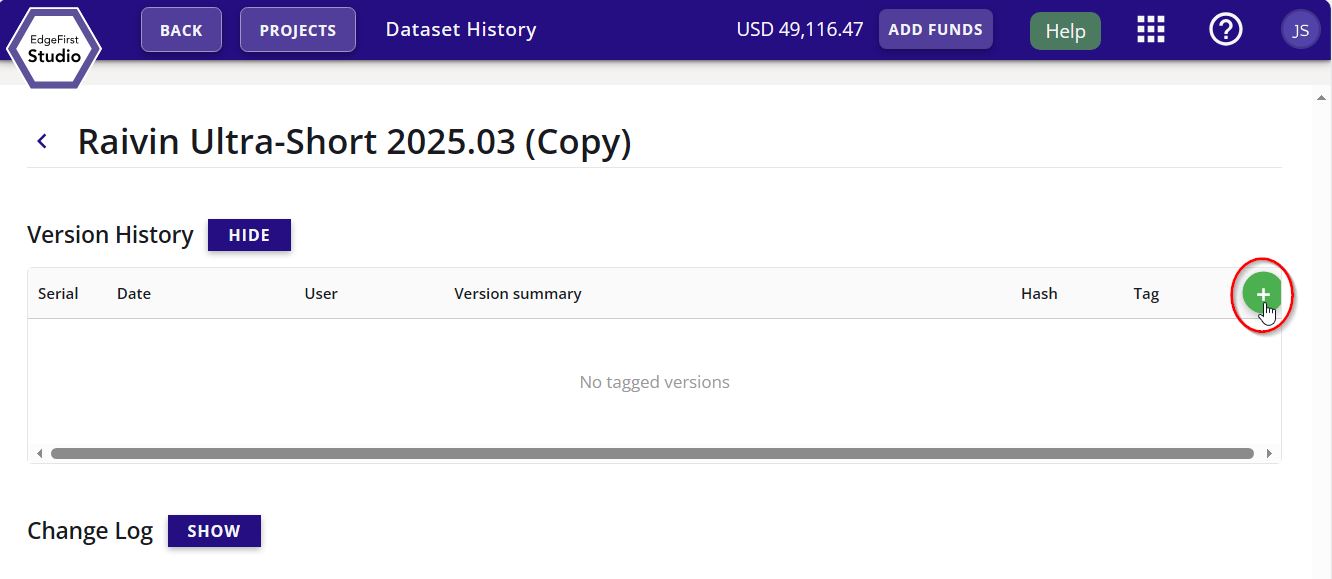
Add a new tagged version of the dataset by clicking the + green button on the right of the page as shown.
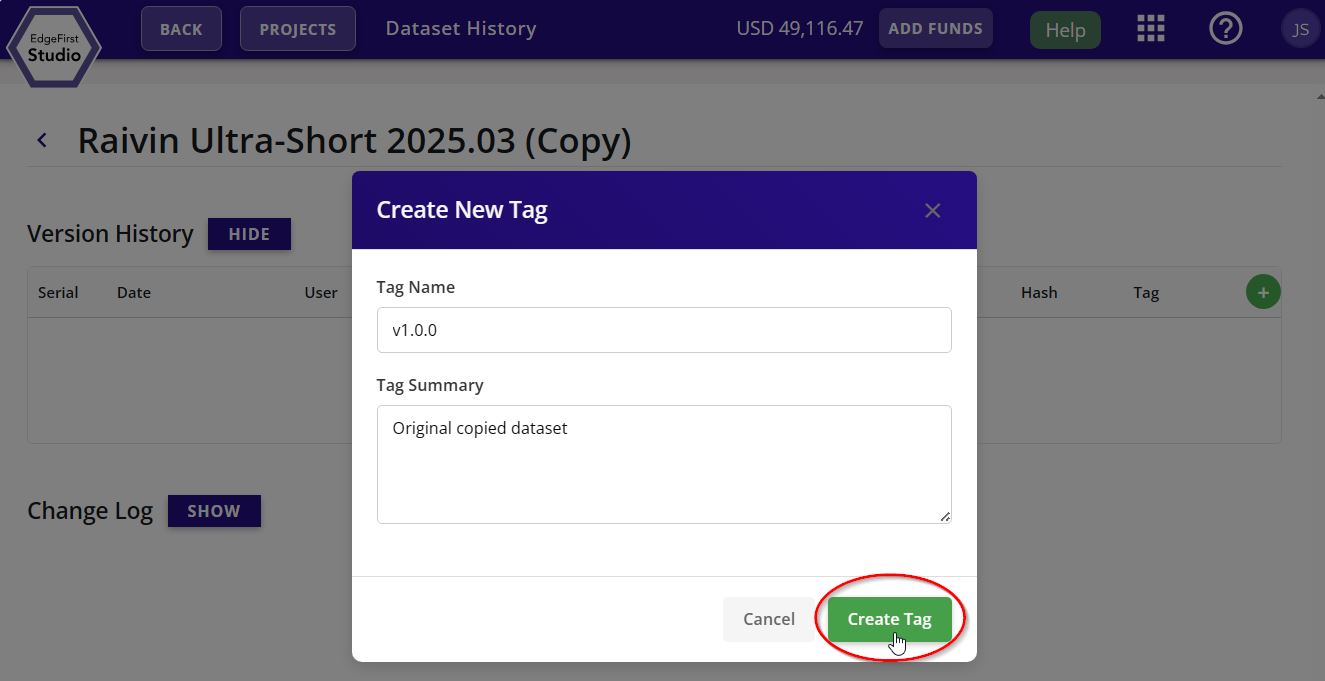
Specify the tag version and tag description. Click "Create Tag" to tag the dataset.
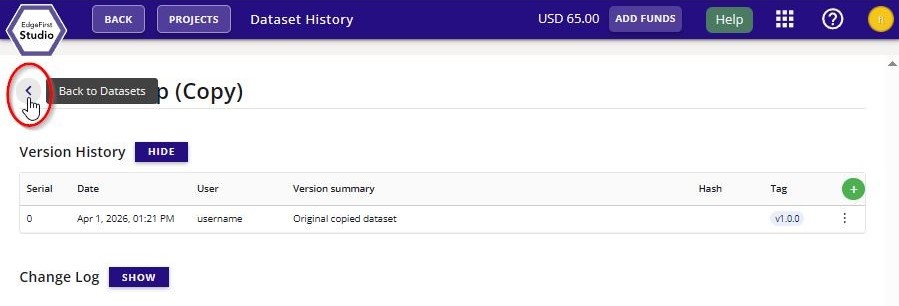
The new dataset tag will appear under "Version History" of this page. You can go back to the dataset card by clicking the "Back to Datasets" button.
Next Steps
Now that you have an annotated and tagged dataset with train and validation samples, the next step in the Raivin Quick Start guide is training your fusion model.