Validate Fusion Model
Now that you have trained a Fusion model, you can now start validating your model. This will briefly show the steps for validating a model, but for an in depth tutorial, please see Validating Fusion Models.
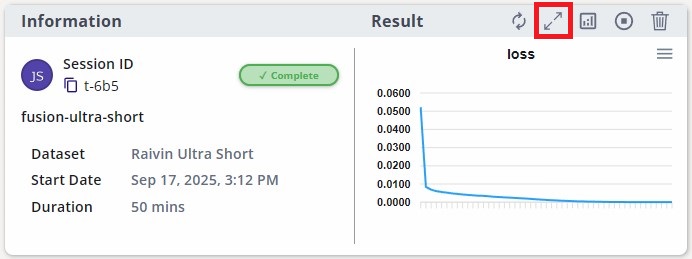
If you haven't already, click on the train session card for more information.
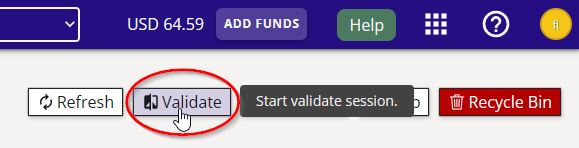
On the top right corner of the page, click on the "validate" button as indicated.
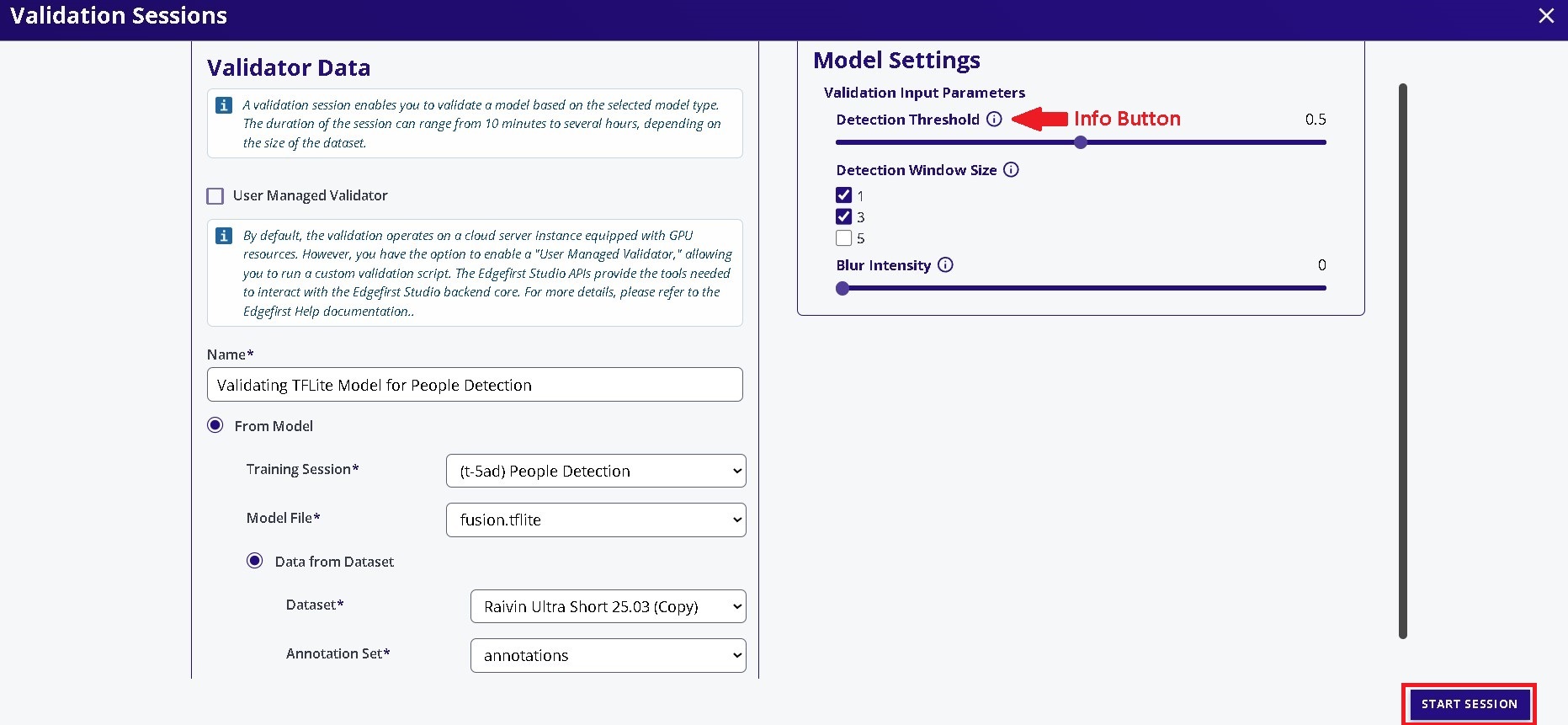
Specify the name of the validation session and the model and the dataset for validation. The rest of the settings were kept as defaults. Click "Start Session" at the bottom to start the validation session.
InsufficientInstanceCapacity

If you see this error after starting your validation session, retry creating the session. This can happen when AWS reports that no EC2 instances are currently available to launch; the current workaround is to retry.
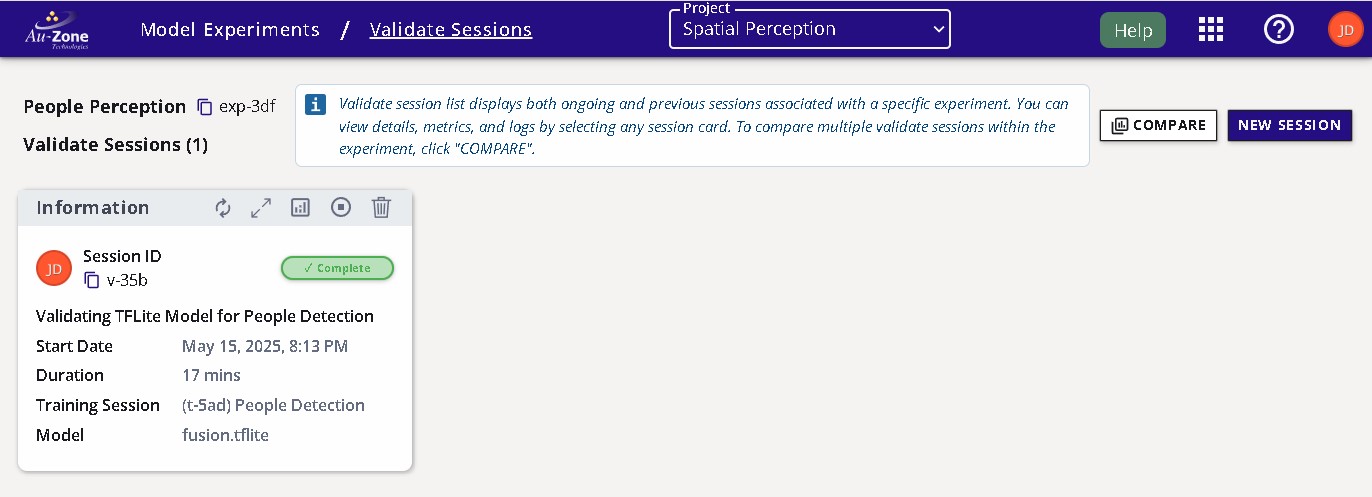
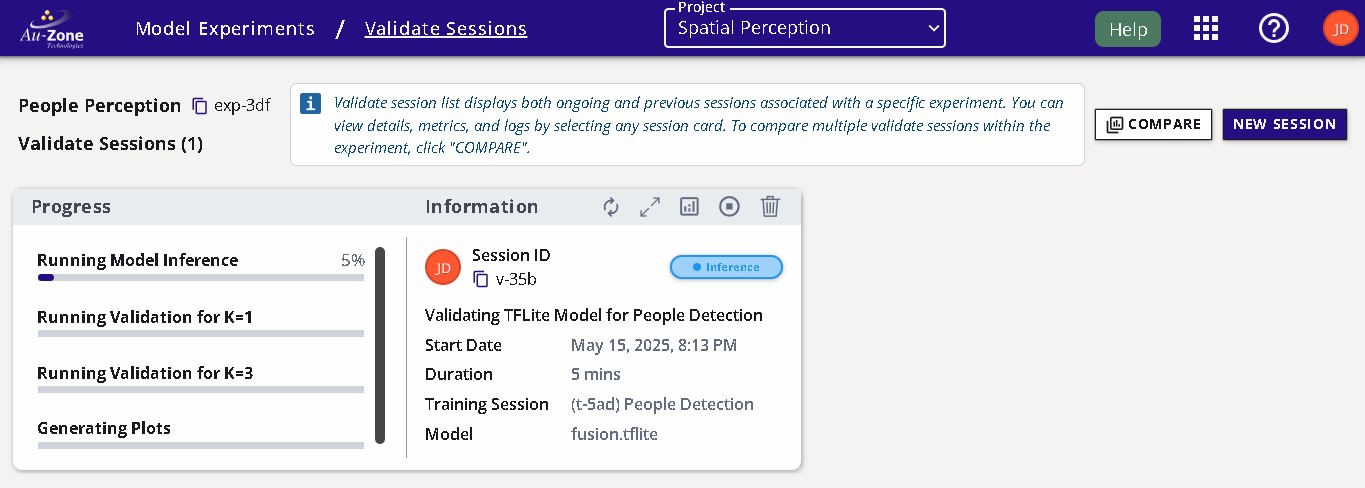
The validation session progress will appear in the "Validation" page as shown below.
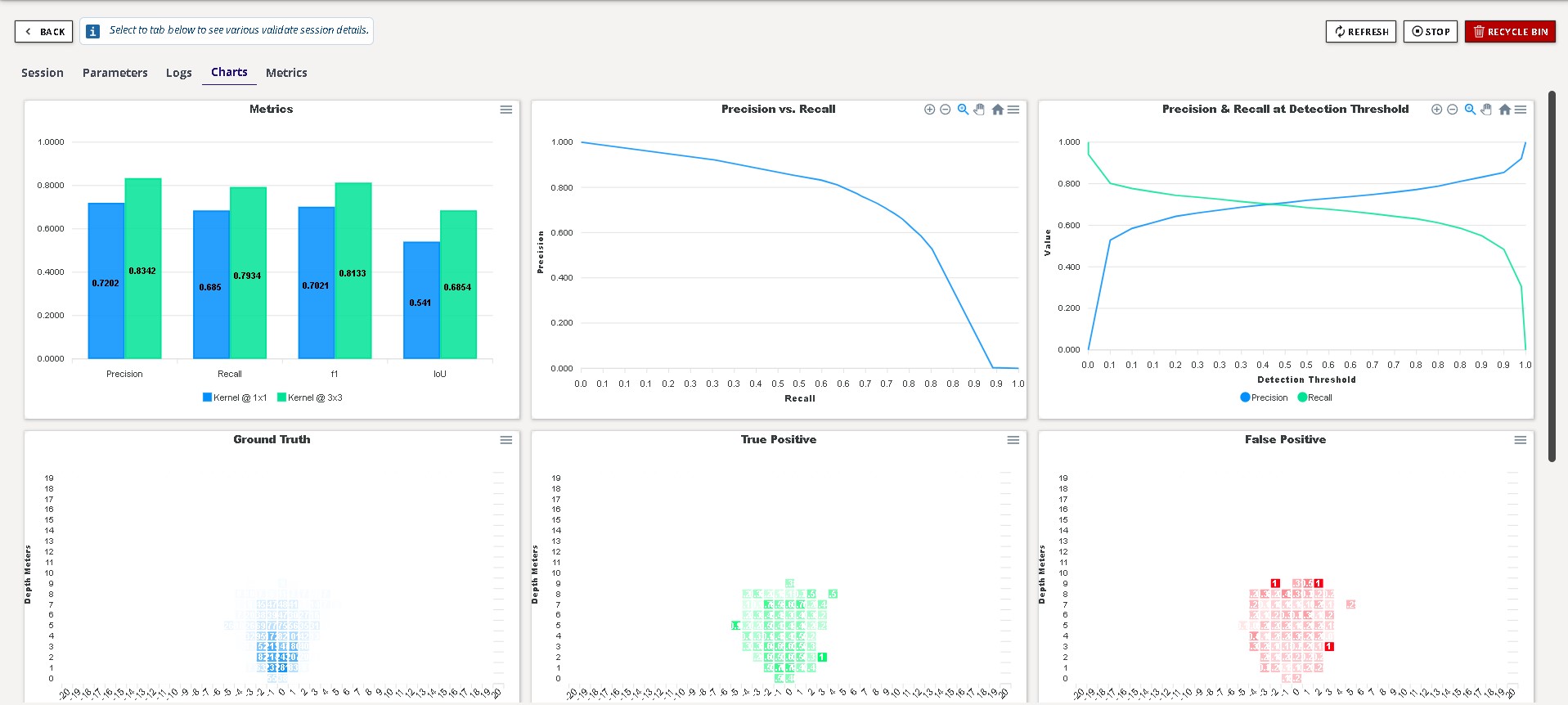
Once the session is complete, the session card will appear like the following. To view the validation metrics, click the validation charts button as indicated.