Train Vision Model
Now that your dataset is fully annotated, tagged, and split into training and validation partitions, you are ready to begin training your model. This guide briefly shows the steps for training a model, but for an in depth tutorial, please see Training Vision Models.
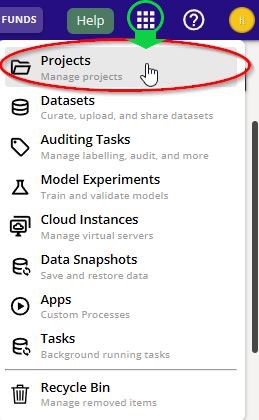
Navigate back to the "Projects" page. You can go back to the "Projects" page by clicking the "PROJECTS" button on the top navbar as shown.
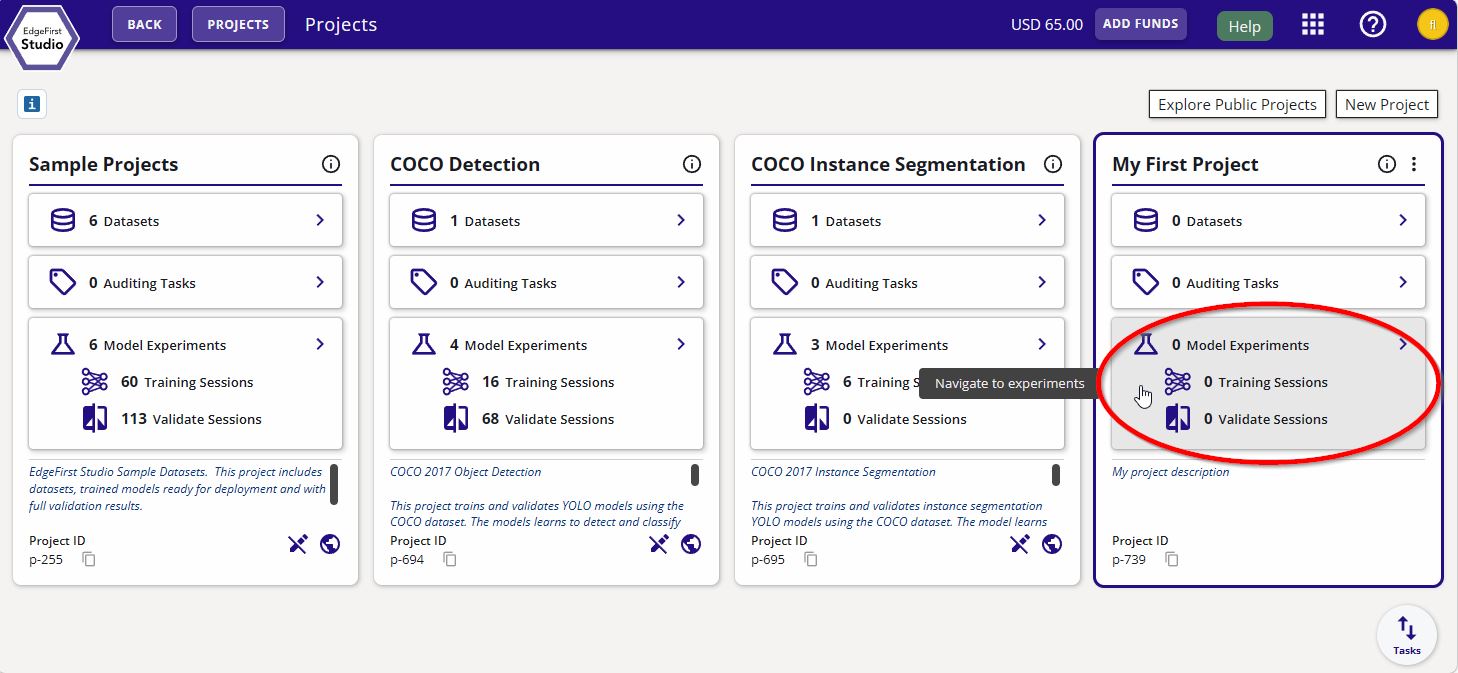
From the "Projects" page, click on "Model Experiments" of your project.
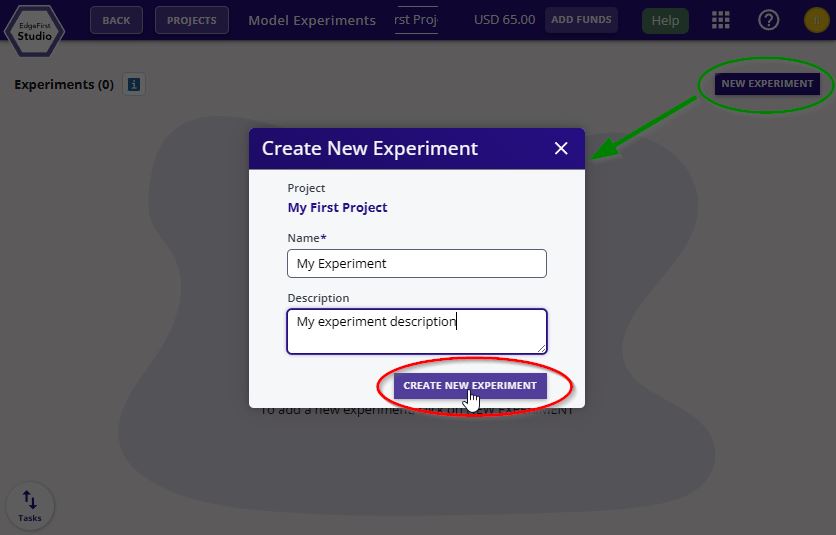
Create a new experiment by clicking "New Experiment" on the top right corner. Enter the name and the description of this experiment. Click "Create New Experiment".
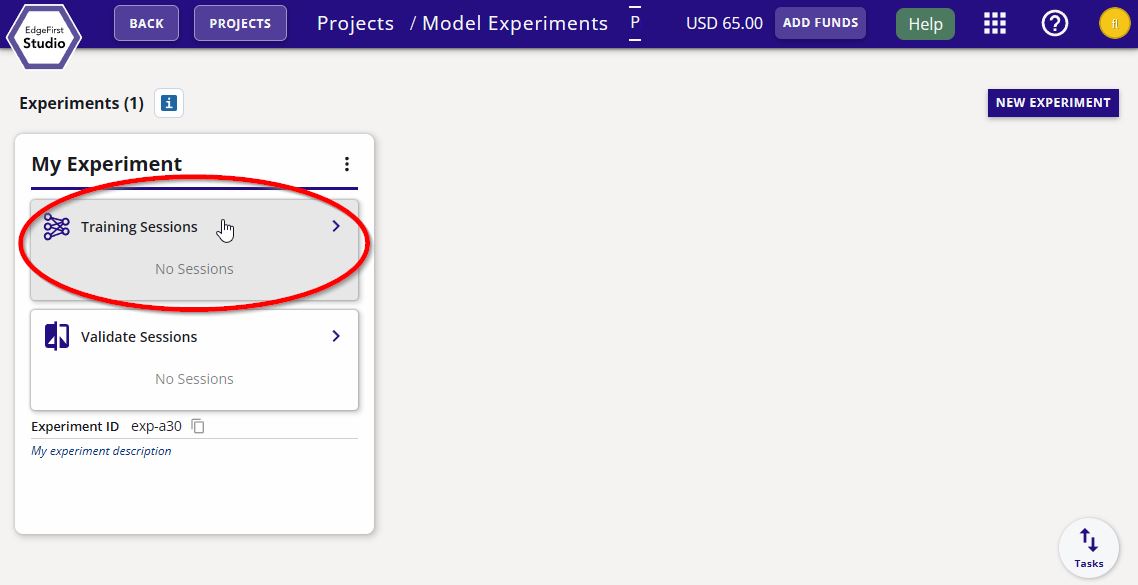
Navigate to the "Training Sessions".
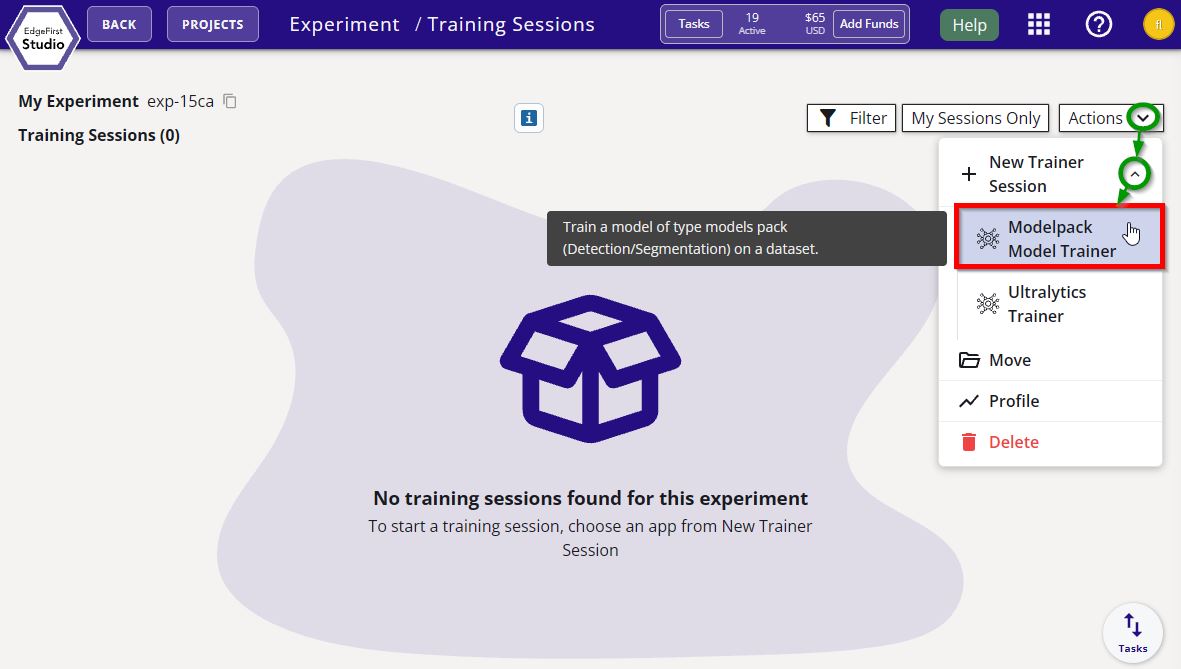
Start a new training session by clicking the "Actions" dropdown menu on the top right of the page. From here you can either train ModelPack or Ultralytics models. In this guide, we will demonstrate starting a ModelPack session.
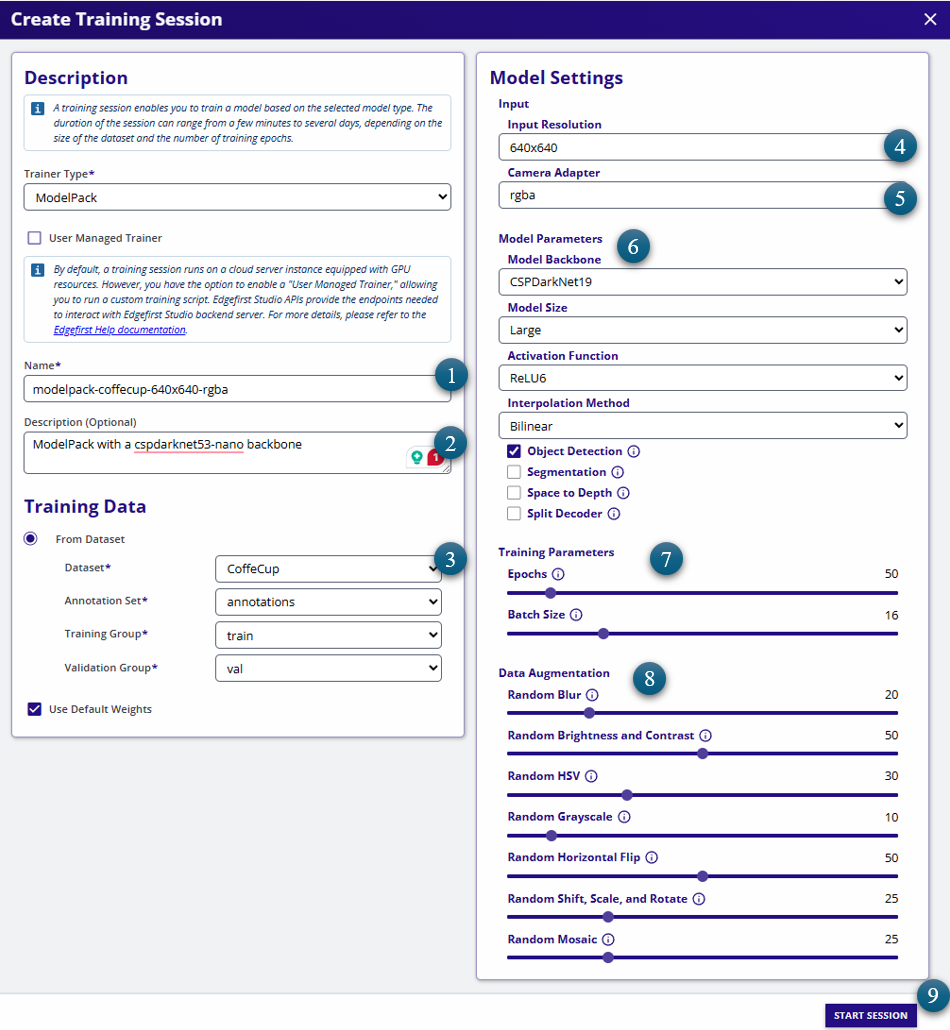
Follow the settings indicated and keep the rest of the settings default. Click "Start App" to start the training session.
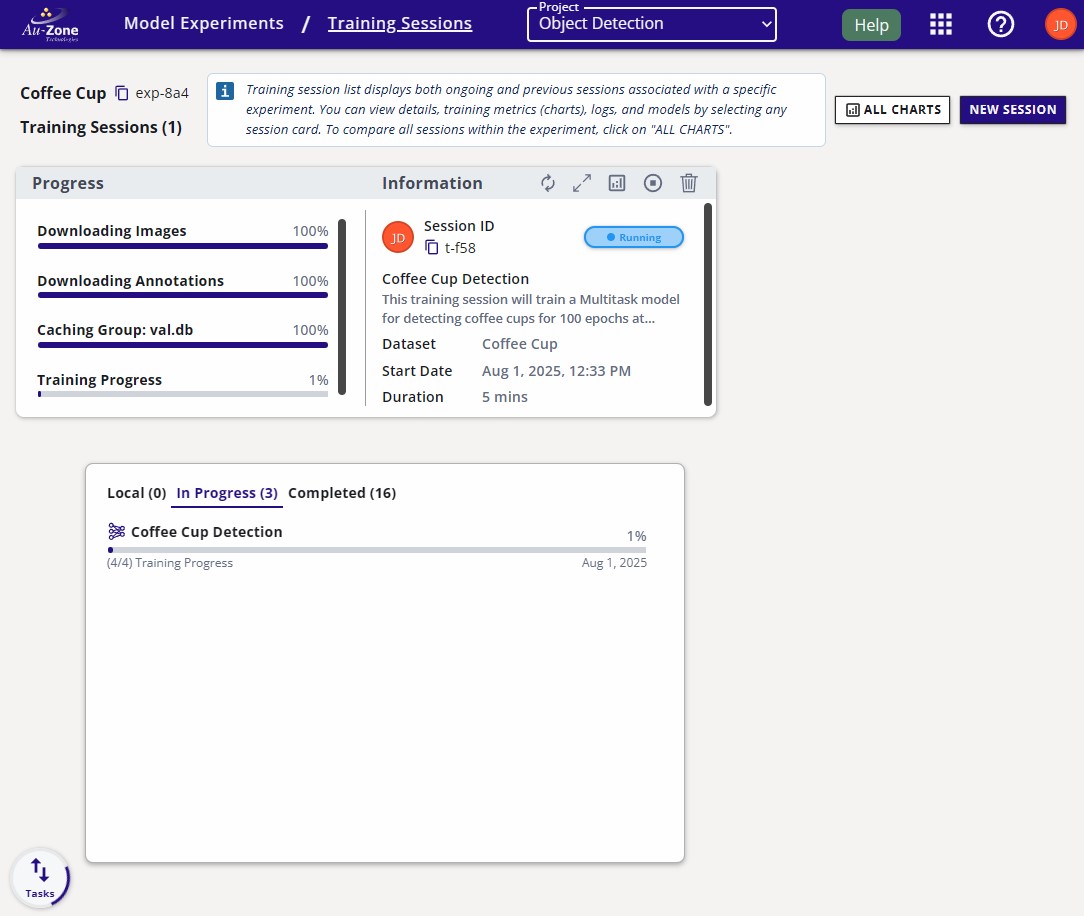
The session progress will be shown like the following below.
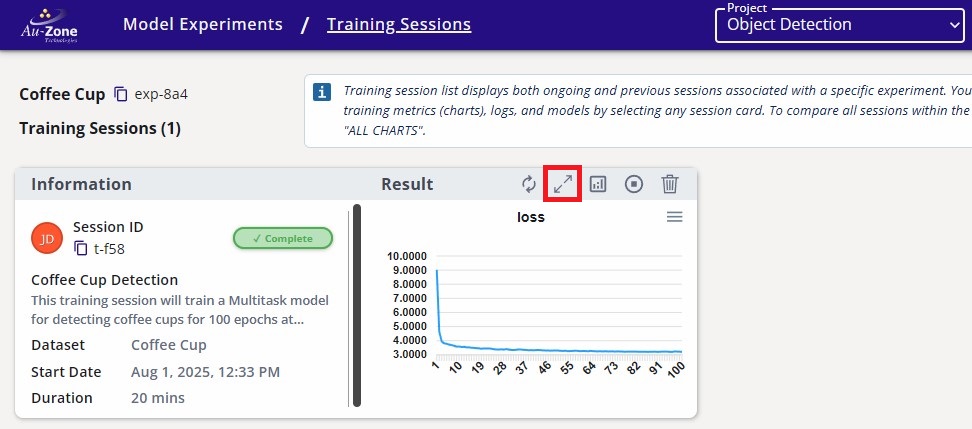
Once the session is complete, the session card will appear like the following. Click the training session card for more information.
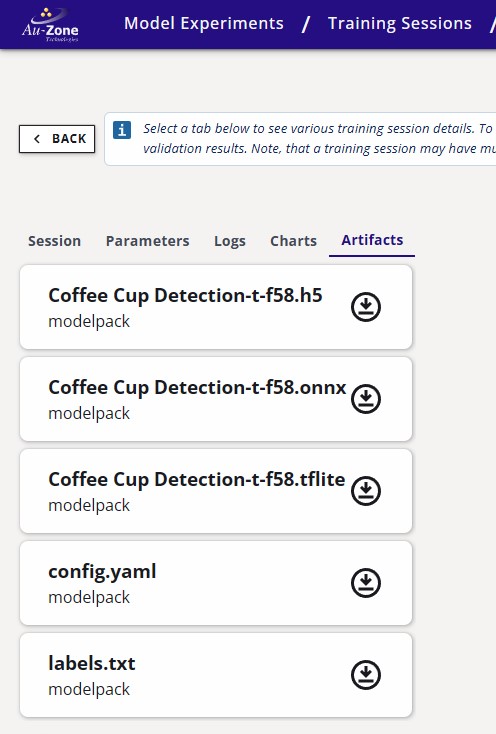
The trained models will be listed under the "Artifacts" tab. The download button next to these artifacts will download the artifacts to your machine.
Now that you have trained your model, you can also find various model converters and exporters in EdgeFirst Studio that build supported model formats for specific computing hardware.