Import Videos and Images into EdgeFirst Studio
Now that you have captured videos or images for your dataset, let's import the files into EdgeFirst Studio. If you haven't already signed up to sign up, please follow the Getting Started guide to sign up.
Create a Project
Let’s start by creating a project in EdgeFirst Studio. A project is needed when starting a new experiment since it is treated as the top level directory that contains your datasets, annotations, and trained model artifacts of your experiment.
-
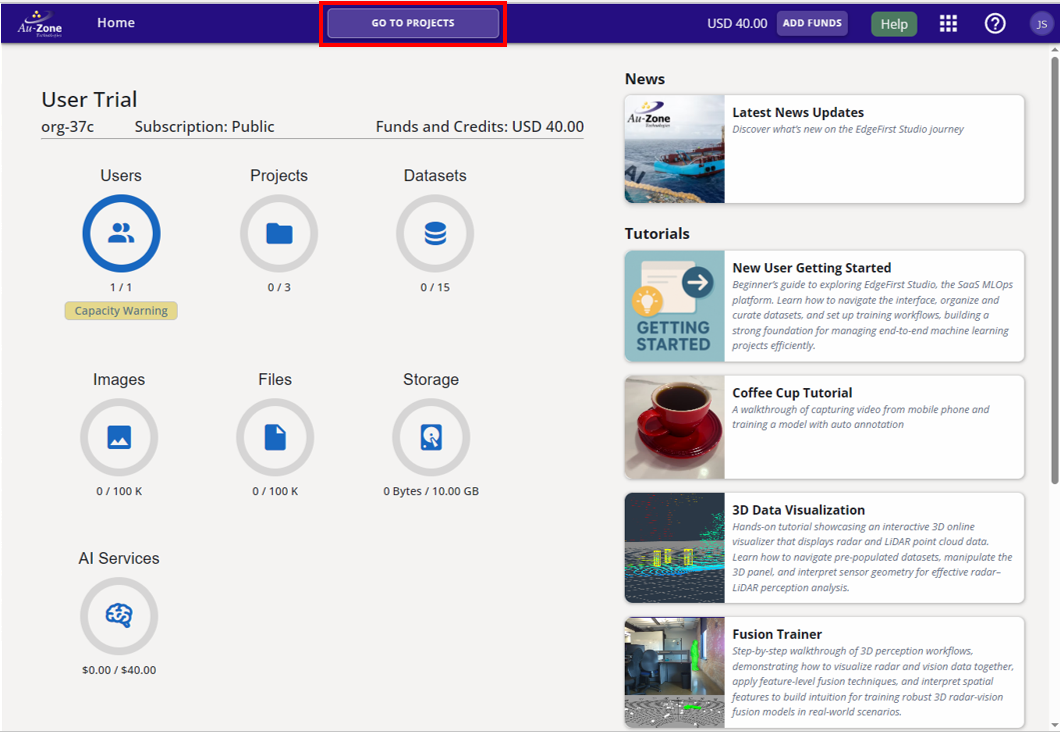
Click the "PROJECTS" button shown on the top navbar as highlighted below.
Go To Projects -
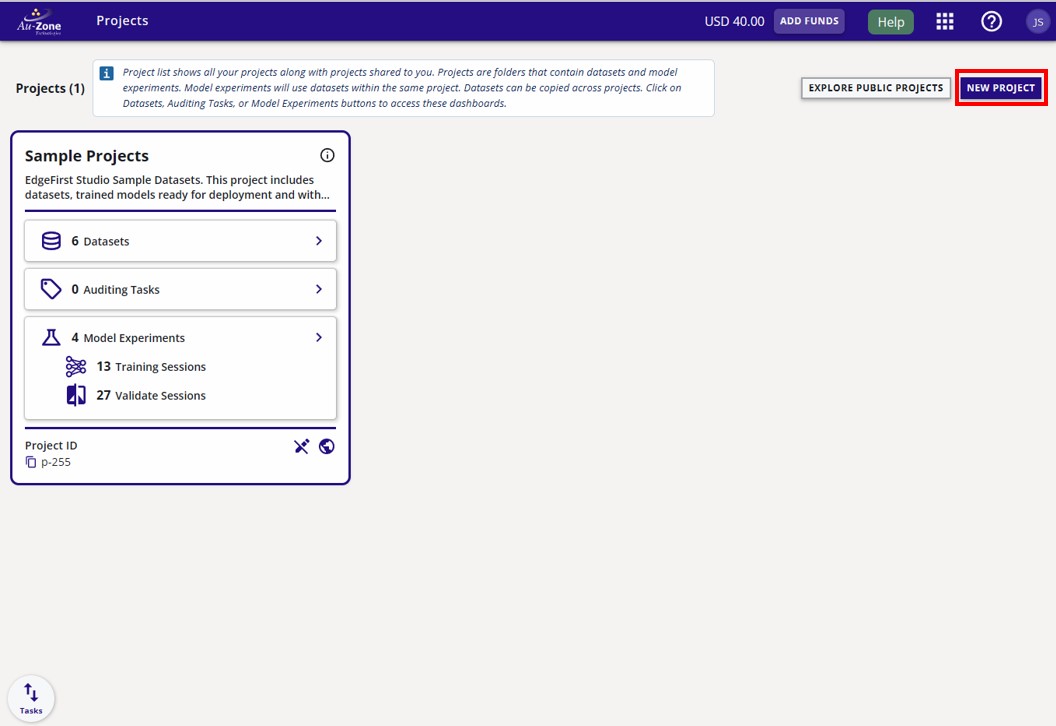
Create your project by clicking the "New Project" button on the top-right corner of the page.
Create Project -
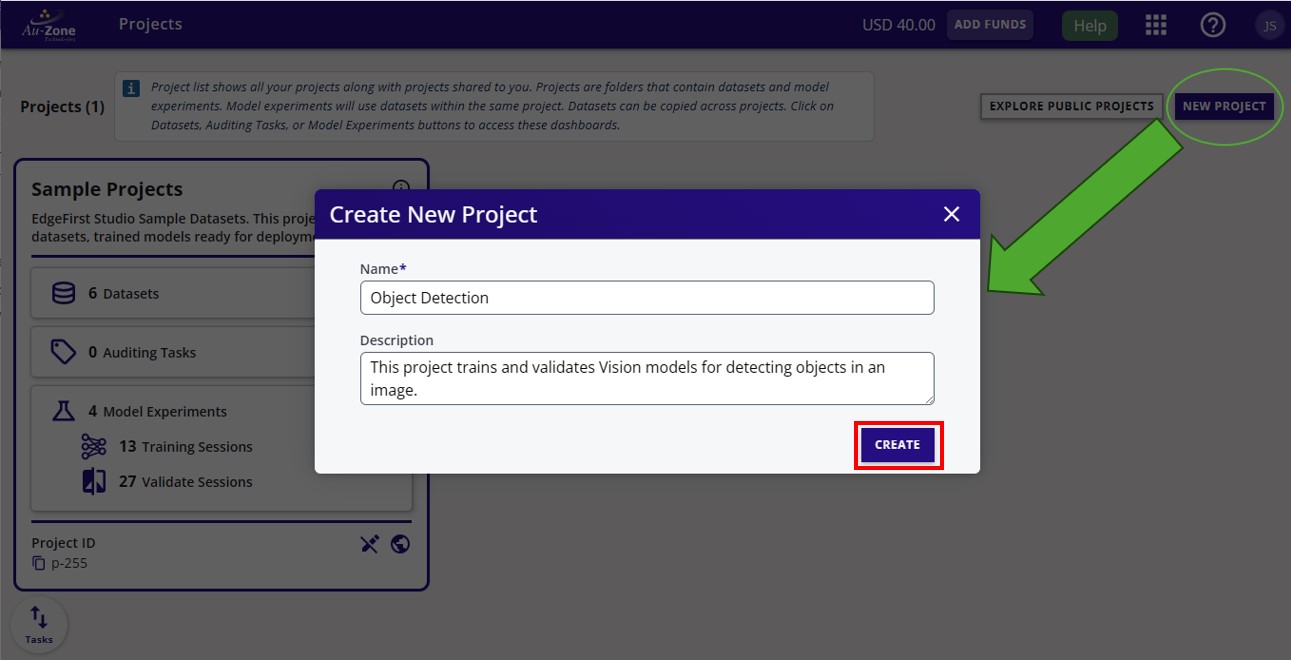
Provide a name and description of the project and then click "Create" to create your project.
Project Details -
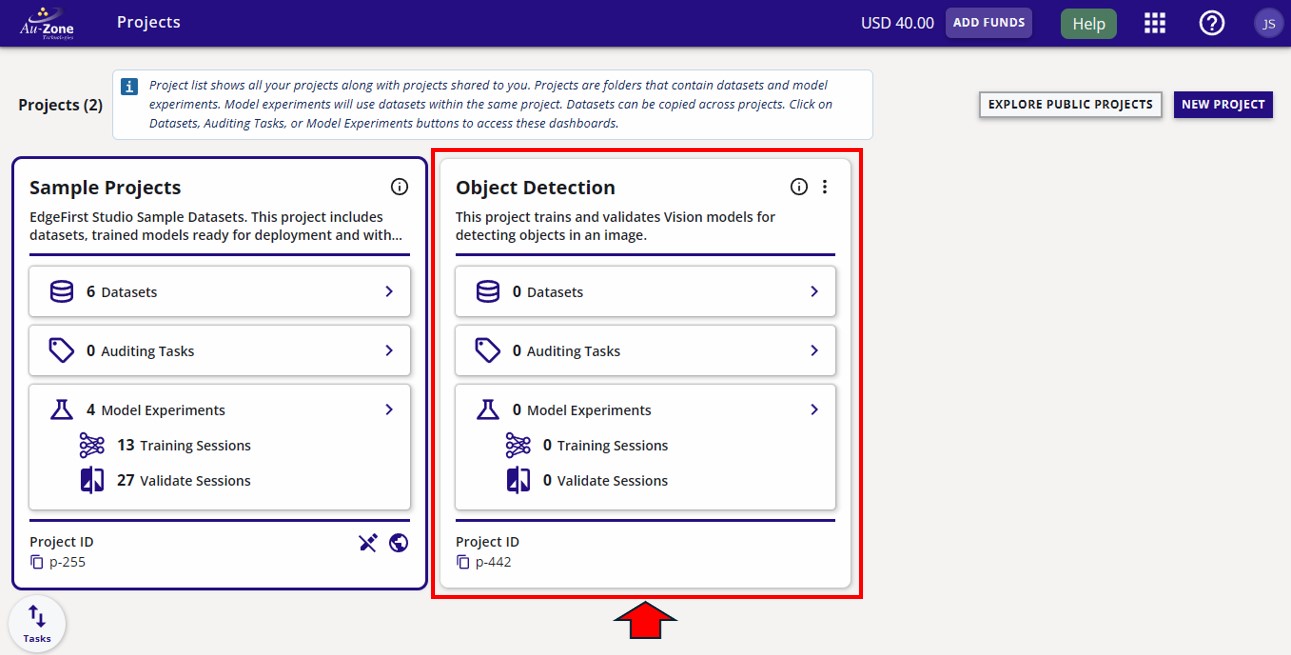
Your created project will now appear in the page.
New Project
Import Videos into EdgeFirst Studio
-
Click on the Apps waffle menu at the top navbar as shown below. This will open another panel, then click on the "APPS" button to navigate to the "APPS" page.
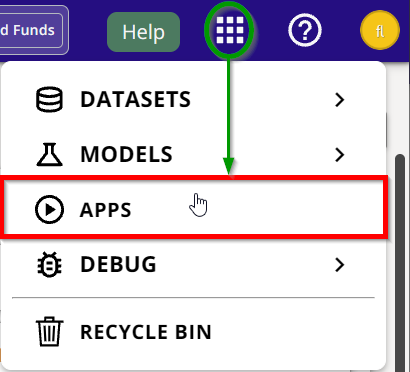
Go to Apps -
Click on the importer set of apps.
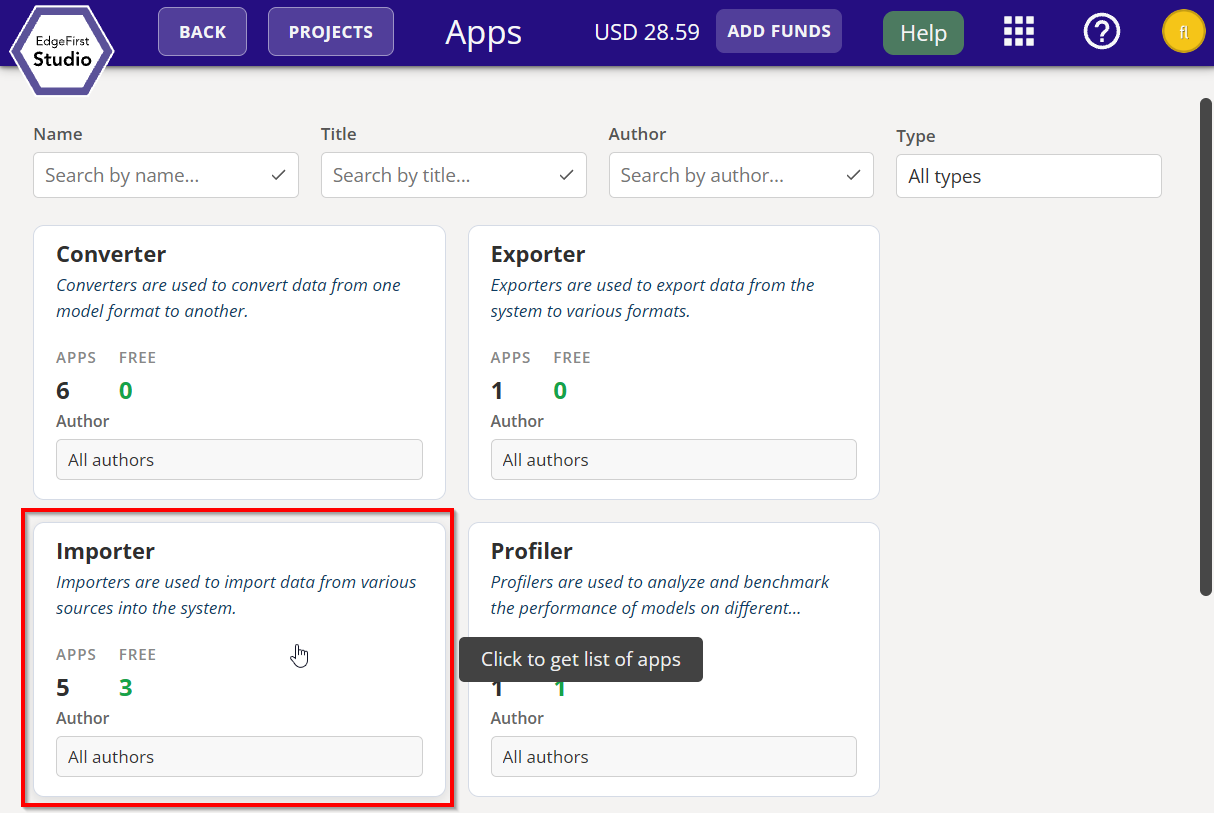
Apps Page -
Find the "Video Importer" app and click the "Run App" button for the app. This will open the settings for the video importer app to configure the video import process.
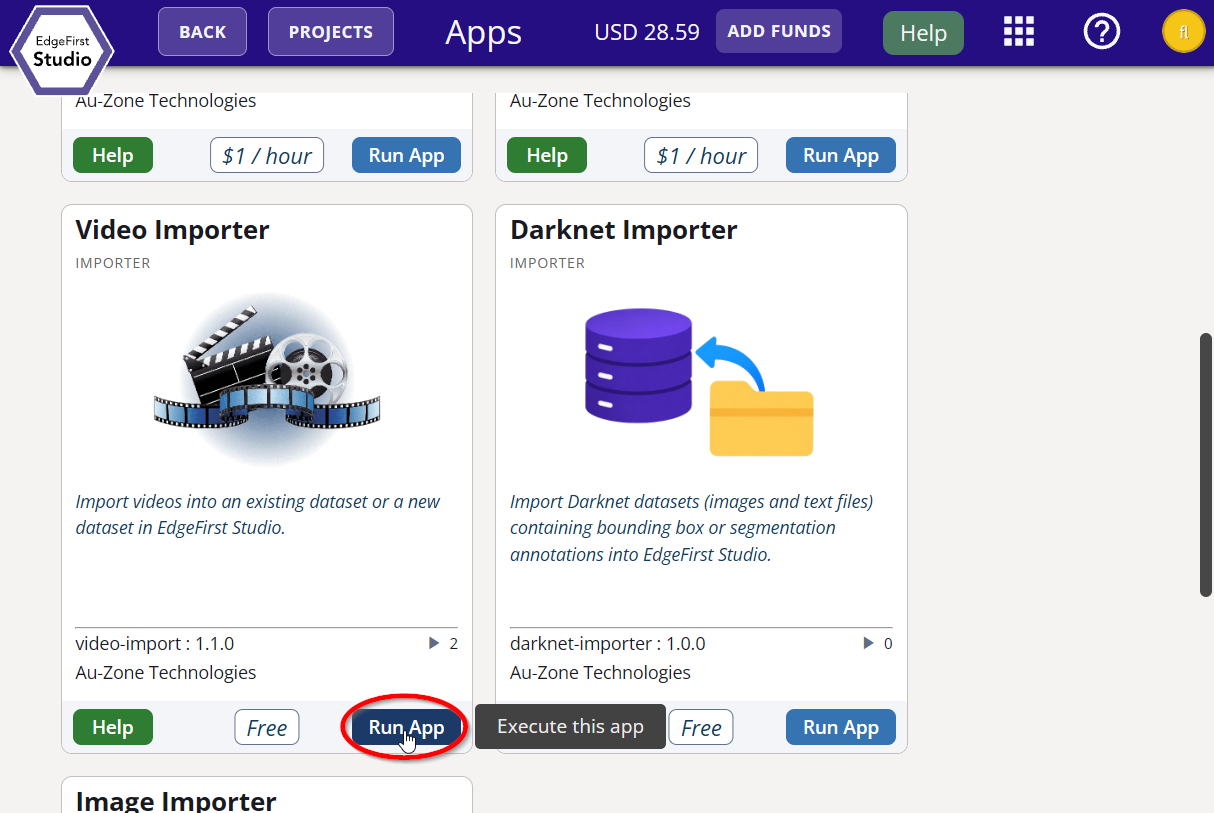
Video Importer App -
Click "Choose Files" to select video files from your PC. Drag and drop selected files into the app as shown.
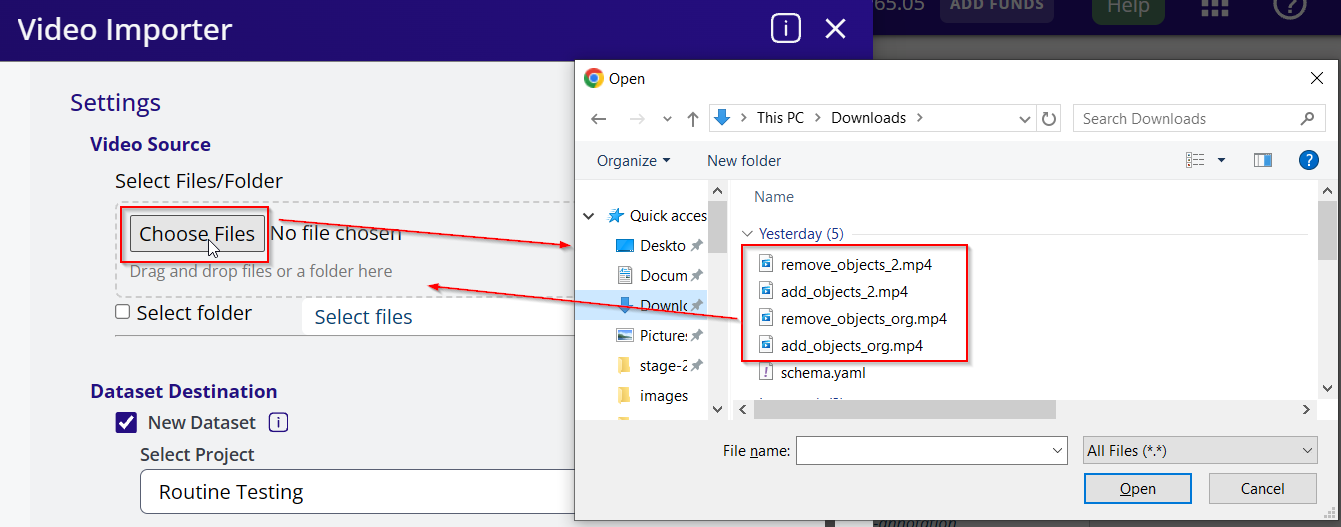
Drag and Drop Video Files -
Once the files have been selected, import the videos by following the steps as shown below.
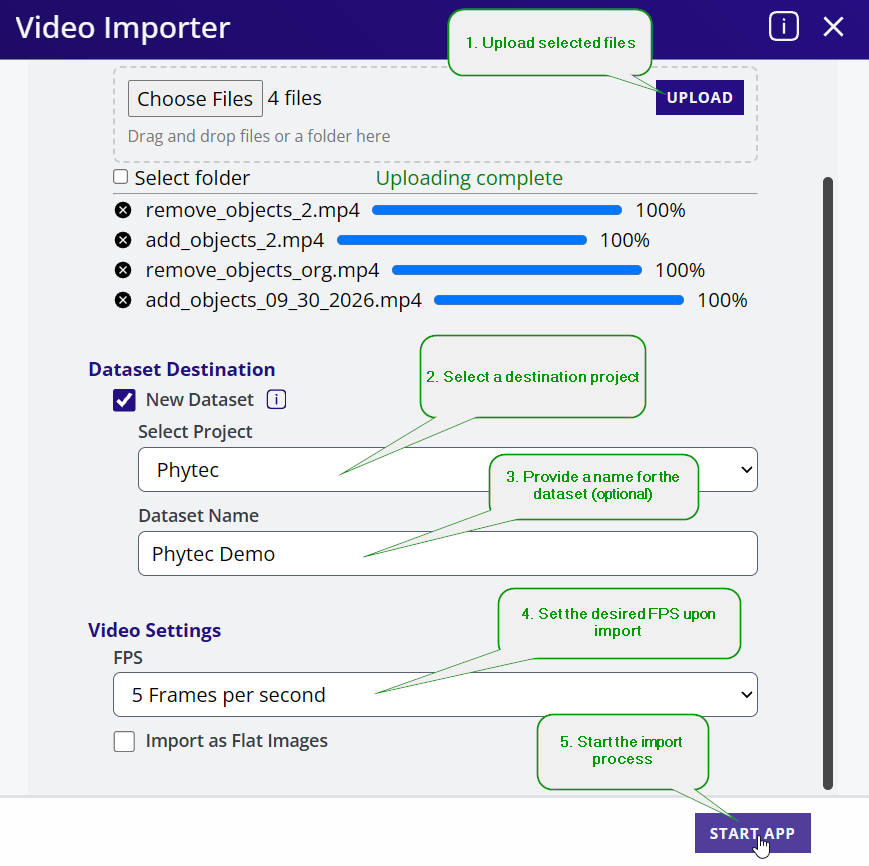
Import Videos -
Once started, the video import progress should be shown below.
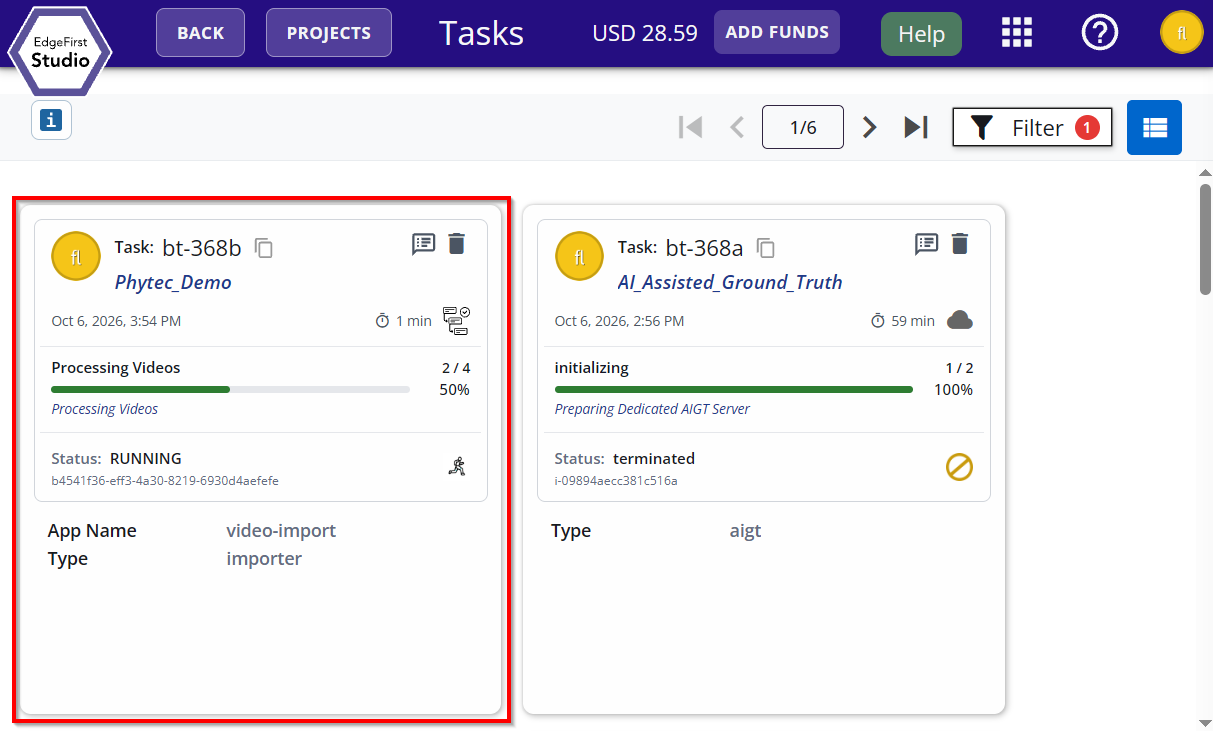
Video Import Progress -
Once complete, you can navigate to the dataset with the imported captures by clicking on the link as shown.
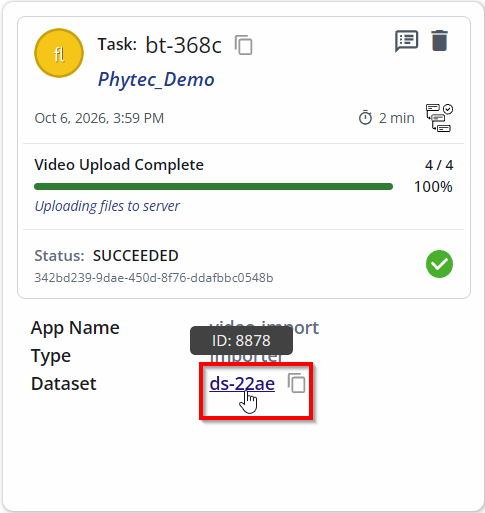
Completed Video Import The link will navigate you to the imported videos. There were four videos imported and each card represents each video that was imported. Clicking on a card will open the video for playback and visualization of each frame.
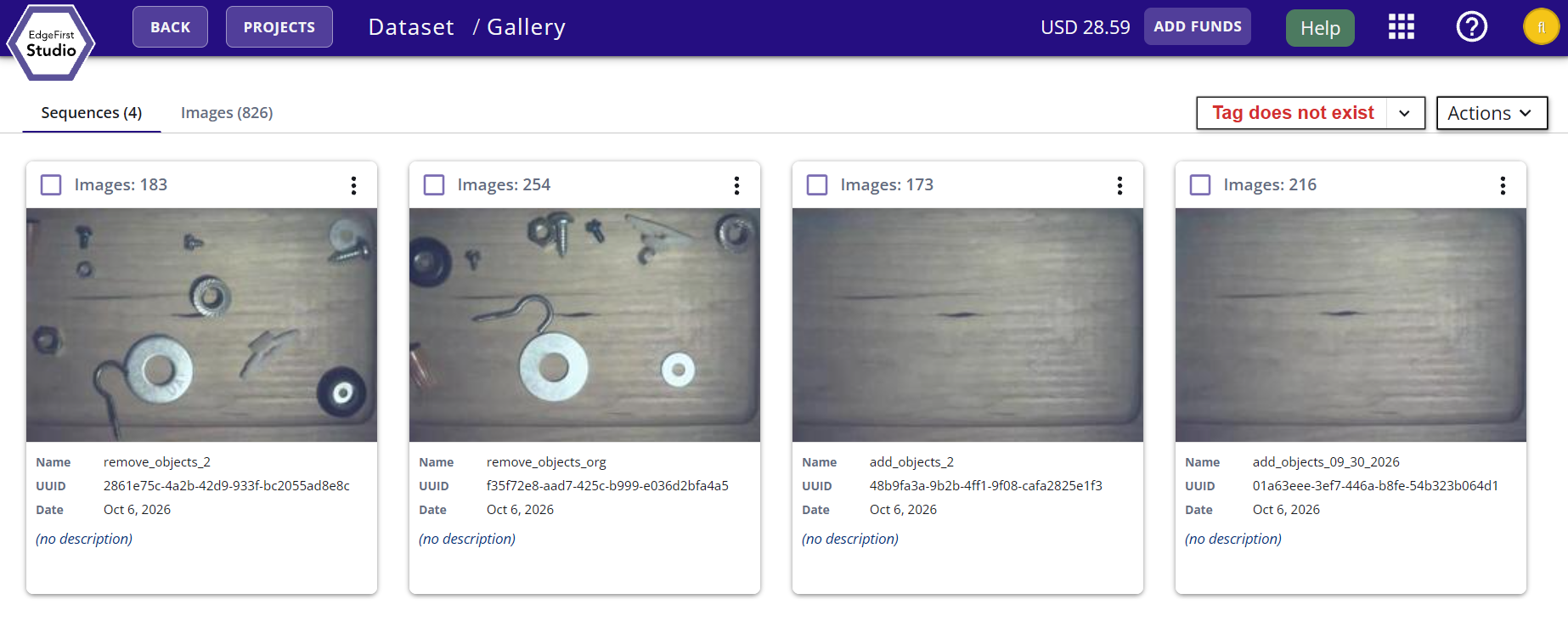
Imported Videos
Import Images into EdgeFirst Studio
-
Click on the Apps waffle menu at the top navbar as indicated below. Then click on the "Apps" button to navigate to the list of apps in Studio.
Apps Button -
Click on the importer set of apps.
Importer Apps -
Click "Run App" on the image importer app as shown below.
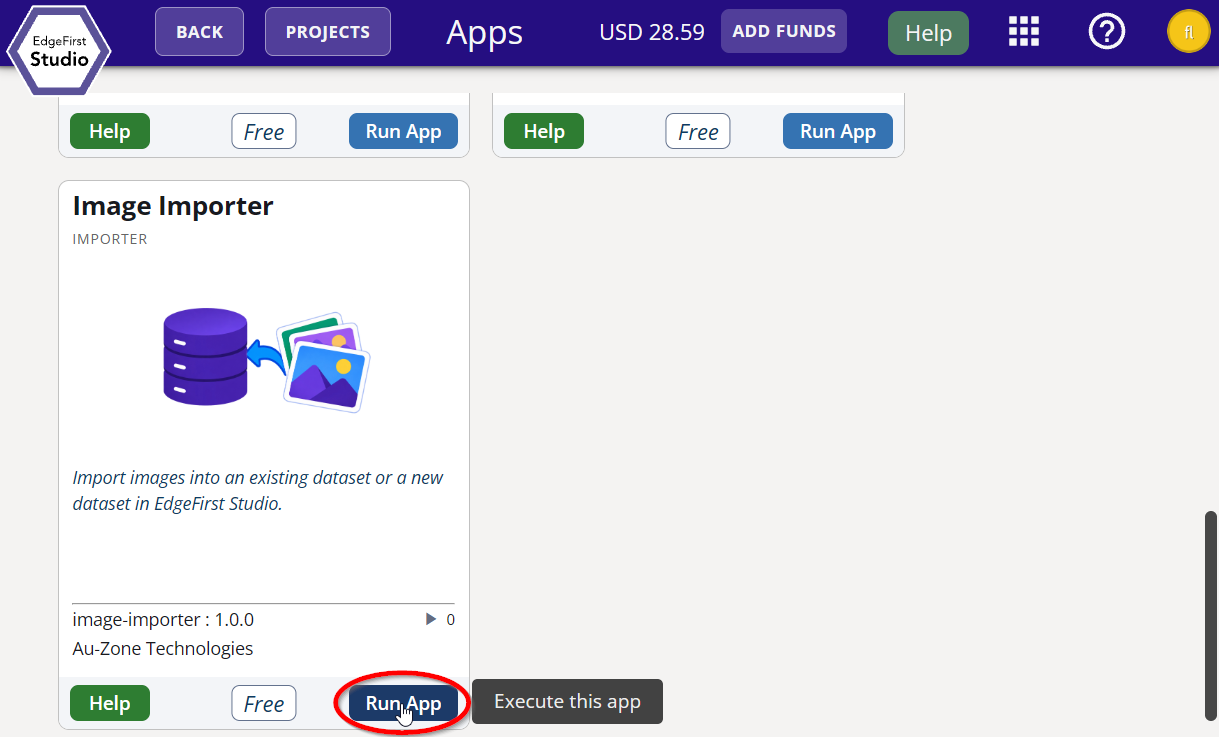
Image Importer App -
Click on "select files" to select image files from your local machine.
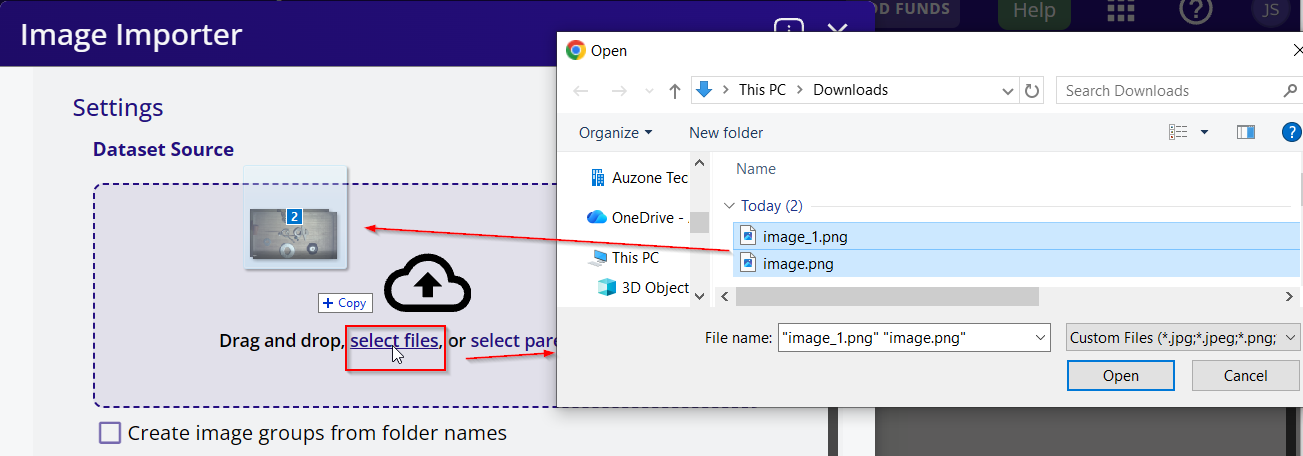
Drag and Drop Image Files -
Once the files have been selected follow the steps as shown below.
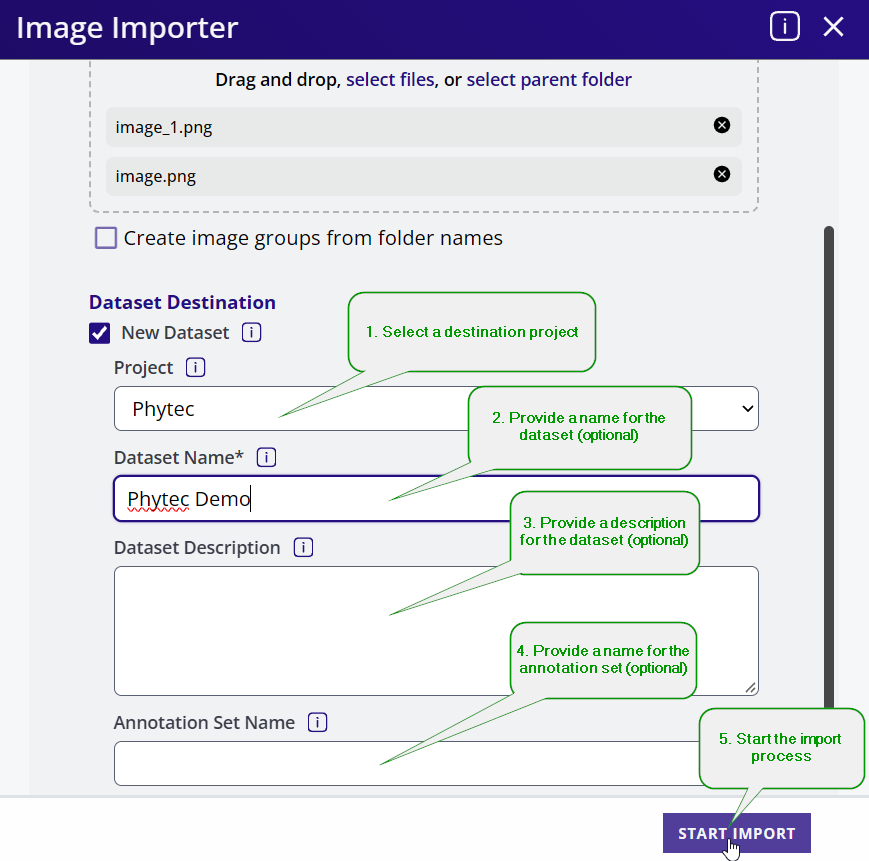
Import Images
Next Steps
Now that you have imported your videos or images into EdgeFirst Studio, let's take a look at how to annotate the dataset which can then be used to train a detection model based on the annotated objects.