Top-up
The Top-up page allows administrators to add credit balance to their organization account. To access this page, click the Add Funds button in the top navigation bar, or navigate to Admin Console from the user menu, select Billing from the side navigation, then click Top-up.
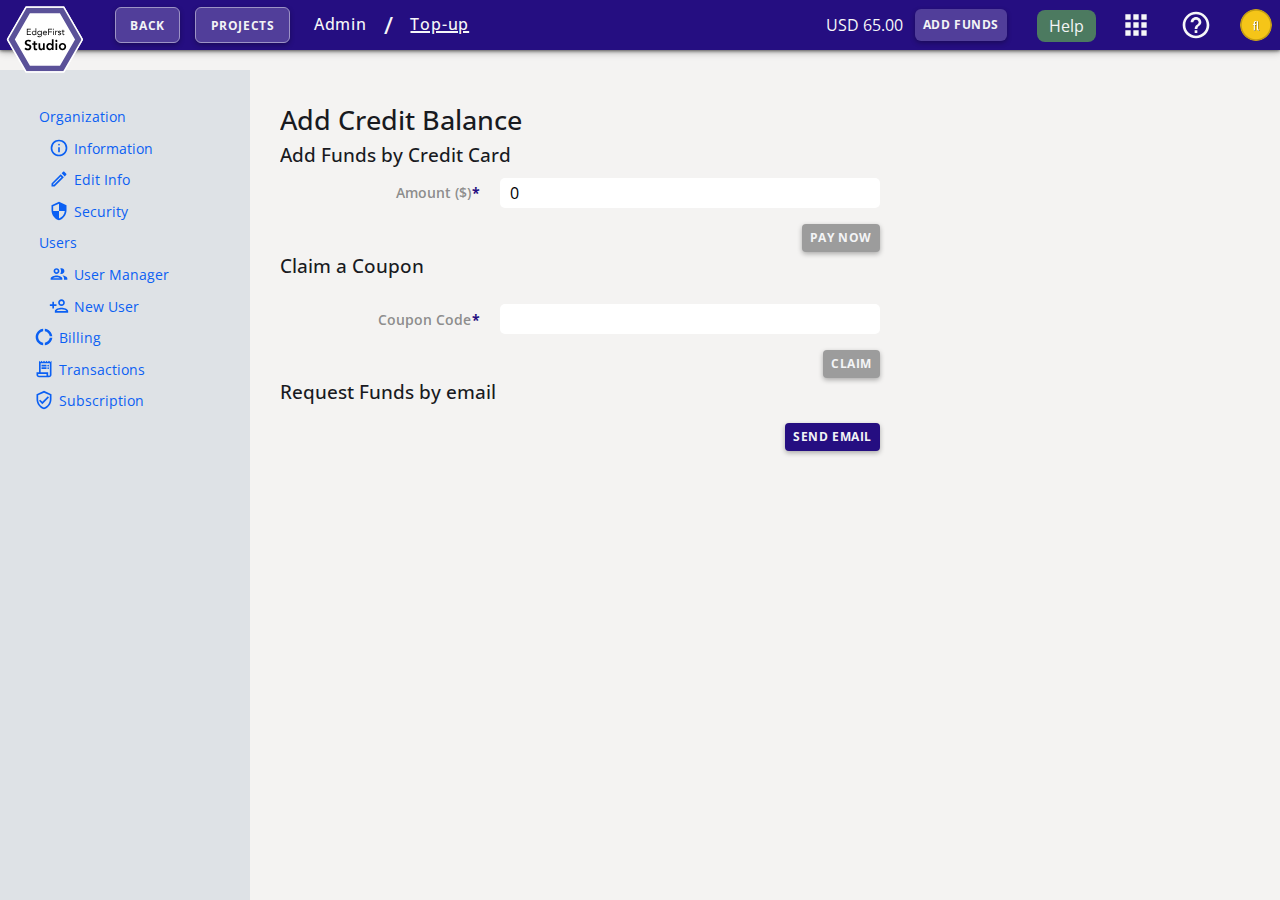
There are three ways to add funds to your organization account.
Add Funds by Credit Card
Enter the desired amount in US dollars in the Amount ($) field and click Pay Now to process the payment immediately using the default credit card on file.
Note
A valid credit card must be configured under Subscription before paying by credit card. The Pay Now button is disabled until a non-zero amount is entered.
Claim a Coupon
If you have received a promotional coupon code, enter it in the Coupon Code field and click Claim to apply the associated credit balance to your organization.
Request Funds by Email
Click Send Email to open a pre-filled email addressed to the EdgeFirst support team. Use this option if you require a custom billing arrangement, a purchase order, or do not have a credit card configured.
Next Steps
To review your current plan limits and payment methods, see Subscription. To review your transaction history, see Billing Information.