Validate Vision Model
Now that you have trained a model, you can validate the model's performance on target by following the instructions on this page.
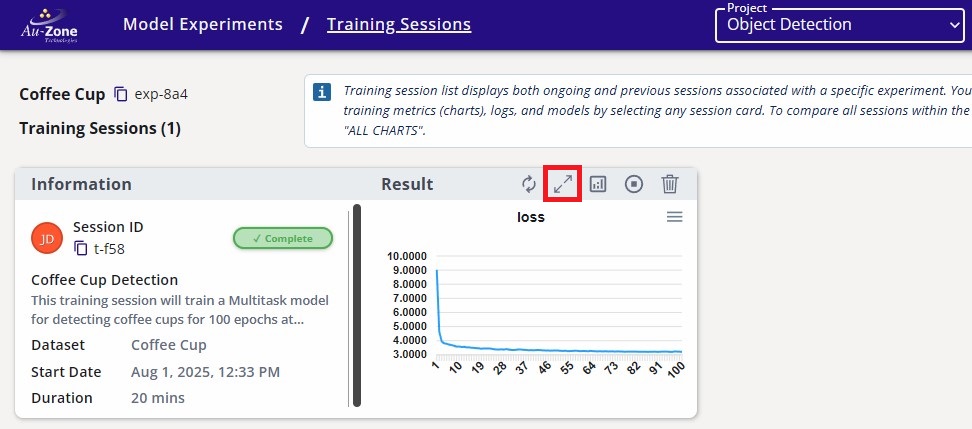
If you haven't already, click on the training session card for more information.
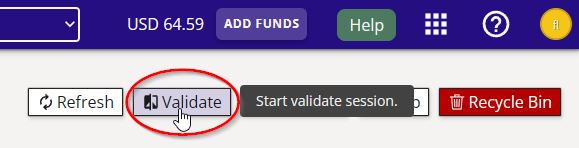
On the top right corner of the page, click on the "validate" button as indicated.
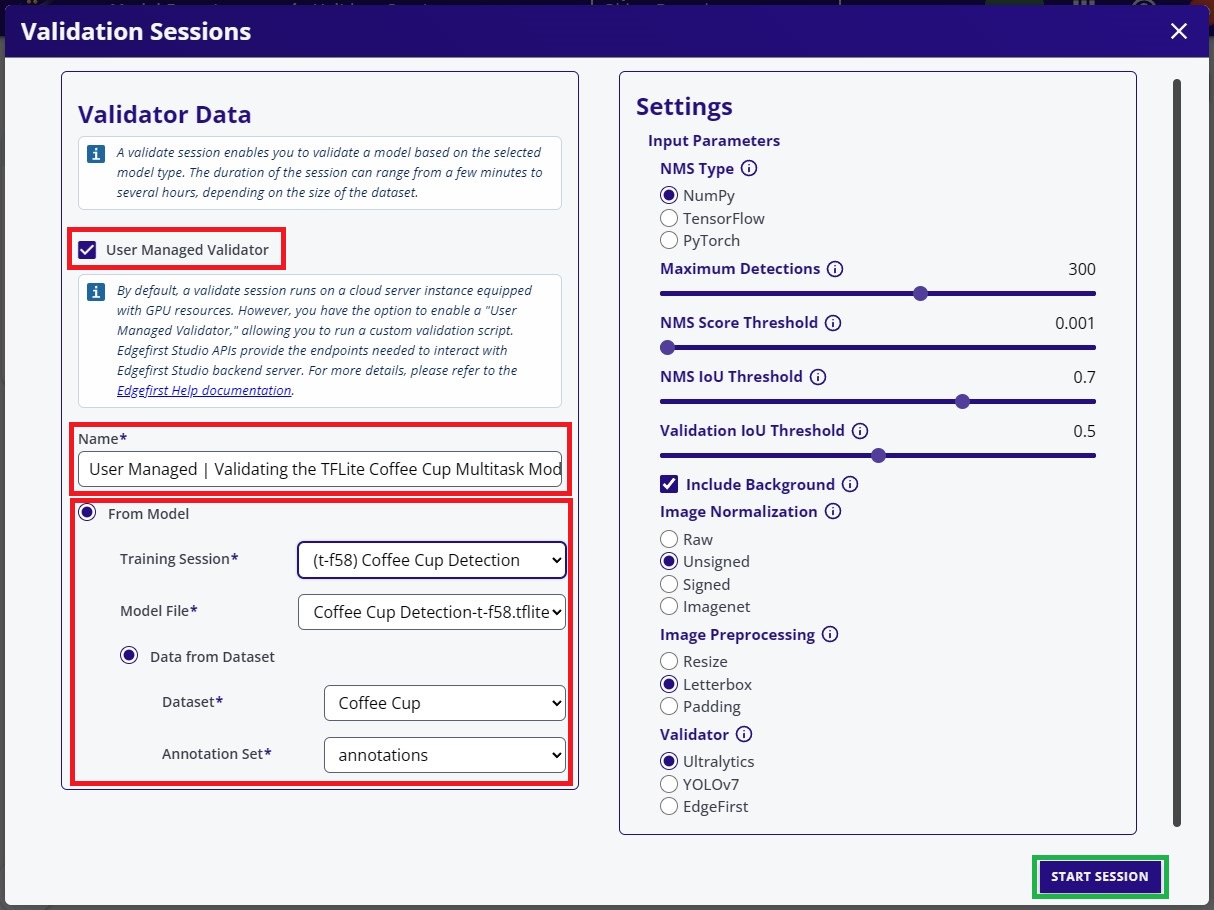
Select the "User Managed" option. Specify the name of the validation session and the model and the dataset for validation. Under the model selection, you can select various trained model artifacts from the choices of ONNX, TFLite, TensorRT, Kinara, Hailo, etc. Choose the model you plan to deploy on target. The purpose of validation is to assess the model of whether or not it meets the performance requirements needed to be deployed on target. The rest of the settings were kept as defaults. Click "Start Session" at the bottom to start the validation session.
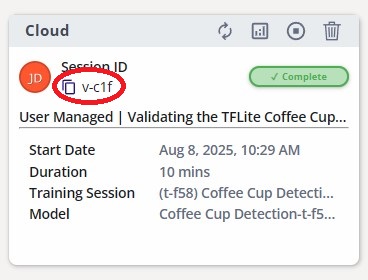
The validation session card will appear like the following below. Each session has a session ID. Make a note of the session ID circled in red below. In this case it is v-1b51.
Once the validation session has been created, SSH into the platform and install the EdgeFirst Profiler.
Virtual Environment
If you do not have a virtual environment already set up, please follow these steps below.
To avoid re-installation of existing system packages, we recommend setting up a Python virtual environment prior to running the pip installations below. Append --system-site-packages when creating the environment to include existing packages in the system. For example:
- Linux
python3 -m venv /path/to/myenv --system-site-packages - Windows
python -m venv /path/to/myenv --system-site-packages
Activate the environment via:
- Linux:
source /path/to/myenv/bin/activate - Windows:
/path/to/myenv/Scripts/activate
pip install edgefirst-profiler
See Installation for platform installer alternatives and per-target dependencies.
Next sign in to EdgeFirst Studio. The profiler stores the credentials and refreshes them automatically while you are using it.
edgefirst-profiler login
Run validation against the session ID from the session card:
edgefirst-profiler validate --session-id v-1b51
The profiler downloads the model artifact and dataset partition, runs the pipeline on the target, and uploads the predictions and trace back to Studio when the run completes.
If the model already lives on disk and you want to skip the download, pass --model alongside the session ID:
edgefirst-profiler validate --session-id v-1b51 --model /path/to/mymodel.tflite
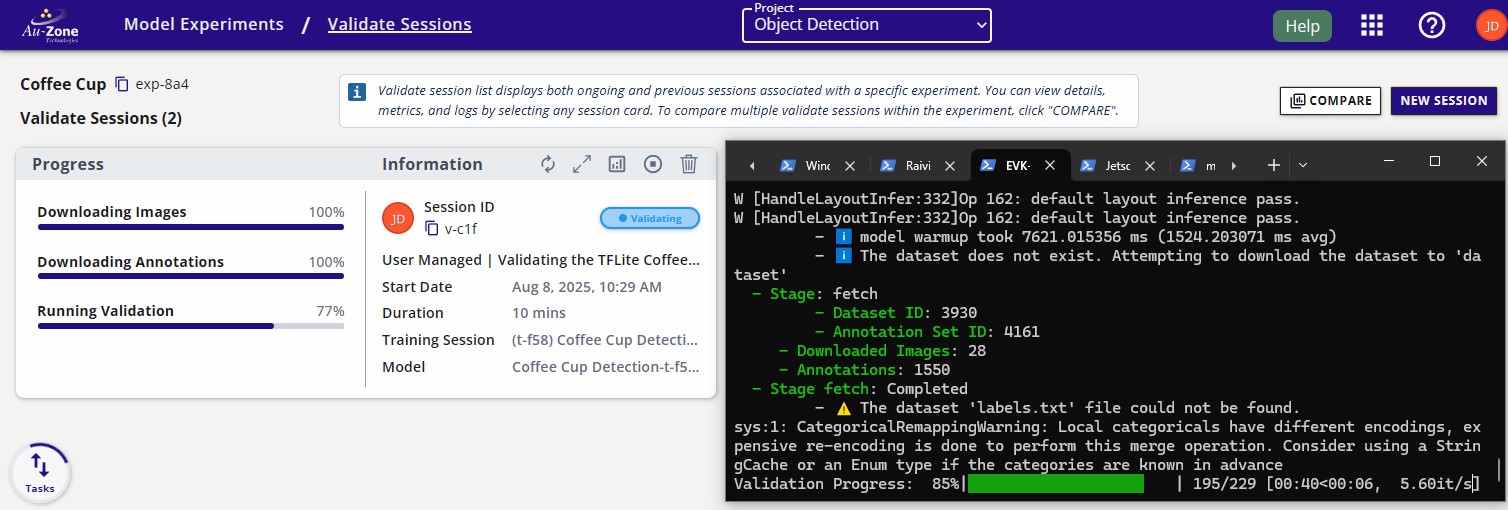
Once the run is underway, the session card in Studio updates with progress.
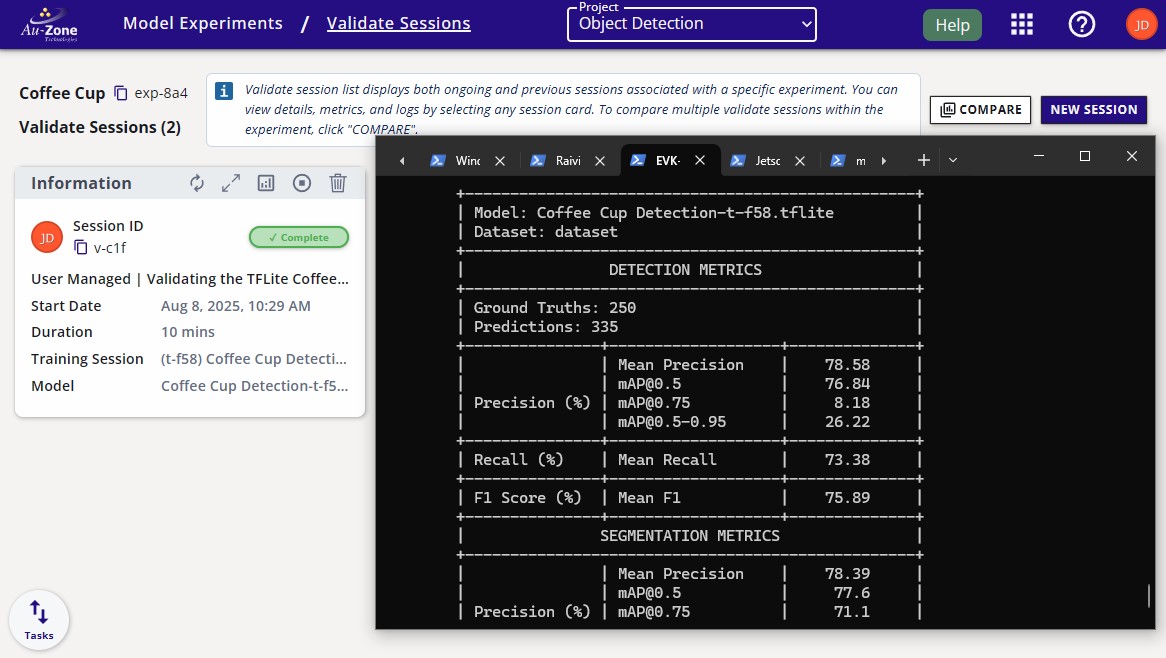
The completed session will look as follows with the status set to "Complete".
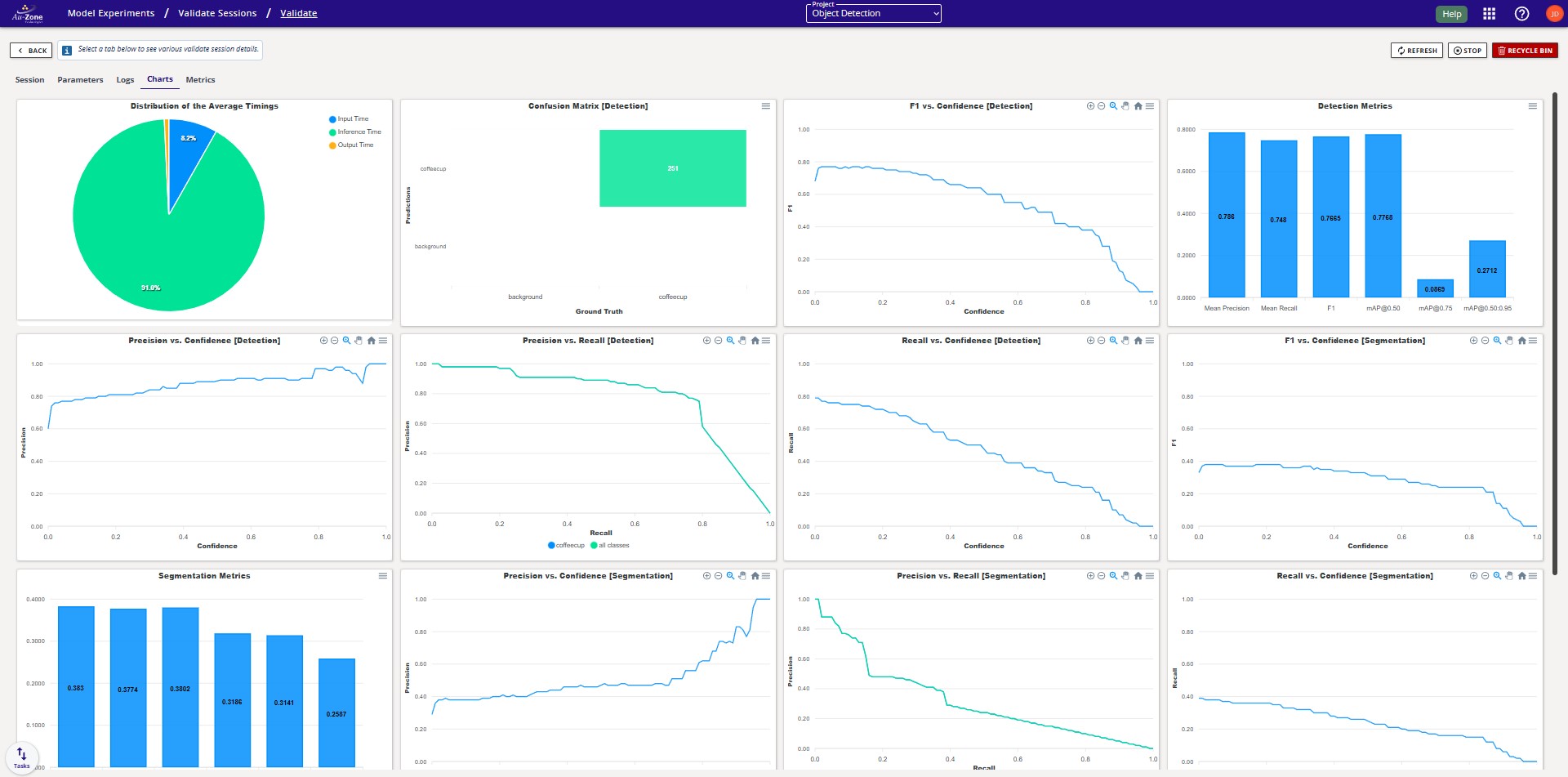
Once the validation session completes, you can view the validation metrics by clicking the "view validation session charts" button at the top right of the session card.
Now that you have validated the performance of the model, you can move forward to deploying the model on target.